 NEWS
NEWS
Apple Just Made It Easier Than Ever to Set up a New iPhone
 07/24/2019
 2834
2834
Apple released iOS 12.4 on Tuesday and, among other things, the update makes it easier to move your stuff from an old iPhone to a new one, especially if you don’t have a recent iCloud backup.
Before the update, Apple let you quickly set up two iPhones or new iPads if you put one next to the other, but it only transferred some data, like your Apple ID and Wi-Fi settings. Now, you can transfer pretty much everything, including messages, pictures, app settings and more. Apps, however, are still downloaded after you finish the initial setup process. If you remember restoring a backup from iTunes, it’s kind of like that, except much easier and uses only your old iPhone.
This is a feature that’s been available on Android for many years, and it’s a good option for folks who haven’t saved a recent iCloud backup, who don’t have enough iCloud space to save a new one, or who simply want to move data between two devices without putting any sort of backup in the cloud at all.
Here’s what you do:
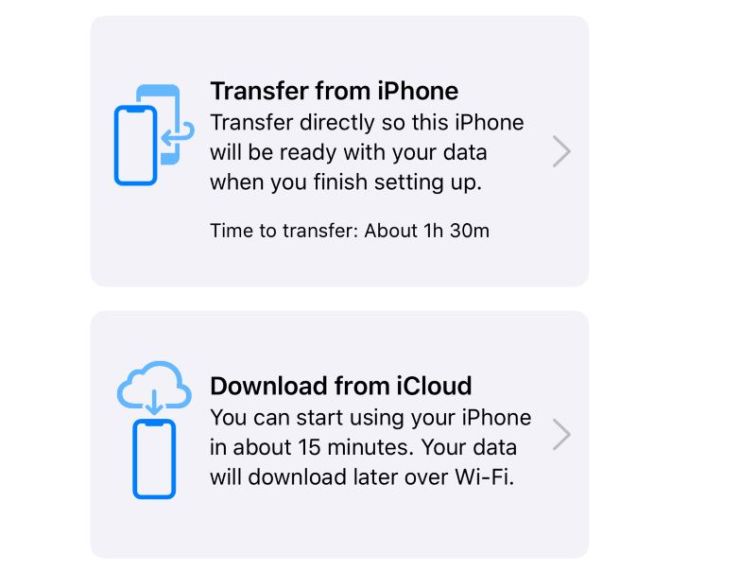
When you set up your new iPhone running iOS 12.4, you’ll be prompted to bring it close to your old iPhone, so do that.
So long as the old iPhone is also running iOS 12.4 or newer, you will see a new option to “transfer from iPhone” or “download from iCloud.”
Choose “transfer from iPhone” and connect the iPhones to the same Wi-Fi network.
All of your settings, messages, pictures, videos and more will be sent from the old iPhone to the new one.
That’s it. Now just sit back while everything is transferred over to your new iPhone. And remember, you can still use an iCloud backup if you want to, just choose the option to “download from iCloud” at the start screen instead of “transfer from iPhone.”
Source: cnbc










