 NEWS
NEWS
Why Apple Is Wrong To Drop Face ID
 07/05/2019
 4126
4126
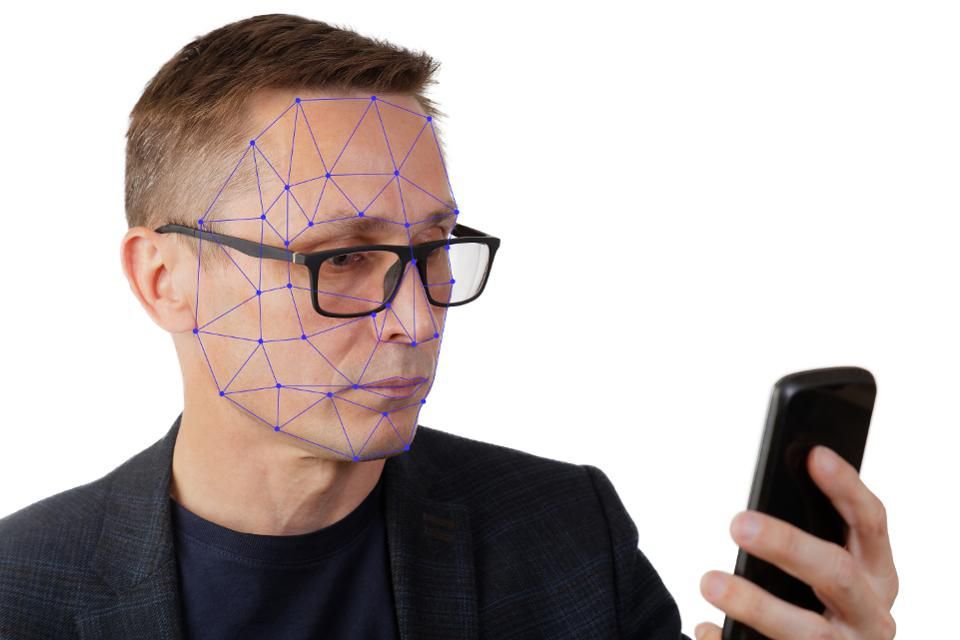
There are plenty of rumors that Apple is planning to drop FaceID. To do so would be a mistake.
Whichever way you look at it, this is not because FaceID is intrinsically a good unlock mechanism. There are plenty of other technologies which use face recognition such as iProov, and they are all a bit mixed in their success. What makes FaceID valuable is the technology behind it.
FaceID uses a depth camera, it’s similar to the Microsoft Kinect, the device which sits on top of your telly when you are playing with an Xbox and allows you to interact with games by waving your arms around. FaceID uses five different photonics components to project a grid onto the user’s face. The facial features distort the grid, allowing a topographical map to be made which allows the secure identification of the user. Holding a flat picture in front of the camera won’t fool the system.
A Vertical Cavity Surface Emitting Laser (VCSEL) time of flight sensor initiates the process, measuring the distance from phone to face to determine exposure times for the other sensors. The user’s face is then flooded with infrared light before a separate array is used to project a dot matrix onto the face and a combination of infrared and visible imaging system sensors then maps out the dots.
This technology offers advantages over using a visual imaging sensor for face recognition because it works in the dark and "sees" what’s behind beards and glasses. It also provides a 3D "map," unlike a conventional 2D camera.
The upshot of this is you have a mass market device, inasmuch as a $1,000 phone is mass market, which has a highly accurate 3D scanner. There are applications which are much more powerful than just unlocking a phone. You could, for instance, scan your feet and send a 3D model to a cobbler in a low-cost country who would then 3D print a cast and hand-make some shoes. What would cost you £1,000 plus in London, is now costing a couple of hundred pounds.
Or imagine an app where you could do 3D scans of six people or pets and have a custom made chess set using the models.
I experimented with a Kinect in 2012 and even with primitive 3D printing, rudimentary free software and limited skills I was able to make chocolate models of friends.
In the armory of biometric unlock mechanisms from fingerprint to gait analysis, Face ID is quite costly in terms of hardware. It uses compound semiconductor technologies for the photonics, but it is that amazing hardware which is the very reason why Apple should keep it in the phone.
When all phones look the same and to most intent, all do the same thing, a cool enabling technology is real progress. While there are apps out there Apple’s failure is to promote FaceID as a depth scanner is what means it’s just seen as an unlock mechanism and not something which puts the iPhone X head and shoulders above its rivals.
Source: Forbes










