 NEWS
NEWS
Apple Watch's Digital Crown Coming to all iDevices Eventually
 01/03/2017
 3366
3366
In late July Patently Apple posted a report titled "Apple Considers using a Digital Crown Mechanism for iPad." It was Apple's first invention whereby they were taking an Apple Watch feature and considering its use in another mobile device. Apple initially noted that the digital crown on an iPad could be used as a volume controller or locking the touch screen, turning on the touch screen, taking a picture, resizing text and other actions. Then in August another invention covering a Digital Crown for an iDevice discussed and illustrated a far more elaborate concept that could be used with a unique 3D UI whereby the user would be able to rotate an interface-cube with each side containing different information. Admittedly that was a rather cool idea as illustrated below. Today's patents focus on bringing haptics to the Digital Crown to enhance the user's experience.
In Apple's summary they note that "Some electronic devices may include mechanical inputs, such as buttons and/or switches. These mechanical inputs can control power (i.e., on/off) and volume for the electronic devices, among other functions. However, sometimes these mechanical inputs can fail to give a user tactile feedback, such as the "click-click-click" feeling of winding a mechanical alarm clock with a knob.
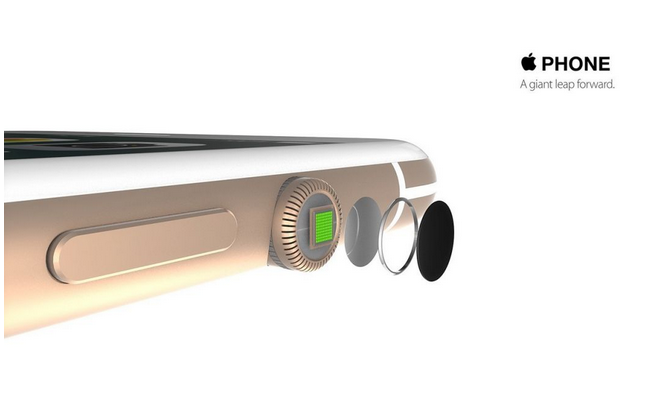
In some examples, such haptic feedback can constitute giving the user a sensation that the user's finger is moving over a ridge, bump or valley feature on an otherwise smooth surface. This type of sensation can simulate the feeling of the user rotating a mechanical knob against the teeth of an internal gear (e.g., the feeling of a detent when turning a rotary input, such as the "click-click-click" feeling of winding a mechanical watch).
Haptic feedback as described in this patent filing can give the user feedback about the effect of the user's input on the electronic device, such as changing the zoom-scale of content displayed on the device in response to the user's rotary input.
Apple envisions the Digital Crown working across the iPhone, iPad, iPod and Apple Watch. The 3D UI concept would even help Apple Watch users being able to have each side of the cube represent the most used apps like mail, phone calls (future), contacts, games, iWork and so forth. The idea is growing on me, how about you?
Considering that this is a patent application, the timing of such a product to market is unknown at this time.
Source: patentlyapple










