
NEWS

Unc0ver V1.0.3 Released with Fixes for Known Issues

10/24/2018

3333

iOS hacker Pwn20wnd has been releasing a steady stream of updates for the unc0ver jailbreak tool since its conception, and it has come to our attention that another update for the tool was released Tuesday afternoon.

Citing a couple of Tweets shared by Pwn20wnd not too long ago, unc0ver V1.0.3 apparently resolves a few issues known to occur on supported beta firmware versions and further improves the RootFS Restore feature:
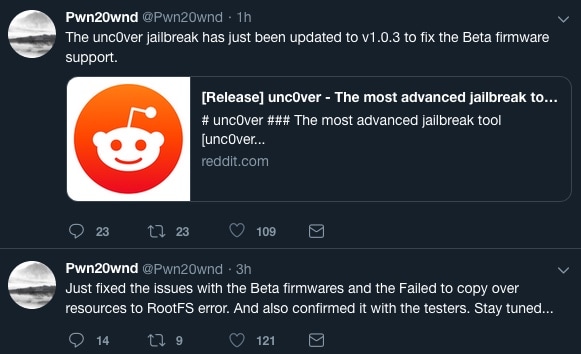

Unc0ver V1.0.3 Released with Fixes for Known Issues

Citing the official /r/jailbreak post, the new V1.0.3 release encompasses the following changes:

  • Fix known issues with beta firmware supported by unc0ver

  • Resolves the “Failed to copy over resources to RootFS” error message some users were receiving


All unc0ver jailbreak users are advised to download the latest version of unc0ver from Pwn20wnd’s official GitHub repository at their earliest convenience. Although the update mostly targets beta firmware users, refinements made in the tool’s code undoubtedly improve stability across the board.

Unc0ver is a semi-untethered jailbreak just like Electra, which means you need to re-run the tool after every reboot. That aside, it encompasses a newer Saurik-approved version of the Cydia Store that runs better on iOS 11.

You can follow our in-depth tutorial about how to install and run the unc0ver jailbreak.



Windows
Mac OS
iOS
Linux
3uTools
Win 64-bit For this device
V9.01 2025-12-27
Download
Win 32-bit For this device
V9.01 2025-12-27
Download
3uTools
Intel Chip How to Identify Chip Type
V9.01 2025-12-31
Download
Apple Silicon
V9.01 2025-12-31
Download
How to Identify Chip Type
1.  Click the Apple icon in the top-left corner of the screen and select About This Mac.
2.  Check the Processor or Chip field to determine if it is "Intel" or "Apple".
Please use the 3uTools PC client to install the iOS client:
1、 Install either the Windows or Mac version of 3uTools on your computer
2、 Open the PC client and connect your device to the computer via USB cable
3、 After the connection is successful, wait for the computer to automatically install the mobile app for the device, or locate “Install Mobile App” on the computer and manually click to install.
3uTools
deb file
V3.01 2025-11-20
Download
rpm file
V3.01 2025-11-20
Download
Windows
Windows
iOS
iOS
Android
Android
TV
TV
3uAirPlayer
Win 64-bit For this device
V6.0.2 2025-11-19
Download
Win 32-bit For this device
V6.0.2 2025-11-19
Download
iOS Device Mirroring (No App Required)
1、 Install 3uAirPlayer on the Windows PC
2、 Open Control Center and select Screen Mirroring
3、 From the list, choose your PC to start mirroring
4、 Or connect your iOS device to the PC via USB to begin mirroring
Scan to get "3uAirPlayer" App
3uAirPlayer TV V1.0.18
2025-11-28
TV System Requirements: Android 7.0 or later
Download the TV installation package, copy it to a USB drive, insert it into your TV or set-top box, then select the file from the home screen to install.




