 NEWS
NEWS
Uber May Now Have Permission to Track your iPhone
 12/23/2016
 4730
4730
Uber updated its mobile application recently, adding features that may let it continue to collect user location data even after a ride is completed. Uber said it would only collect data about you for five minutes after a ride ends, but there’s no setting in the iPhone that would guarantee a limitation of five minutes. That means you have to trust that Uber is doing what it said it would do. However, it turns out that the company may already be abusing the feature.
In iOS, you can normally limit an app’s access to location data to Always, Never, or While using the app. With Uber, only the first two options are available. Following Uber’s latest update, you’d expect Uber not to stop tracking you once you finish a ride, but that might not be the case.
A few days ago, John Gruber said he’s been monitoring Uber’s location tracking and found no foul play. But that’s when things got interesting.
"Go to Settings → Privacy → Location Services and take a look at the list of apps", he said. "If Uber has checked your location recently, an indicator will appear in the list — purple if it checked ‘recently,’ gray if in the last 24 hours. I’ve been checking this every few days ever since Uber changed its location-checking privilege, and it has never once shown any sign of misuse."
"I don't trust Uber. But we can collectively verify that in this case, they’re doing exactly what they say they’re doing," Gruber concluded.
Soon after that, he received a large number of complaints from users who discovered that Uber has been accessing their location without their knowledge. Users who had not taken an Uber ride in days discovered that the app had still looked at their location data in the past 24 hours.
Gruber posted some of the feedback he received from iOS users on Storify, and here are some examples:
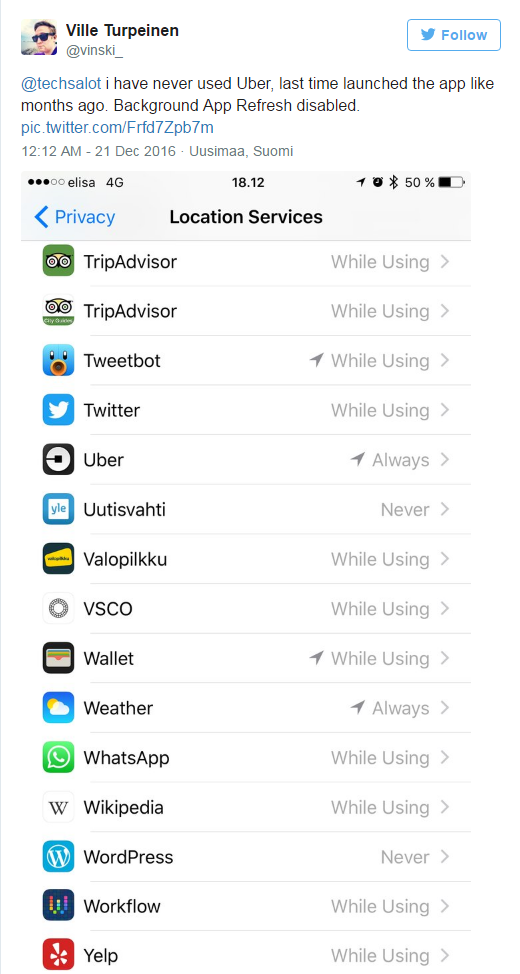
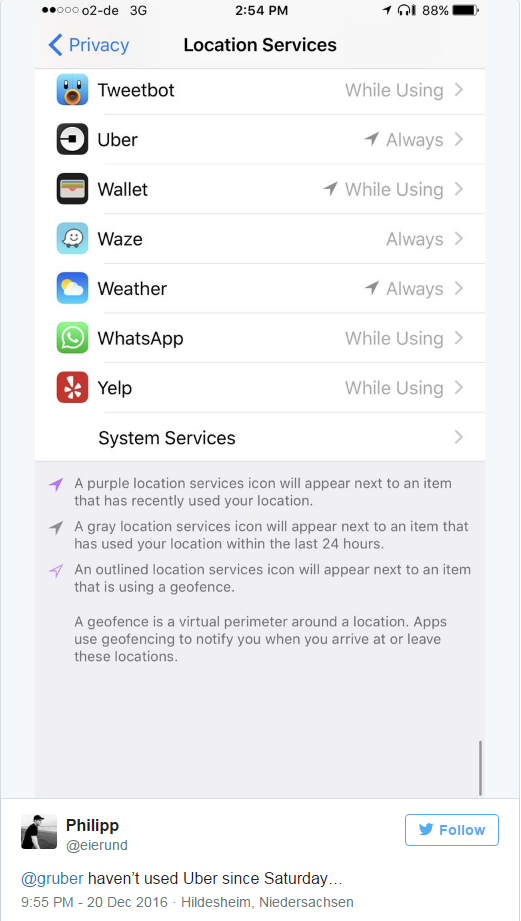
It’s unclear at this time what is causing the problem, but as Gruber notes, "it’s not good."
Source: BGR










