 NEWS
NEWS
Marathon Runner Tests Apple AirPods on A 10k Run
 12/20/2016
 4159
4159
Apple AirPods wireless headphones are now being delivered to customers and the usual bevy of real-world tests have started hitting YouTube. One interesting test is from Daniel Garcia, who takes the AirPods on a hilly mountain run to see how they work as earbuds for fitness workouts in terms of comfort, secure fit and battery life.
He came away impressed; the AirPods stayed in his ears throughout the jogging and sprinting in windy conditions. Watch the video after the jump...
Garcia unboxes the AirPods, which shows the charging case LED in a white glowing ‘unpaired’ state, and then films himself going on a 10K run with them in his ears.
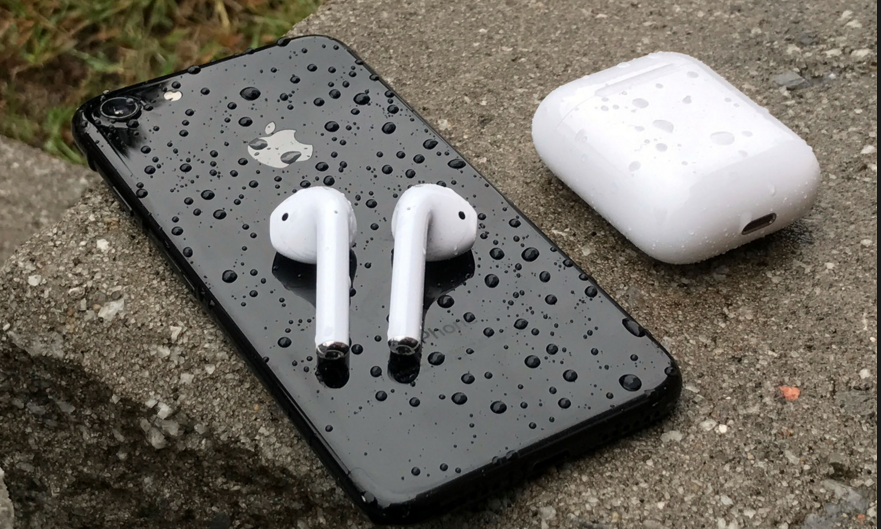
He said sound quality was good, with better-than-expected bass. His first impressions upon putting the AirPods in were not filled with confidence, as he said it felt like they were going to fall out. However, the AirPods stayed in his ears across the entire journey; at one point he says it doesn’t feel like they have moved at all.
His run/sprint lasted a little over an hour with continuous music playback; the AirPods reported 84% battery life at the end which is inline with Apple’s claims of 5 hours use on one charge without using the case to top them up.
Things like comfort and fit will obviously vary from person to person so one review isn’t going to speak for the entire of the human population interested in using AirPods for fitness.
It does indicate that clips or attachments are probably not going to be necessary for most people. It seems like the AirPods should work great standalone as casual wireless earbuds or as workout headphones.
Source: 9to5mac










