 NEWS
NEWS
Apple Engineer Reveals the Real Reason Steve Jobs Didn’t Allow Flash on the iPhone
 12/13/2016
 5030
5030
It all seems like ancient history now, but it really wasn’t all that long ago that Apple and Adobe were engaged a very public and extremely bitter dispute stemming from Apple’s refusal to support Flash on the iPhone. While Adobe was quick to call out Apple out for engaging in anti-competitive behavior, Apple’s party line was that Flash was a security nightmare riddled with a number of performance and security issues.
Apple and Adobe’s battle over flash reached its zenith in 2010 when Steve Jobs penned a widely circulated screed detailing why Apple’s mobile products, which at the time included the iPhone, iPod Touch and iPad, did not support Flash. Titled "Thoughts on Flash" and weighing in at nearly 1700 words, Jobs thoroughly explained Apple’s rationale for completely ignoring, what was then, a very relevant piece of software technology.
In hindsight, thanks to no shortage of Flash-related problems on Android, it’s commonly accepted that Apple’s decision to avoid Flash like the plague was a shrewd one.
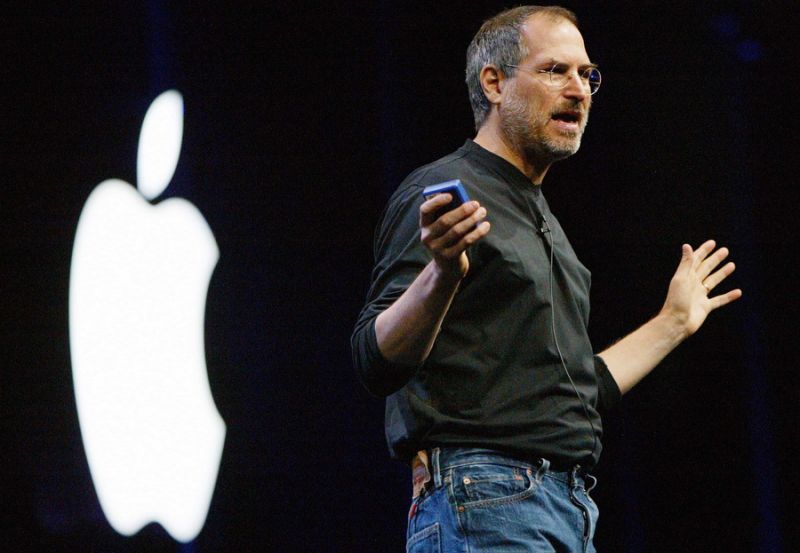
That said, a series of tweets from Bob Burrough, a former software development manager at Apple, reveals that Apple at one point actually tested Flash on the iPhone as far back as 2008. What’s more, Burrough relays that Jobs’ vehement refusal to support the technology may have had less to do with security considerations and more to do with the fact that Adobe, as a partner, couldn’t be relied upon to address said security issues.
Burrough went on to fire off a series of tweets which provides us with a fascinating look into Jobs’ mindset at the time.
According to Burrough, Jobs was miffed that Adobe CEO “Shantanu Narayen would not take his phone calls.” As a result, Jobs had zero faith that Adobe would be able to address what Jobs reportedly categorized as “mere engineering problems.”
“One of the things that has irked me over the subsequent years was that people widely ridiculed Steve for this decision,” Burrough later added. “However, the decision was the right one based on both technical reasons and that Adobe was a shi**y partner. Almost a decade later, it turns out that Steve Jobs was right. Flash is dead and Adobe is a still a shi**y partner.”
It’s crazy to think that the entire Apple/Adobe brouhaha essentially boiled down to Apple’s mistrust of Adobe as opposed to any insurmountable technical hurdles. But whatever the reason, hindsight now tells us that the iPhone was always much better off without Flash.
Source: yahoo










