 NEWS
NEWS
Apple Brings Official Support for External GPUs to macOS in new Update
 04/02/2018
 4952
4952
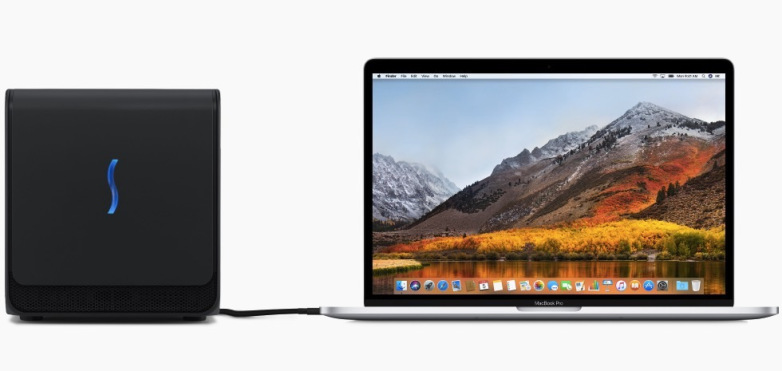
Apple introduced support for external GPUs on macOS High Sierra this week, months after revealing it would do so at WWDC 2017 last summer. Rolling out earlier this week, the macOS 10.13.4 update gives Mac users with Thunderbolt 3 ports the ability to enhance the graphical performance of their machines by connecting a variety of external graphics processors. This can open the door to 3D and VR gaming, even on a relatively weak machine.
Apple lists several supported eGPU configurations on its website, highlighting several AMD Radeon cards such as the RX 570, RX 580 and RX Vega 56. Apple also notes that you’ll need a Thunderbolt 3 chassis to sufficiently power your card, so it’s not as simple as plug-and-play (though that shouldn’t come as much of a surprise).
Apple warns that eGPUs are only supported on MacBook Pro notebooks released in 2016 or later, iMac computers released in 2017 or later, and the iMac Pro. You also need to have the latest version of macOS High Sierra installed on your machine, so be sure to update before you try plugging in an external processor.
Here’s everything Apple says you can do once you update to macOS 10.13.4 on a supported machine:
Accelerate applications that use Metal, OpenGL, and OpenCL
Connect additional external monitors and displays
Use virtual reality headsets plugged into the eGPU
Charge your MacBook Pro while using the eGPU
Use an eGPU with your MacBook Pro while its built-in display is closed
Connect an eGPU while a user is logged in
Connect more than one eGPU using the multiple Thunderbolt 3 (USB-C) ports on your Mac2
Use the menu bar item
 to safely disconnect the eGPU
View activity levels of built-in and external GPUs. Open Activity Monitor, choose Window > GPU History.
Source: bgr










