 NEWS
NEWS
Apple Needs To Quickly Address Another iPhone Problem
 11/29/2016
 4872
4872
More people are writing about a small frustration with their iPhone or iPad. Hopefully Apple is listening to them, because if Cupertino is not careful there’s going to be some trouble in the shangri-la of iOS.
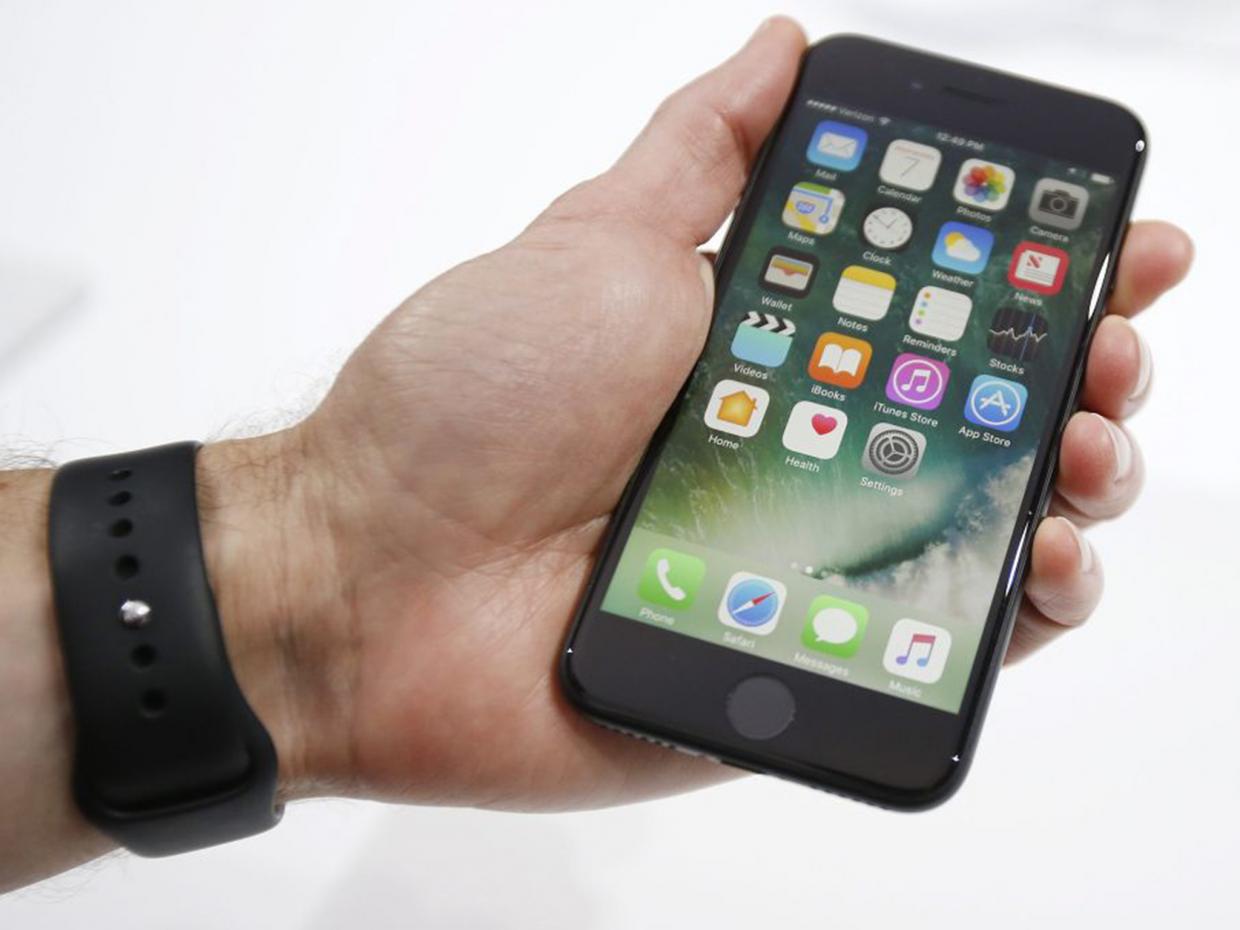
I’m talking about the slowly rising levels of calendar spam. Apple’s calendar app allows invites to be sent by unauthenticated users and pushed directly to a handset. You get a bubble alert on the calendar app, text in your inbox you have to read, and depending how you have set up your device you might get a ‘useful’ notification that you have no choice but to read and clear.
Right now I’m getting an invite every day or two to buy Ugg Boots or remember to purchase some Chinese-sourced Ray Bans. All of which I never asked for. These invites are awkward and quick to deal with, but the process is tiresome and it is starting to get annoying. I hope the spammers do not start to lean heavily on this new channel (either one organisation turning the taps on full, or multiple organisations deciding to exploit this new route and creating a logjam) because it could get time-consuming and painful very quickly.
Being able to mark invites as spam, to be able to blacklist addresses, and to have some processing done on the server side to stop a flood of invites from a single source would all help deal with this issue. If this can be implemented quickly then calendar spam would be nothing more than a short-term annoyance. The danger for Apple is that the success of this route to potential customers will become a popular route for spammers. If there’s one thing that spammers are good at, it’s working out how to send a tsunami of messages to make the tiny percentage rate of replies into a successful business.
As it stands there are a number of workaround solutions, but none of them are perfect. You could switch of the calendar integration with iCloud which would be rather drastic but effective. You could push all your spam requests into a separate calendar – deleting that calendar deletes all the entries en masse but you still need to move the entries into that Calendar. Another idea is to change your iCloud calendar settings from your desktop to change invite notifications from ‘in-app’ to ‘email’ and use your email client to filter the spam.
These are stopgap measures because the real answer has to come from Apple. Tim Cook and his team has been given a heads-up that there is something not quite right in its world. This issue is starting to get noticed in the wider world and the time to act is now. Hopefully the next update to iOS along with some server side work on iCloud will tweak the Calendar application and settings to allow for spam to be marked, tracked, and removed before it causes some serious headaches to the workflow of millions of users.
Source: Forbes










