NEWS

iPhone Dropped Into Frozen Lake Still Works Over A Year Later

11/25/2016

4038

iPhone Dropped Into Frozen Lake Still Works Over A Year Later


Lucky fisherman has been reunited with a lost iPhone that survived more than 18 months at the bottom of an icy lake.


Michael Guntrum, from Knox in Pennsylvania, was fishing on Kyle Lake last year when the handset dropped through a tiny hole in the ice.


“Lost my phone today,” he wrote in a Facebook post on March 2015. “Long story short. Ice fishing,+ hole in ice = iPhone at bottom of lake.”


iPhone Dropped Into Frozen Lake Still Works Over A Year Later


Not even the most optimistic person would expect to see that iPhone ever again, but Mr Guntrum appears to be one lucky fisherman.


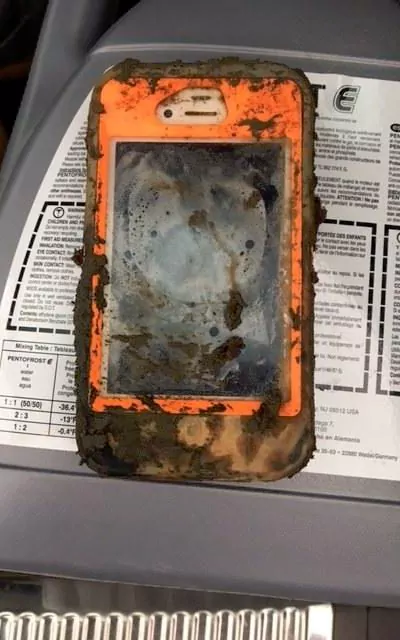
He got a lucky break when the lake was drained in September 2015 and eventually found stuck under some mud by mechanical engineer Daniel Kalgren.


BuzzFeed News reports Mr Kalgren was exploring the bottom of the lake with a metal detector when he stumbled upon the phone.


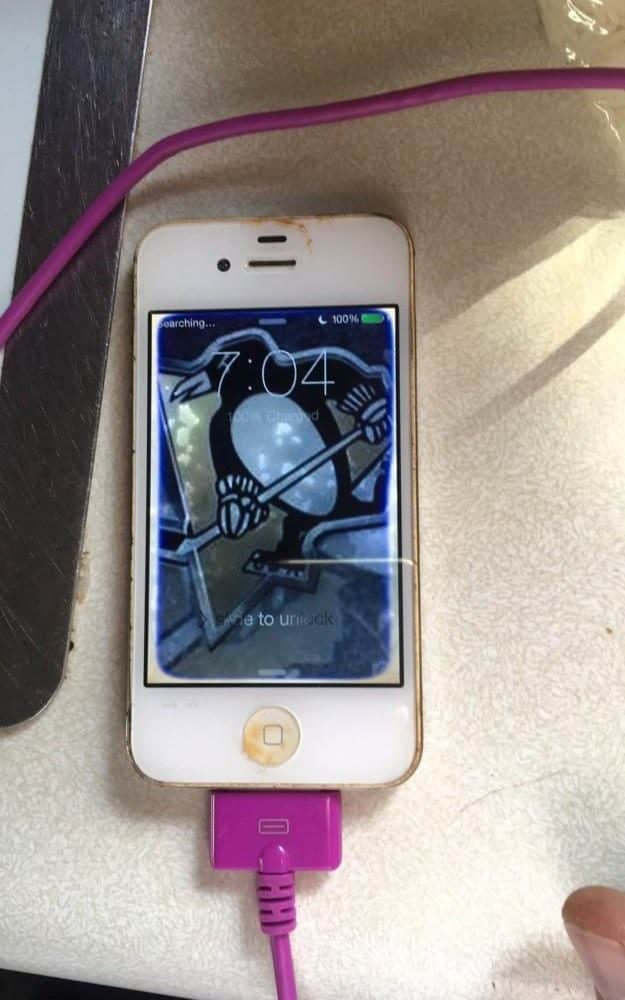
He took the iPhone 4 home and put it in some rice to dry out - amazingly the handset actually turned on and he was able to retrieve the owner’s number.  


It actually worked!

iPhone Dropped Into Frozen Lake Still Works Over A Year Later

Windows
Mac OS
iOS
Linux
3uTools
Win 64-bit For this device
V9.0 2025-11-11
Download
Win 32-bit For this device
V9.0 2025-11-11
Download
3uTools
Intel Chip How to Identify Chip Type
V9.0 2025-12-02
Download
Apple Silicon
V9.0 2025-12-02
Download
How to Identify Chip Type
1.  Click the Apple icon in the top-left corner of the screen and select About This Mac.
2.  Check the Processor or Chip field to determine if it is "Intel" or "Apple".
Please use the 3uTools PC client to install the iOS client:
1、 Install either the Windows or Mac version of 3uTools on your computer
2、 Open the PC client and connect your device to the computer via USB cable
3、 After the connection is successful, wait for the computer to automatically install the mobile app for the device, or locate “Install Mobile App” on the computer and manually click to install.
3uTools
deb file
V3.01 2025-11-20
Download
rpm file
V3.01 2025-11-20
Download
Windows
Windows
iOS
iOS
Android
Android
TV
TV
3uAirPlayer
Win 64-bit For this device
V6.0.2 2025-11-19
Download
Win 32-bit For this device
V6.0.2 2025-11-19
Download
iOS Device Mirroring (No App Required)
1、 Install 3uAirPlayer on the Windows PC
2、 Open Control Center and select Screen Mirroring
3、 From the list, choose your PC to start mirroring
4、 Or connect your iOS device to the PC via USB to begin mirroring
Scan to get "3uAirPlayer" App
3uAirPlayer TV V1.0.18
2025-11-28
TV System Requirements: Android 7.0 or later
Download the TV installation package, copy it to a USB drive, insert it into your TV or set-top box, then select the file from the home screen to install.