 NEWS
NEWS
An iPhone Accident Made This ‘End of the World’ Photo
 07/04/2017
 3283
3283
Making a mistake with a camera usually results in a disappointing photo. For one woman over in Florida, however, an iPhone “glitch” created an unexpectedly mind-bending and viral image.
The shot happened last Wednesday when a guy named Bobby and his friend “G” were moving G’s boat across the St. John’s River in Jacksonville, Florida. G’s wife “C” was standing on the dock and shooting photos of the departure with her iPhone 7.
When reviewing the photos afterward, the group was surprised to find that one of the photos turned out looking like this:
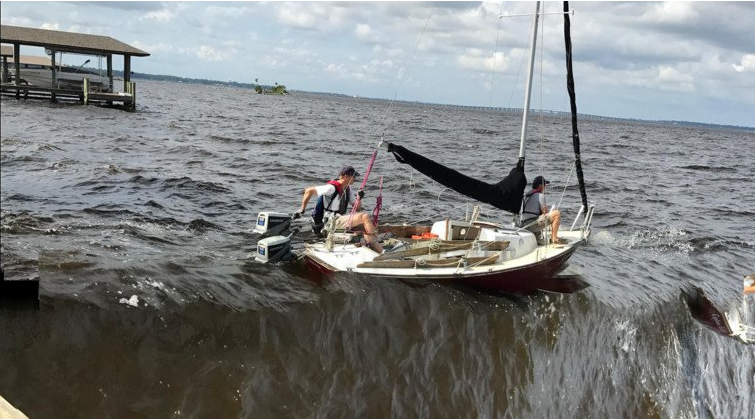
The trippy photo makes it look like Bobby and G were sailing to the “end of the World.” After sharing the shot Reddit, it went viral and quickly hit the front page.
At first Bobby thought the iPhone camera had malfunctioned, but the Internet soon provided a better explanation of how this photo came about.
It’s likely that C was shooting photos in portrait orientation and somehow turned the iPhone’s panorama mode on. After beginning an exposure in portrait orientation, she may have turned the iPhone 90 degrees to shoot another photo in landscape orientation while the panorama was still being created.
“It makes sense that what happened was that she held phone in portrait mode, pressed button to take picture (but actually started the pano picture) then immediately rotated phone and intended to take a 2 picture, but actually stopped the pano picture with 2nd press of button,” Bobby tells PetaPixel.
And that’s what Bob Ross would call a “happy little accident.”
Source: petapixel










