 NEWS
NEWS
Hidden sound in iOS 11 hints at new charging for iPhone 8
 06/29/2017
 3528
3528
Buried in iOS 11, there seems to be a new sound file that could potentially be implemented when the rumored "iPhone 8" is released with inductive wireless charging capabilities. Highlighted on YouTube, the sound file is called "engage_power.caf," and it is distinct from the existing "connect_power.caf" sound file that's used whenever an iPhone is connected to a Lightning cable.
In the video below, the unused charging sound is compared to the existing charging sound in iOS 11. The new audio file provides a longer, more distinct sound that could perhaps be used to assure iPhone users that their devices are properly charging should the iPhone 8 indeed include an inductive-based wireless charging function as has been rumored.
While both the name of the file and the sound seem to indicate that it is related to some kind of charging purpose, there's no way to confirm why the sound has been added, so this is all pure speculation at this point.
In fact, there are several other sound files in iOS 10 and 11 that are unused and do not have a purpose, so it's not entirely clear if the new charging sound will actually be added to the iOS 11 operating system or what it will be used for. The hidden sound file in iOS 11 is not accessible on a device running iOS 11 and must be accessed using a computer.
Wireless charging is expected to be included in the radically redesigned "iPhone 8" coming in the fall of 2017, and perhaps its two companion devices (presumably the iPhone 7s and the iPhone 7s Plus), but there's still some question about the form the wireless charging functionality will take.
Early 2017 iPhone rumors suggested Apple was aiming to implement long-range wireless charging, perhaps through a partnership with a company like Energous, but that technology may not be advanced enough to be used in the iPhone. Long-range wireless charging continues to suffer from problems like object interference and much slower charging rates as the distance between the receiver and the transmitter increases.
Apple is no doubt working on long-range wireless charging, but recent information suggests a simpler solution will be added to the iPhone 8 - inductive charging. An inductive charging solution, which is what's used for the Apple Watch, would require the iPhone to attach to some kind of charging puck, mat, dock, or other device. It would perhaps be simpler than a Lightning port, but it isn't a full wire-free contactless solution. 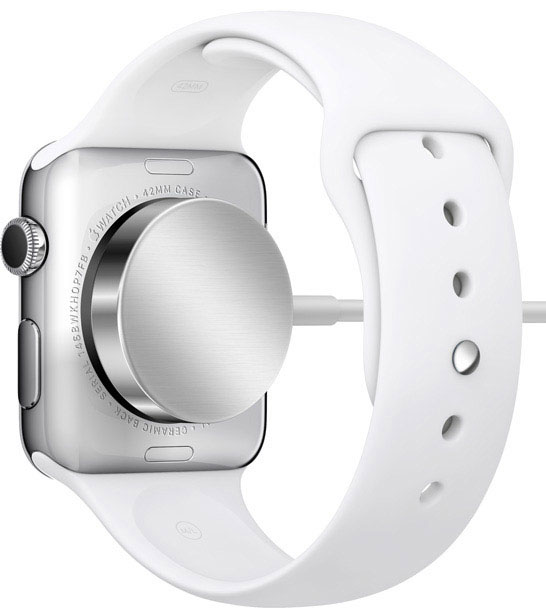
Regardless of how wireless charging is implemented, there's overwhelming evidence that this is a technology Apple is aggressively pursuing. Apple joined the Wireless Power Consortium in February, hired dozens of employees with expertise in wireless charging, and has sourced wireless charging components from a range of manufacturers including Lite-On Semiconductor, MediaTek, and Luxshare.
Source: macrumors










