
NEWS

Westpac Forced To Remove Payment Feature From iPhone App

06/27/2017

2971

Westpac has claimed that Apple has forced the bank to remove a major feature from its iPhone mobile banking app.


The Westpac Keyboard feature allowed the bank’s customers to share bank account details and pay individuals from within apps such as Facebook Messenger and WhatsApp that allow the use of third-party keyboards.


“We can confirm that the free keyboard feature that enabled customers to transfer money through social media applications will not be included in our next software update in July,” a spokesperson for the bank said.


“The Keyboard was originally approved but we were later notified that it was not suitable for the App Store. This is disappointing for us and the thousands of customers who are currently using it.”
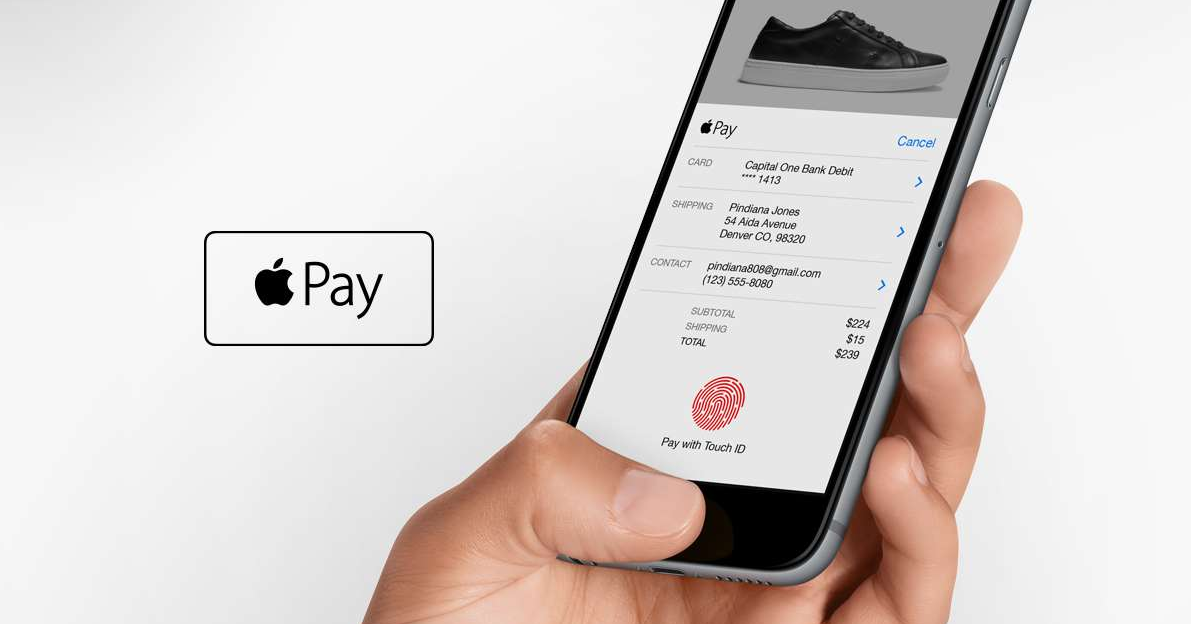

Westpac Forced To Remove Payment Feature From iPhone App


The Australian Competition and Consumer Commission rejected an application lodged by Westpac, the Commonwealth Bank, NAB, and Bendigo and Adelaide Bank that would have allowed the companies to act as a cartel in negotiations over Apple Pay.


A key aim of the group of banks was to force Apple to allow third-party applications on the iPhones to access the handset’s NFC capabilities, which are used by Apple Pay for contactless payments.


Google’s Android mobile platform allows third-party app developers to access handsets’ NFC capabilities, which allows banks to integrate support for contactless payments.


Source: computerworld

Windows
Mac OS
iOS
Linux
3uTools
Win 64-bit For this device
V9.0 2025-11-11
Download
Win 32-bit For this device
V9.0 2025-11-11
Download
3uTools
Intel Chip How to Identify Chip Type
V9.0 2025-12-02
Download
Apple Silicon
V9.0 2025-12-02
Download
How to Identify Chip Type
1.  Click the Apple icon in the top-left corner of the screen and select About This Mac.
2.  Check the Processor or Chip field to determine if it is "Intel" or "Apple".
Please use the 3uTools PC client to install the iOS client:
1、 Install either the Windows or Mac version of 3uTools on your computer
2、 Open the PC client and connect your device to the computer via USB cable
3、 After the connection is successful, wait for the computer to automatically install the mobile app for the device, or locate “Install Mobile App” on the computer and manually click to install.
3uTools
deb file
V3.01 2025-11-20
Download
rpm file
V3.01 2025-11-20
Download
Windows
Windows
iOS
iOS
Android
Android
TV
TV
3uAirPlayer
Win 64-bit For this device
V6.0.2 2025-11-19
Download
Win 32-bit For this device
V6.0.2 2025-11-19
Download
iOS Device Mirroring (No App Required)
1、 Install 3uAirPlayer on the Windows PC
2、 Open Control Center and select Screen Mirroring
3、 From the list, choose your PC to start mirroring
4、 Or connect your iOS device to the PC via USB to begin mirroring
Scan to get "3uAirPlayer" App
3uAirPlayer TV V1.0.18
2025-11-28
TV System Requirements: Android 7.0 or later
Download the TV installation package, copy it to a USB drive, insert it into your TV or set-top box, then select the file from the home screen to install.




