 NEWS
NEWS
Apple Watch's Toy Story Face Goes Live in watchOS 4 Beta 2
 06/23/2017
 4744
4744
During Apple's WWDC keynote this year the company debuted new features coming in watchOS 4, some of which include fresh watch faces for Apple Watch. Following in the footsteps of the animated Mickey Mouse and Minnie Mouse faces, watchOS 4 is gaining new Disney characters for Apple Watch wearers in the form of Jessie, Woody, Buzz Lightyear, and more from Toy Story.
The Toy Story characters weren't available in the first developer beta of watchOS 4, but with yesterday's launch of beta 2 for the Apple Watch software all of the characters have appeared as watch face options. These include multiple poses and animations of Jessie, Bullseye, Buzz, Woody, Hamm, Rex, and the Pizza Planet aliens.
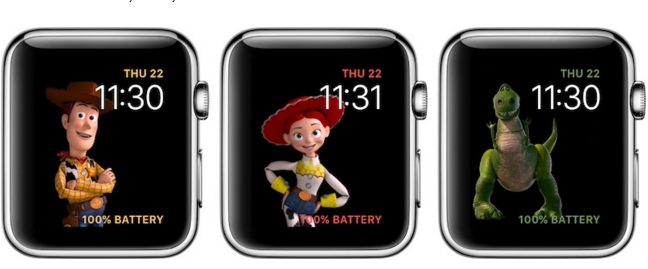
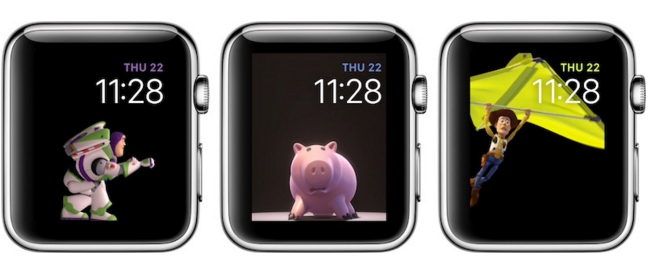
While the watch faces are animated when the Apple Watch is raised, similar to Mickey and Minnie, as of now they don't speak when tapped upon. Two complications are available for the Toy Story watch face, one above the time in the top right hand corner, and another at the very bottom of the face. The color for these complications changes automatically to match the character on screen and can't be customized.
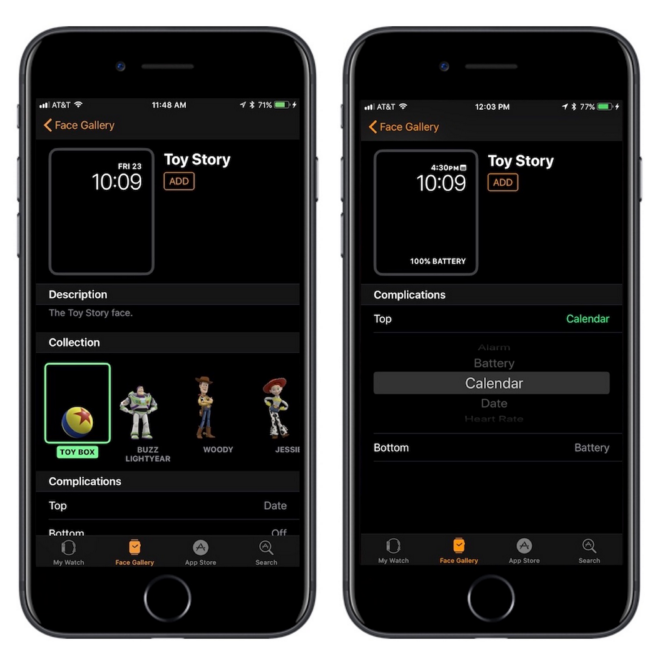
In the Watch app on iPhone users can choose from Buzz Lightyear, Woody, or Jessie, and after that the Apple Watch will depict a new animation for that character every time the user raises their wrist. For anyone who wants to completely randomize which character and animation they'll get when they check their Apple Watch, a "Toy Box" option is also accessible. Specific faces for any other character -- like Rex or Hamm -- are not available as of watchOS 4 beta 2, and the only way to see these characters is by choosing Toy Box.
Source: macrumors










