 NEWS
NEWS
New Word Macro Malware Infects macOS and Windows
 03/27/2017
 3526
3526
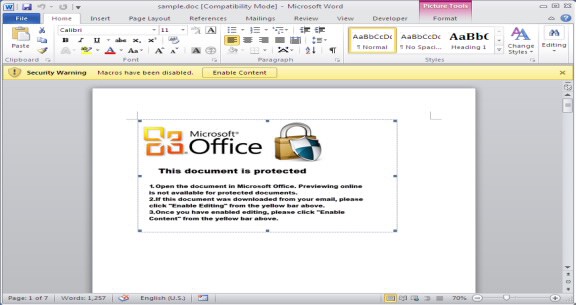
Another form of Microsoft Word malware that infects both macOS and Windows machines has been detected.
The malicious VBA (Visual Basic for Applications) code is buried in a Word document macro and automatically adapts its attack depending on the operating system used. Once installed, it can be used to download more payload files to your computer.
Macro malware is nothing new; it has been targeting Windows users for over a decade. Although the number of macro attacks dropped when more sophisticated infections were developed, there has been a resurgence in recent years for one big reason.
Because the attack is disguised as an innocent Word macro, it goes undetected until it is too late. If you’ve told your computer to open macros automatically, malicious code can be executed before you have any idea it’s there.
The first macro malware designed for Mac was discovered back in February, and now a second strain has been detected by FortiGuard Labs.
It uses buried VBA code that decodes and reads data (a Python script) from the “Comments” section embedded in the Word file. As macOS is built with Python enabled, the script is allowed to run via the ExecuteForOSX function.
When this script is executed, it downloads a file from a URL and executes it automatically. It’s not completely clear what the malware does once successfully installed on your machine, but FortiGuard believes it is used “by the attackers for campaign-tracking purposes.”
The whole attack is based on Metasploit, an open-source framework that has legitimate applications, but is commonly modified to create malware and other malicious tools.
It’s easy to avoid this kind of malware. Firstly, ensure your system isn’t allowed to open macros automatically, then be sure that the Word documents you’re using are from trusted sources. Don’t just open random Word files you’ve downloaded from questionable websites.
Source: cult of mac










