 NEWS
NEWS
Apple Watch Could Cut Down On Distracted Driving
 03/24/2017
 3738
3738
Using mobile devices while driving can be a dangerous-at-best, deadly-at-worst scenario, one that's compounded even further when said mobile device is strapped to your wrist.
To potentially help reduce distracted driving, Apple has patented a new feature seemingly intended for the Apple Watch that cuts down on notifications as soon as the wearer hits the road.
Originally filed back in September 2016, the patent describes utilizing the Watch's motion-tracking features to detect when the wearer is going at high speeds, similar to how app sensation Pokemon Go activates its own 'please don't hunt Psyducks at 60mph, please' feature.
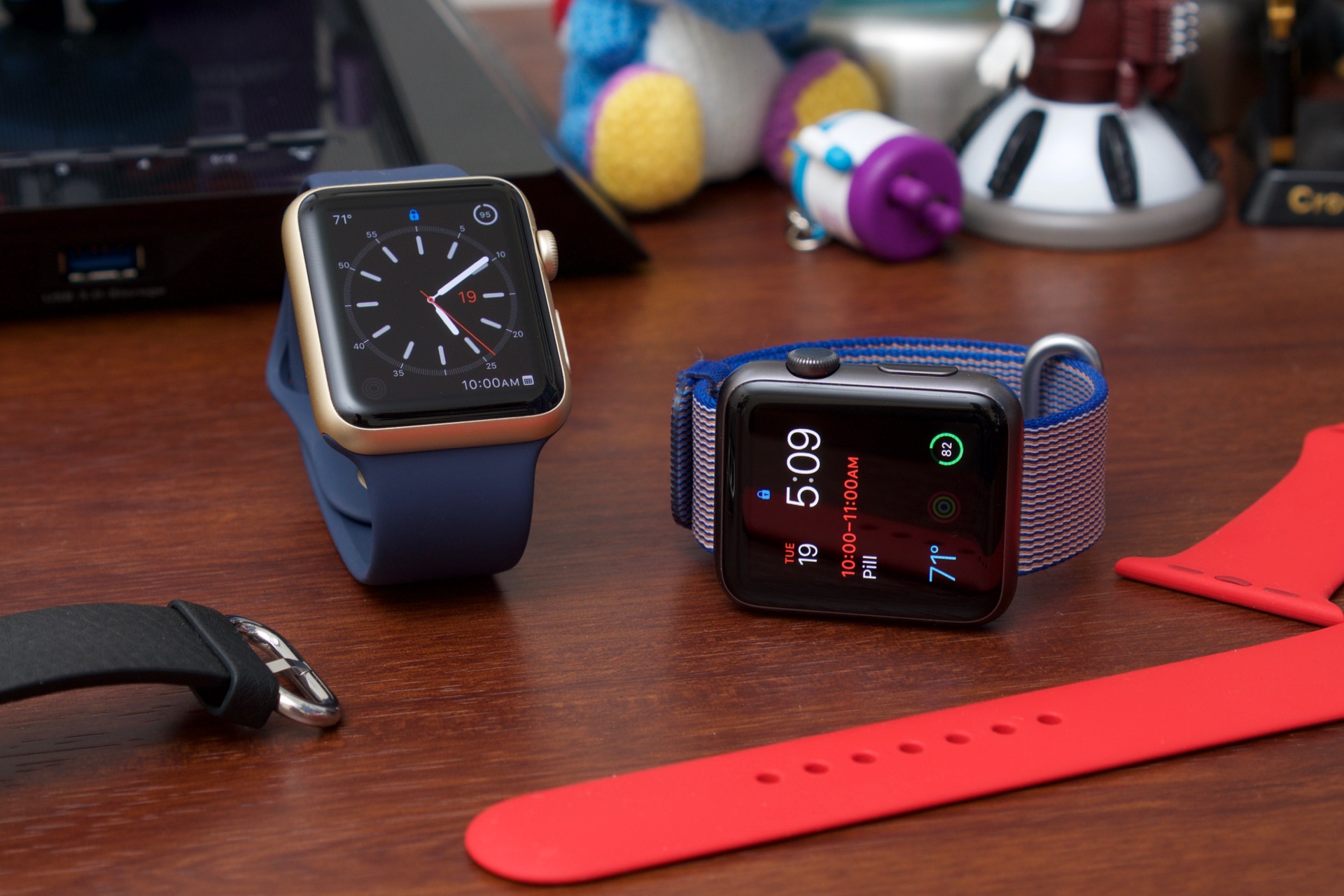
From there, the patent describes a system of prioritizing which messages light up on the Apple Watch's screen, as well as curbs the wearable's raise-to-wake display feature. This would ensure that more urgent matters "such as emergency calls" come through, but holds off on that spam email or Facebook notification.
Apple watch the road, bub
The patent also describes cutting distractions by divvying up some of the Apple Watch's notification features to the car itself, mentioning that alerts could be rerouted "to interface elements within the vehicle," such as the dashboard screen, a windshield HUD, or in-car speaker system.
Given Apple's past work blending iOS features with vehicles via CarPlay, plus the Apple Watch's recently uncovered Theater Mode — which dims the screen and shushes alerts for those times you're at the movies — it wouldn't be a stretch for Apple to equip its smartwatch with a distraction-free driving mode.
That said, a patent is not a promise, so we'll just have to wait until later this year when Apple shows us what's next for watchOS.
Source: techradar










