 NEWS
NEWS
Apple's Mystery 'Wireless Device' Has Been Revealed in FCC Photos
 03/20/2017
 3568
3568
Last fall, Apple submitted an application to the Federal Communications Commission for an unannounced device with the model number A1844.
At the time, the "wireless device," as it was described in the application, was a mystery. Speculation mounted in some Apple circles as a result. The application said it was a low-powered device, with both Bluetooth and NFC wireless functionality.
On Sunday, a user manual and photos of the mystery device were published by the FCC.
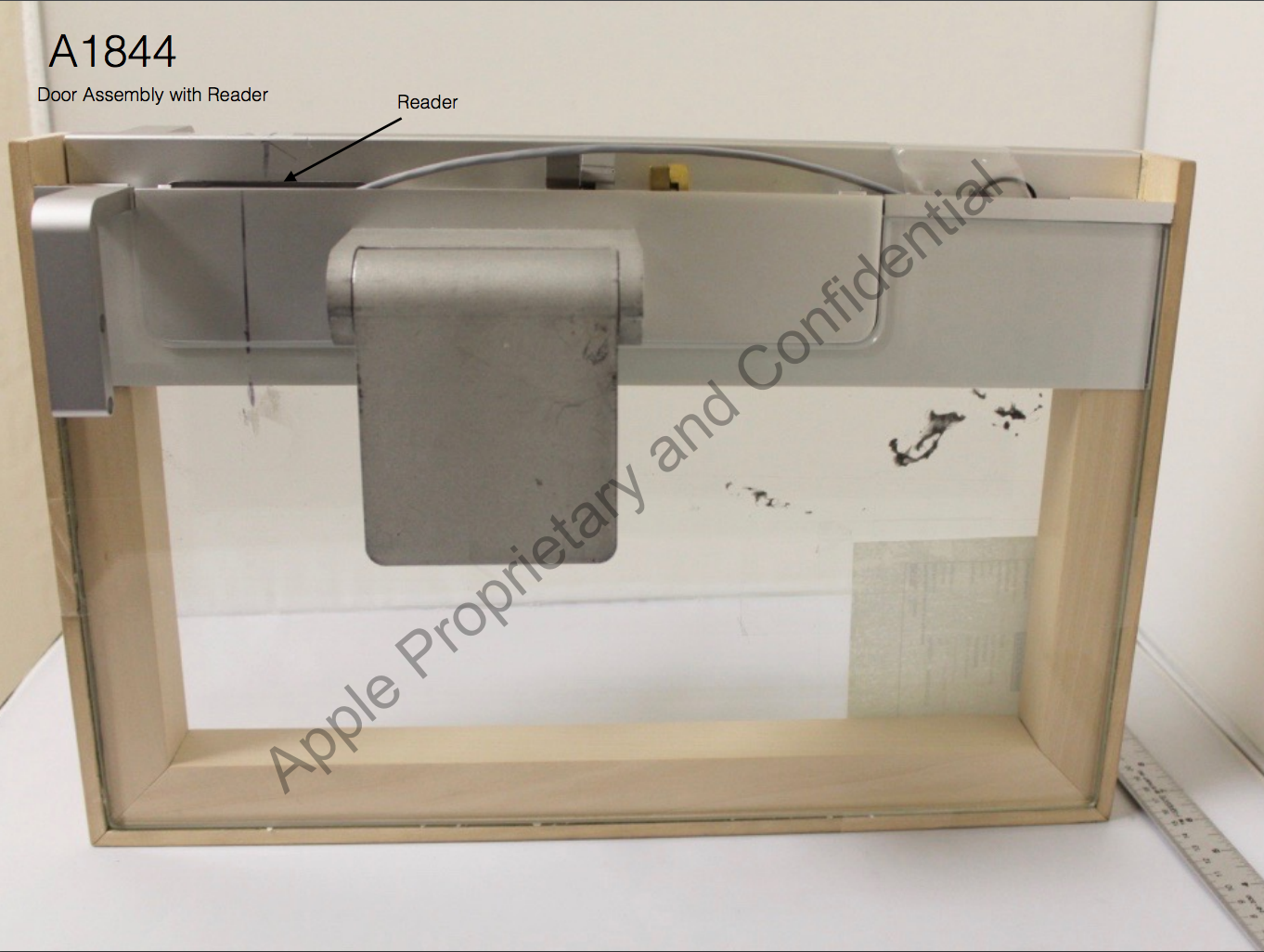
The mystery device appears to be a badge reader that attaches to a door assembly, most likely for Apple corporate use. Take a look:
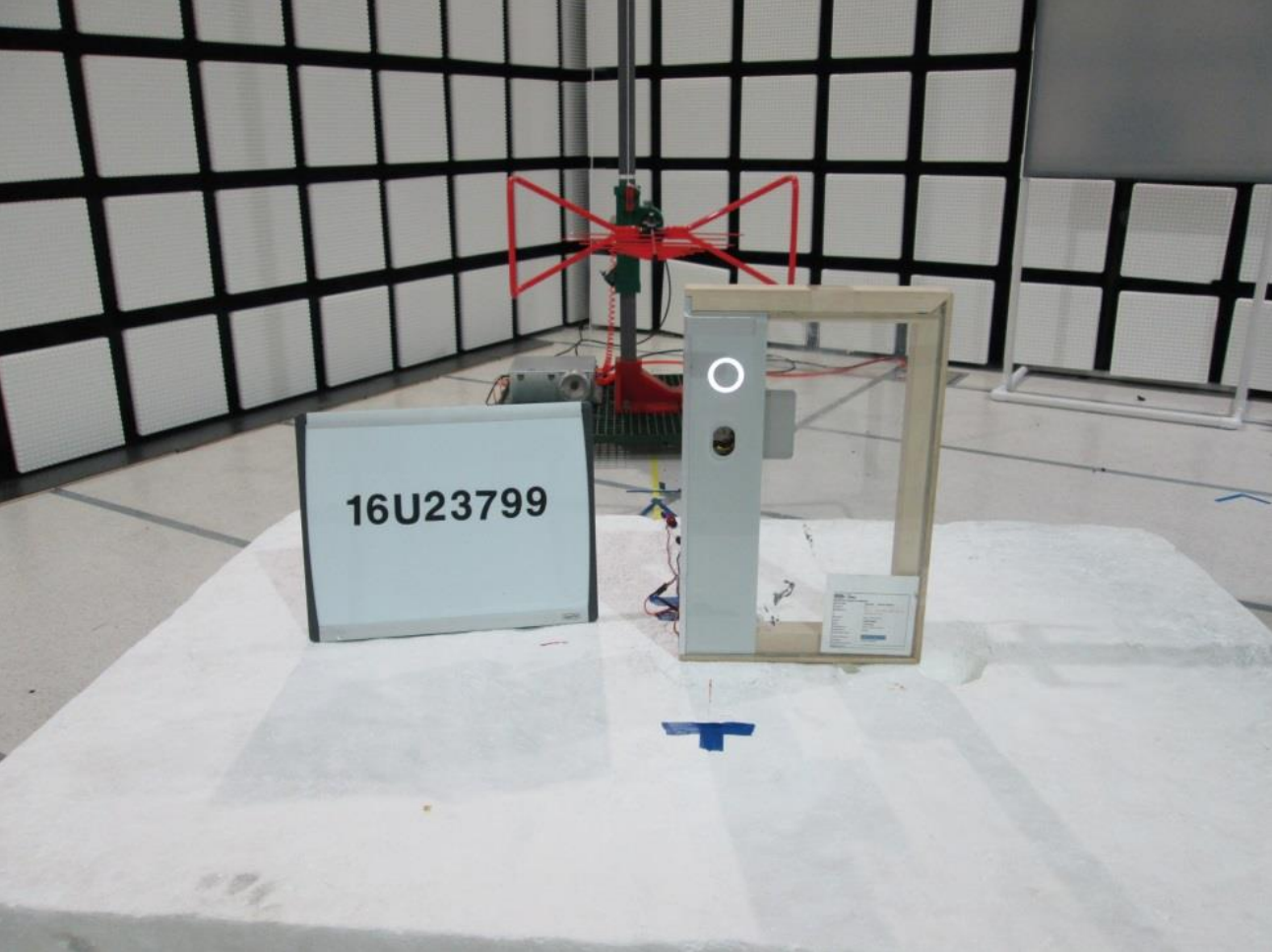
Here's another look, according to an image included as part of an NFC test:
The user manual is not intended for general consumers, and includes specific backend wiring instructions. Here's what it does, according to the user manual:
Usage Instructions
1. Present the company provided credential to the reader.
2. The reader will indicate granted access by briefly changing color to green and playing a sound. Declined access is indicated by red color and a second sound.
Apple has several smart home products on the market, most notably software called HomeKit, that enable smart home manufacturers to make smart locks and other products that work well with the iPhone.
Apple has never announced plans to sell its own smart lock or other Apple-designed smart home hardware, and this electronic lock seems specifically designed for Apple corporate or retail use. Apple is putting the finishing touches on its new "Apple Park" campus, which is expected to open next month.
When mystery device A1844 was revealed in an FCC application, some speculated it could be a new Apple TV or AirPort router, based on the limited information included in the filing. Apple has filed similarly cryptic applications for similar "wireless device" models, such as A1846, since then.
Source: BI










