 NEWS
NEWS
Apple Won't Change Hide My Email Domain After Backlash
 08/25/2026
 17
17
Apple today said it is reversing its decision and will not change the email domain used for the iCloud+ Hide My Email feature.
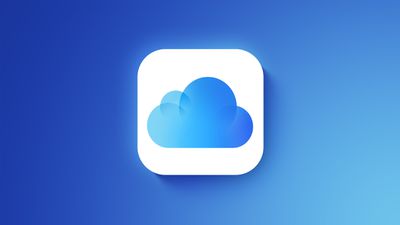
Emails sent using Hide My Email will continue to use the same icloud.com domain that Apple uses for standard iCloud emails.
In June, Apple said it would unify the email domains used by Sign in with Apple and Hide My Email under a single private.icloud.com domain. iPhone users expressed concern that moving Hide My Email to a private.icloud.com domain instead of icloud.com would let platforms easily block iCloud aliases. Using the same domain for iCloud and Hide My Email makes it hard for services to block the disposable iCloud addresses because doing so would also block legitimate users.
Apple said after further consideration and reviewing feedback from the community, it will not make the change. Sign in with Apple addresses will be issued through private.icloud.com instead of privaterelay.appleid.com starting later this year. There will be no update for Hide My Email addresses.
Sign in with Apple addresses created before the change will continue to be forwarded without interruption. Apple says developers with apps or websites that use Sign in with Apple should make sure their systems allow the private.icloud.com domain in addition to privaterelay.appleid.com.
Hide My Email is a paid iCloud feature that allows users to generate unique email addresses for each website or service, with options to deactivate and delete those addresses at any time. Hide My Email addresses are forwarded to a user's real email address, which is hidden from the site or service.
Source: Macrumors