 NEWS
NEWS
Apple Wallet in iOS 27 adds clever new way to use its many features
 08/14/2026
 613
613

Apple Wallet is getting several upgrades in iOS 27, including a new ‘Discover’ section that was just added in beta 5 this week. Here’s what it does.
iOS 27’s Wallet app has new ’Discover’ section with guides and convenient feature shortcuts

Apple Wallet is a popular iPhone app that’s always getting better. That’s in part because the app can serve so many unique purposes. It’s home to:
- credit cards, including Apple Card
- car keys, hotel keys, and home keys
- driver’s licenses
- Apple Pay
- Apple Cash
- transit cards
- boarding passes
- tickets for movies, concerts, and other events
- IDs for work and school
- order tracking
- and more
In iOS 27, the Wallet app will also let you easily split bills with friends and import physical passes. There’s also evidence it will soon store Apple trade-in quotes.
Joining these upgrades is an addition intended to help users get the most out of Wallet: a ‘Discover’ section.
’Discover’ was just added this week in iOS 27 beta 5. You can find it by tapping the three-dot icons in the top-right corner. Inside the new section, you’ll find educational guides for many Wallet features.
Currently Wallet has guides for Apple Pay, Apple Card, Apple Cash, Transit, Boarding Passes, Event Tickers, IDs, Keys, and Apple Account balance.
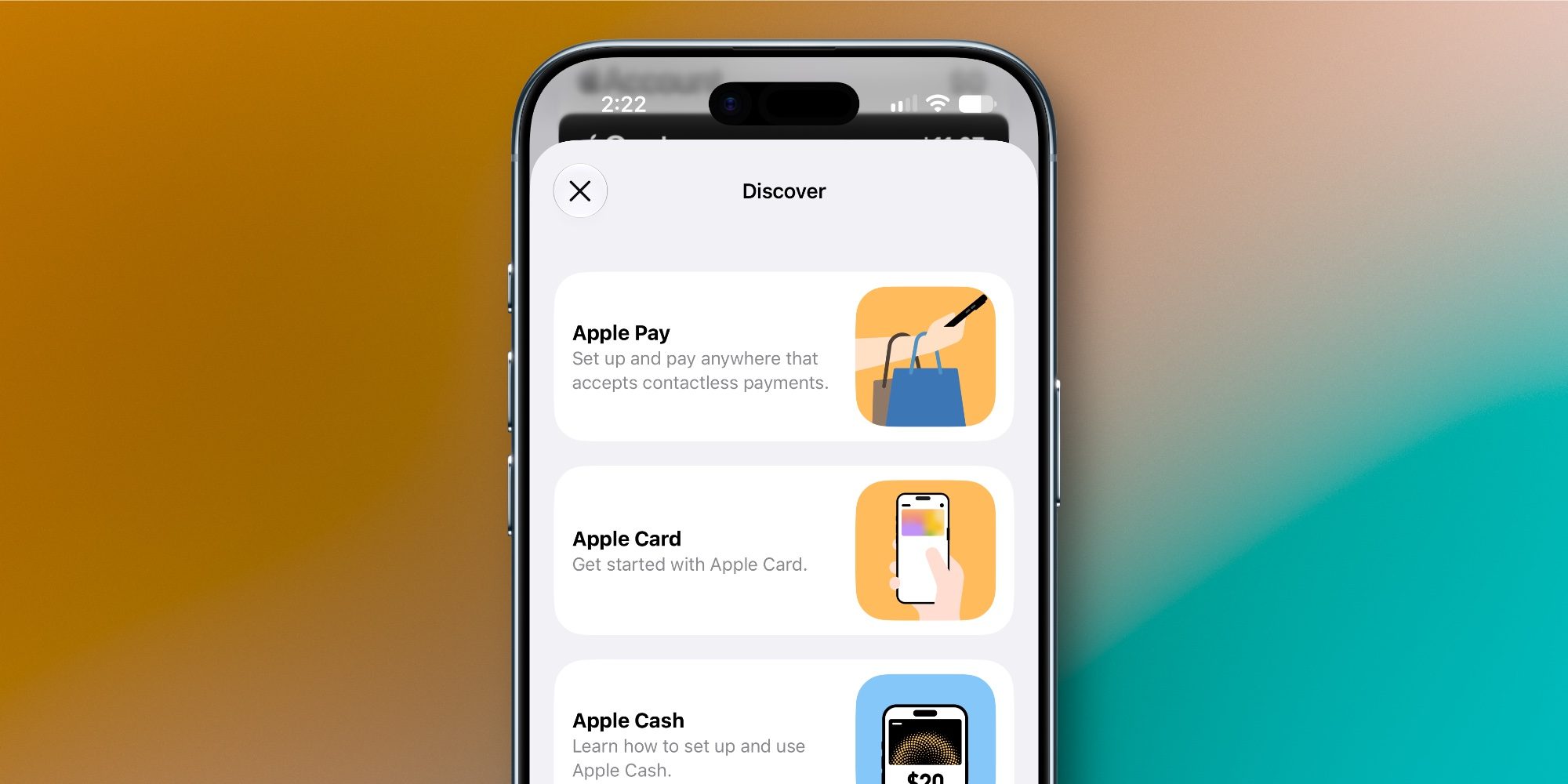
Guides include key information and walkthroughs for each feature, and in many cases they also offer shortcuts to start using the feature. For example, with a single tap you can add an Apple Pay card, apply for Apple Card, set up Apple Cash, add a transit card, and more.
I love how Apple is making Wallet’s vast feature set more accessible with this Discover section. And I wonder if we’ll see similar guides added to other apps in the future too.
Source: 9to5mac