NEWS

Original iPhone Loses Its Last Cellular Network as T-Mobile Kills 2G

Just now

64

T-Mobile retired its 2G GSM network on Monday, August 3, which means all three major carriers in the United States have now ended 2G service.
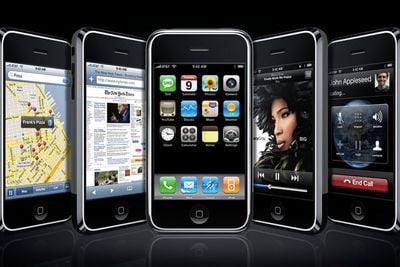
Original iPhone Loses Its Last Cellular Network as T-Mobile Kills 2G
T-Mobile kept its 2G network active because it still had some legacy customers who were using it. Some customers visiting the United States and using international roaming carrier agreements for connectivity also needed 2G for voice calling, but T-Mobile worked with carriers globally to prepare for the end of its 2G network.

Customers who were still on T-Mobile's 2G network were warned well ahead of time about the shutdown and given time to transition. Smartphones, alarm panels, payment terminals, and other IoT accessories that used 2G will no longer function.

AT&T ended support for 2G almost a decade ago in 2017, and Verizon stopped supporting 2G in 2020. Now that no carriers in the U.S. support 2G, legacy devices like the original iPhone will not be able to connect to any cellular network. The iPhone technically lost cellular support in 2017 when AT&T sunset its 2G network, and now the last workaround is gone.

All three carriers also ended support for 3G back in 2022, and have also abandoned early LTE iPhones without VoLTE support.

Source: Macrumors
Windows
Mac OS
iOS
Linux
3uTools
Win 64-bit For this device
V9.07 2026-07-17
Download
Win 32-bit For this device
V9.07 2026-07-17
Download
3uTools
Intel Chip How to Identify Chip Type
V9.05 2026-07-25
Download
Apple Silicon
V9.05 2026-07-25
Download
How to Identify Chip Type
1.  Click the Apple icon in the top-left corner of the screen and select About This Mac.
2.  Check the Processor or Chip field to determine if it is "Intel" or "Apple".
Please use the 3uTools PC client to install the iOS client:
1、 Install either the Windows or Mac version of 3uTools on your computer
2、 Open the PC client and connect your device to the computer via USB cable
3、 After the connection is successful, wait for the computer to automatically install the mobile app for the device, or locate “Install Mobile App” on the computer and manually click to install.
3uTools
deb file
V9.01 2026-05-28
Download
rpm file
V9.01 2026-05-28
Download
Windows
Windows
iOS
iOS
Android
Android
TV
TV
3uAirPlayer
Win 64-bit For this device
V6.0.6 2026-06-26
Download
Win 32-bit For this device
V6.0.6 2026-06-26
Download
iOS Device Mirroring (No App Required)
1、 Install 3uAirPlayer on the Windows PC
2、 Open Control Center and select Screen Mirroring
3、 From the list, choose your PC to start mirroring
4、 Or connect your iOS device to the PC via USB to begin mirroring
Scan to get "3uAirPlayer" App
3uAirPlayerTV
 
TV System Requirements: Android 7.0 or later
Download the TV installation package, copy it to a USB drive, insert it into your TV or set-top box, then select the file from the home screen to install.