 NEWS
NEWS
Apple Won't Allow These Ad Categories in the Maps App
 07/16/2026
 609
609
Apple this week shared a new Advertising Services policy outlining the kinds of ads that won't be allowed in the Maps app.
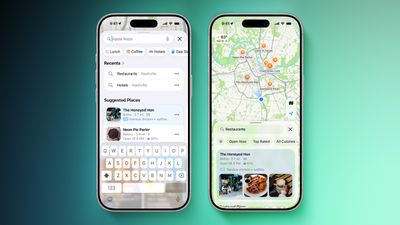
As noted by TechCrunch, Apple has a list of ad categories that are not permitted in Apple Maps.
- Home services - Ads that directly or indirectly promote home services are not allowed. That includes but is not limited to plumbing, electrical, locksmith, HVAC, pest control, roofing, and general contracting services.
- Bail bonds - Ad content that directly or indirectly promotes bail bond services or surety bond services related to criminal pretrial release is not allowed.
- Cryptocurrency ATMs - Ad content that directly or indirectly promotes ATMs for cryptocurrencies is prohibited.
Apple says ads that promote or reference medical services may be allowed, and will be evaluated on a case-by-case basis.
Google allows home services ads, and it's one of the largest local ad categories, so Apple's restrictions will set it apart. Apple seems to be limiting ads to businesses with a physical location that customers can visit.
In addition to these rules, Maps ads have to adhere to Apple's other advertising rules. Apple does not allow ads for controlled or intoxicating substances like marijuana or tobacco, and it has a long list of rules for alcohol-related ads, dietary supplement ads, financial product ads, religious ads, gambling ads, prescription drug ads, and contest ads. Ad content for weapons or ammunition isn't allowed, and ad content that contains or promotes violence, harm, or antisocial behavior is prohibited.
Ads that promote false, fraudulent, or deceptive claims are not allowed, nor are ads that include defamatory or profane content, discriminatory content, illegal or criminal content, or intellectual property violations.
Anti-Apple ads are prohibited, as are ads that promote or facilitate the sale of products or services that compete with Apple hardware products. Apple also does not allow political ads, ads with unproven health-related products and services, or ads with offensive, controversial, or inappropriate content.
Apple plans to start showing ads in the Maps app in the United States and Canada this summer. Ads will show up in search results and in the Suggested Places section of the app.
Ads will have a clear "Ad" label, and a user's location and the ads they see and interact with in Apple Maps are not associated with their Apple account. Apple also does not collect ad data or share it with third parties.
Source: Macrumors