 NEWS
NEWS
Apple Showcases Its New Developer AI Tools in Impressive 90-Minute Presentation
 06/18/2026
 923
923
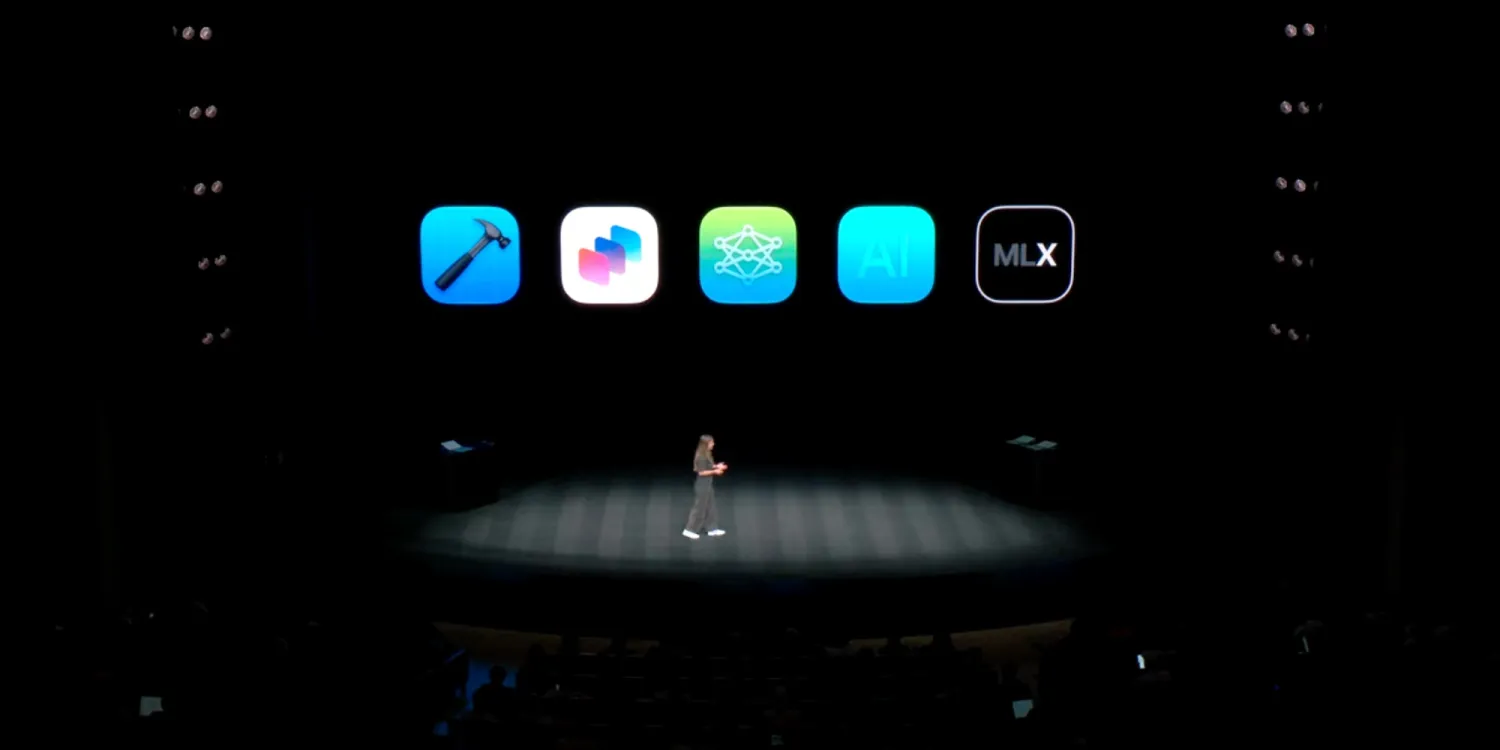
Apple today shared a 90-minute WWDC26 presentation recorded live at a packed Steve Jobs Theater, featuring impressive demos of its latest AI tools for developers and an entire app built from just a few prompts. Watch it below
Live session held at the Steve Jobs Theater during WWDC26 now available
The Apple Developer YouTube channel shared an interesting 90-minute WWDC26 session today called “Inside Apple Intelligence and Xcode: Special Presentation.”
While parts of the presentation can get technical, after all, this is a WWDC session, the video offers very interesting insight into what developers will be able to build using the new technologies, frameworks, and APIs it announced during the event.
Perhaps one of the more interesting parts of the video is a 20-minute segment in which an entire app is built from a single prompt and then further tweaked with follow-up commands.
The result is a WWDC badge tracker app featuring 3D animations, holographic effects, and even Visual Intelligence capabilities—all created from just a few prompts.
Along the way, the demo highlights new Xcode 27 features that come into play before coding begins, including asking clarifying and follow-up questions and mapping out the project in advance.
The session continues with demos and valuable information on how apps can integrate with the new Siri AI, how developers can leverage the new Apple Foundation Models framework, and, in turn, how the framework integrates with the new Core AI framework and the upgraded MLX framework, even when using third-party models.
The special presentation ends with an impressive demo of the 1-trillion-parameter Kimi 2.6 model running locally in LM Studio across four Mac Studios, using the low-latency RDMA-over-Thunderbolt technology Apple introduced with macOS Tahoe 26.2.
If you’re a developer, you should watch the session below. If you’re not, you should watch it all the same, as it offers a good look at what users should expect to see on third-party apps from now on:
Be sure to check out the Apple Developer YouTube channel for more WWDC26 sessions.
Source: 9to5mac










