 NEWS
NEWS
Apple Vision Pro Suffered from Indecisive Leadership – Here’s How It Could Change
 04/28/2026
 1578
1578
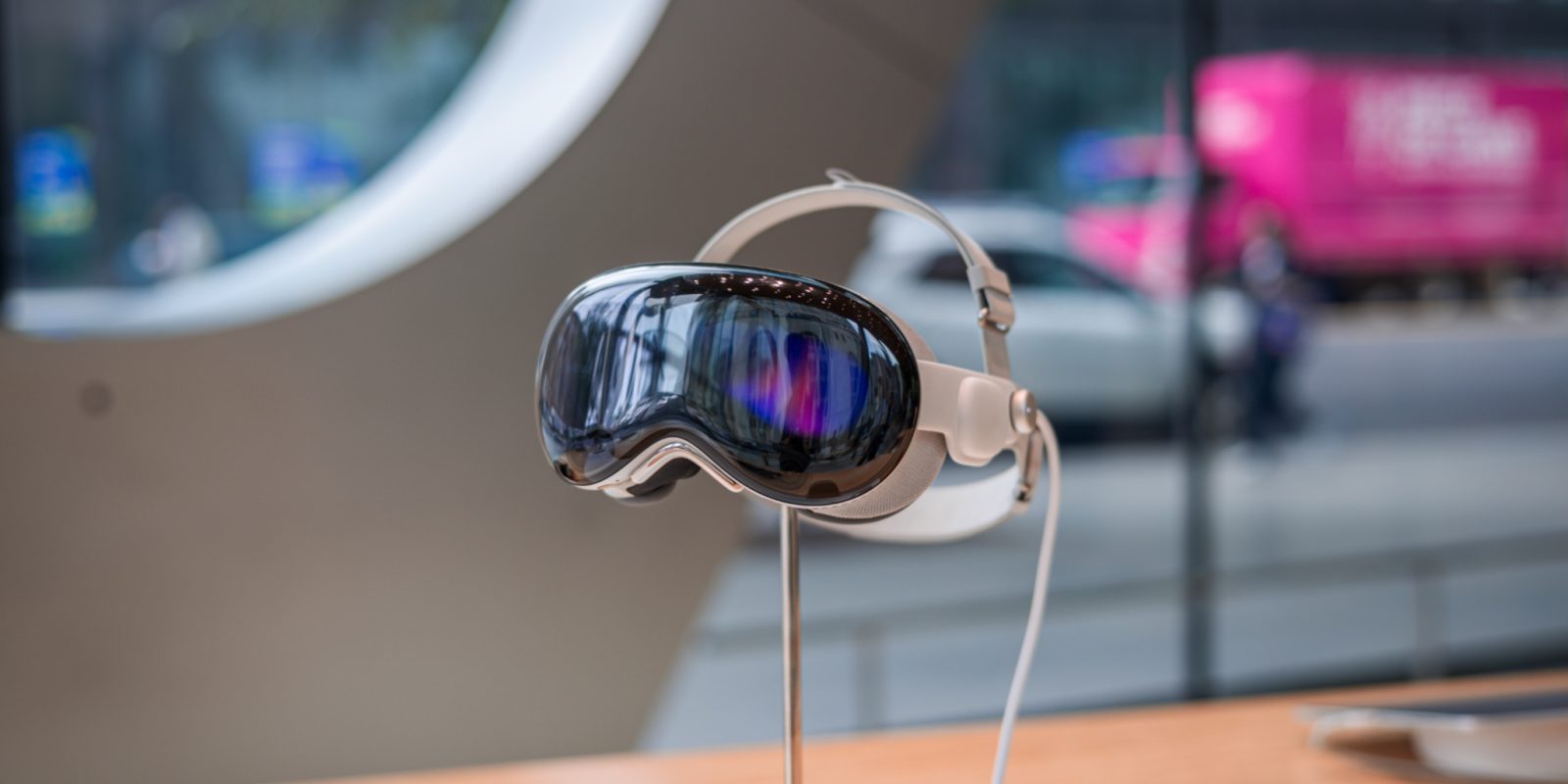
Apple Vision Pro has been one of the most perplexing Apple product launches in recent history. It’s meant to serve as the beginning of an all new product category for Apple – and more importantly – the next generation of computing. And yet, it feels like a complete afterthought to the company.
Under John Ternus, I’m slightly hopeful that we can start to see the product live up to its full potential – though there’s also reason to be skeptical.
Jack of all trades, master of none
Vision Pro does loads of really cool things – but none of them feel fully fleshed out. Mac Virtual Display is awesome, but the headset is too heavy for you to be comfortable enough to use it for a long time. Watching movies and shows in it is fantastic – but many streaming platforms don’t have native Vision Pro apps, and Apple hasn’t tried to incentivize developers otherwise. Multitasking can be really productive, but typing is still a pain – and dictation is very behind.
I could go on for a while. I’m yet to really write much about it, but I did end up buying a used Vision Pro around 6 months ago – slightly after the M5 model dropped, and even though I got it for a good price, I still don’t find myself super drawn to the product. Ultimately, no matter what, it’s still uncomfortable and the compromises don’t leave me wanting to use it for a very long time.
Some of Vision Pro’s problems are hardware, but many of them are just a matter of fleshing out software and giving it more distinct use cases. With strong leadership and enough care, I think Apple could get there.
The elephant(s) in the room
I think it’s pretty clear that Vision Pro is where it is because of a lack of conviction. Tim Cook has always believed heavily in AR, but the issue is – Vision Pro is only a stepping stone to that. It’s believed that Tim Cook wasn’t always a product person, and typically shied away from making singular decisions – and instead left them up to executives around him. Ultimately, a lot of executives, including John Ternus, were doubtful of Vision Pro from the beginning – at least in a heavy, $3500 headset form factor. That’s probably why everything about Vision Pro feels so underbaked and unenthusiastic.
John Ternus was reportedly opposed to Vision Pro early on, which is the second elephant in the room. That isn’t necessarily a bad thing though. It could just mean he wants to take the platform in a better direction. Ultimately it’s hard to know for sure why he was opposed to Vision Pro early on, since the reporting doesn’t specify.
What we do know is the fact that John Ternus is optimistic for the future of Vision Pro, describing the current product as “in the early innings”, and stating that there’s a lot of room for the product to grow.
Source: 9to5mac










