 NEWS
NEWS
How to Disable Auto-launch Apps in macOS 26 Tahoe
 04/07/2026
 2065
2065

Does your Mac automatically open a bunch of apps each time you reboot? A lot of apps want to auto-launch when you start up your computer.
The problem is it can make your Mac feel slower, especially if you’re not using these apps. Fortunately, Apple makes it easy to disable auto-launch apps in macOS 26 Tahoe.
Speed up your Mac: How to manage macOS 26 Tahoe login items
Apps like Spotify, Discord, Steam, and other popular Mac software default to auto-launch when you start up your Mac.
You can quit each app manually each time if you don’t need them running.
However, they’ll auto-open again the next time you reboot.
This can be frustrating after a Mac software update or if you’re rebooting to troubleshoot an issue.
macOS 26 Tahoe offers two methods for turning off auto-launch.
Disable ‘Open at Login’ from the Dock
First, you can right-click on the app icon while it’s running. This method will only work for apps that are in your Dock.
This will open a menu that includes Options. Move your cursor over Options to reveal Open at Login.
If Open at Login has a check, the app will auto-launch. If there’s no check, it won’t.
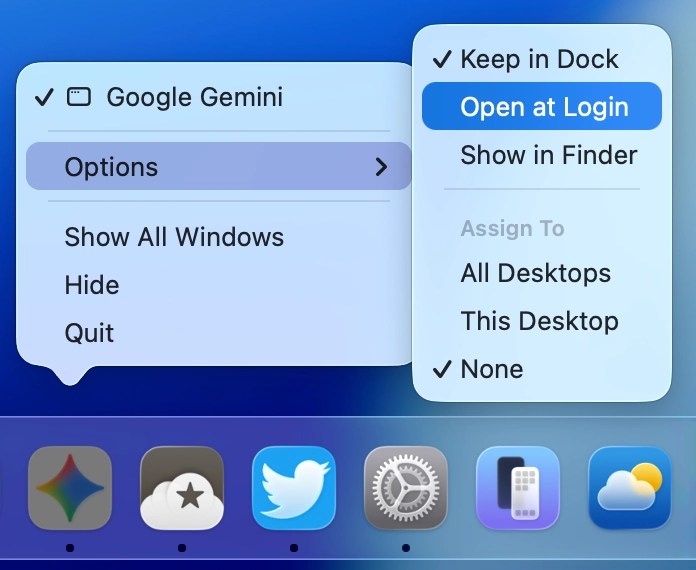
This method is a convenient way to just disable auto-launch for one app that may be annoying you after rebooting.
Manage all ‘Open at Login’ apps
System Settings lets you see every app on your Mac that is set to auto-launch.
Launch the System Settings app, select General from the sidebar, then scroll and select Login Items & Extensions.
The top section called Open at Login includes a list of apps that are set to automatically open as soon as your Mac boots up.
Click the app that you want to remove, then click the minus sign (-) to remove it from the list.
Removing apps from this list permanently prevents them from auto-launching after your Mac restarts.
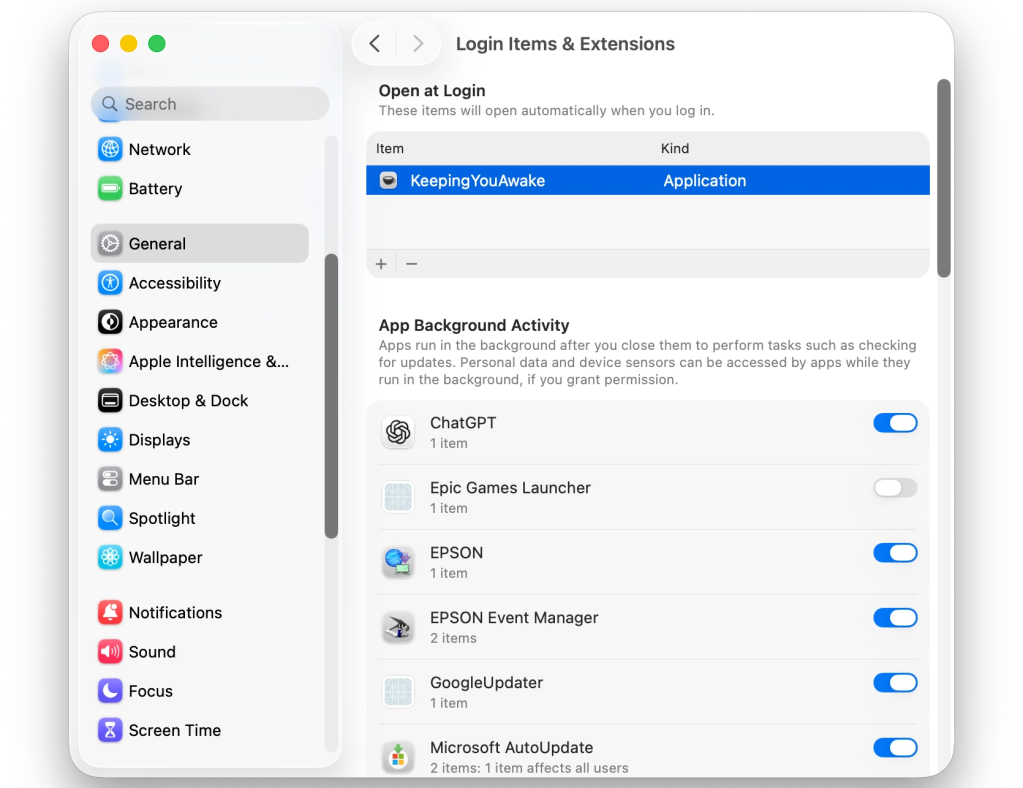
The same section in System Settings will also let you manage App Background Activity. Items can’t be removed from this list.
Instead, you can toggle App Background Activity on and off per app.
Older versions of macOS that have System Preferences instead of System Settings bury this section in a Users & Groups section.
The current method in macOS 26 Tahoe is much easier to manage and control.
Check out Apple’s support document for more information about managing Login Items on macOS Tahoe 26.
Source: 9to5mac










