 NEWS
NEWS
watchOS 26 Added a New Apple Watch Trick that I’ve Been Loving
 02/05/2026
 2651
2651
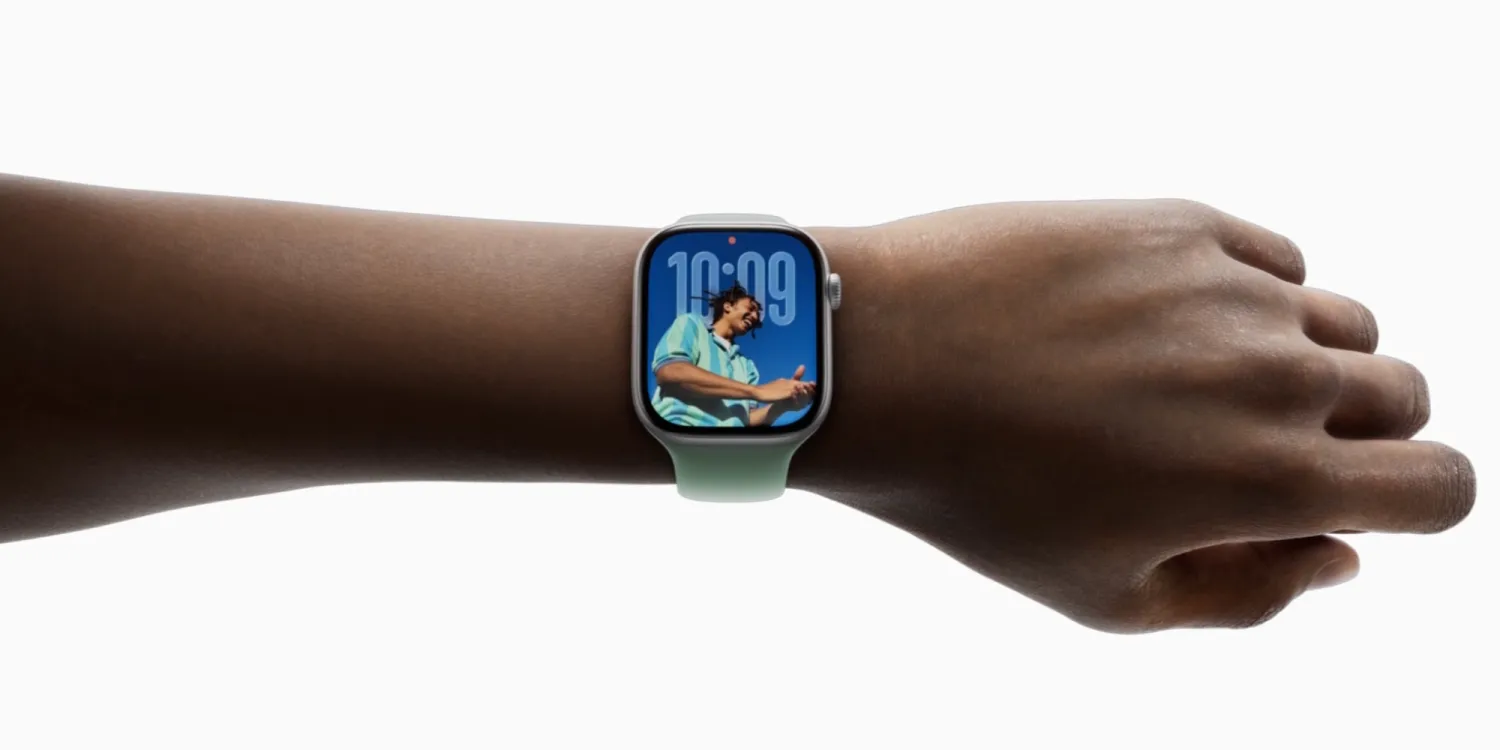
watchOS 26 brought a variety of big and small updates to the Apple Watch, but one I’ve been increasingly loving is the new wrist flick gesture. Here’s how it works and what I’ve been using it for.
Wrist flick joins double tap in enabling Apple Watch hands-free use
In recent years, watchOS has added two new gestures that are intended to make hands-free Apple Watch use more of a thing.
1. Double tap
2. Wrist flick
Double tap first debuted in 2023 with Apple Watch Series 9. But wrist flick is brand new.
I’ve historically had some reliability struggles with double tap, though it’s gotten better.
Wrist flick, however, has become one of my favorite additions in watchOS 26. The new gesture lets you quickly dismiss all kinds of content with a simple trick.
Flick your wrist back then forward again quickly, and you can dismiss:
●notifications
●apps
●phone calls
●timers
●alarms
That’s five different types of fairly common content you can dismiss or silence with a hands-free gesture.
How I’ve been using wrist flick in watchOS 26
With both wrist flick and double tap, it can take a little time to build habits of using them.
But the more I’ve tried to intentionally remember to use wrist flick, the more natural and common it’s become.
I’ve gotten very used to dismissing notifications via wrist flick, but only recently did I realize it can close apps too. Historically that’s required clicking the Digital Crown, but now I can close apps and return to my watch face quickly and hands-free.
Silencing timers and alarms with wrist flick has been really nice too. Timers especially will often go off when my hands are tied up—like in the middle of washing dishes or my hands.
If you haven’t used wrist flick much in watchOS 26, I encourage you to keep it in mind the next time you’re ready to close an app, dismiss a notification, or silence a timer. It’s a great little trick that makes the Apple Watch experience feel a bit more seamless.
Wrist flick is available with Apple Watch Ultra 3 and 2, Apple Watch Series 11, 10, and 9, and Apple Watch SE 3.
Source: 9to5mac










