 NEWS
NEWS
Apple Updates Home App Webpage with New Promotional Video, Design
 03/03/2017
 3242
3242
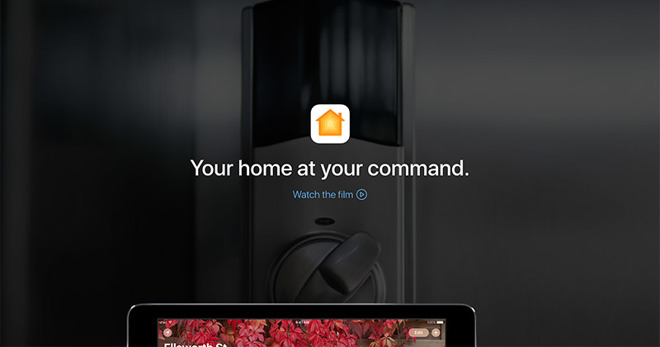
The new iOS Home app webpage now boasts a layout consistent with other recently updated Apple web assets, notably pages dedicated to hardware products.
Embedded at the top of the page is a new 45-second promotional video highlighting Home and the various connected products it controls. Like other recent Apple webpages, select snippets of the video run in the background without sound when the page is first loaded.
Clicking on the "Watch the film" link opens a pop-over viewing window and automatically plays the short.
The video takes viewers through a day in the life of a HomeKit user. Waking up to her iPhone alarm, the actress says, "Good morning Siri," invoking a scene that turns on a ceiling fan and raises house blinds. She taps on a Home app scene labeled "Breakfast Time," which triggers an iHome smart plug connected to a coffee maker.
Next, the woman uses Home to lower the temperature of her Honeywell Lyric Round thermostat. Before leaving for the day, she triggers a "Lock Up" scene that locks her front door, closes the house blinds and shuts down the AC.
Upon returning home, the actress swipes up from her iPhone's home screen to reveal the dedicated Home app control pane, where she taps "I'm Home." The door unlocks, lights turn on and blinds open.
Apple also shows off device interconnectivity in the new ad. In one example, the woman tells Siri on Apple TV, "It's movie time," which dims the lights and lowers her house blinds. She is later seen issuing commands from a connected iPad Pro.
The commercial has yet to be posted to Apple's YouTube channel.
The revamped Home app page also includes information about HomeKit enabled products, using the Home app in iOS 10, setting up and triggering scenes, Siri integration, using a fourth-generation Apple TV as a smarthome hub and more.
Source: appleinsider










