NEWS

iPhone 18 Pro Selfie Camera and Dynamic Island May Be Positioned on the Left

01/20/2026

45

iPhone 18 Pro Selfie Camera and Dynamic Island May Be Positioned on the Left

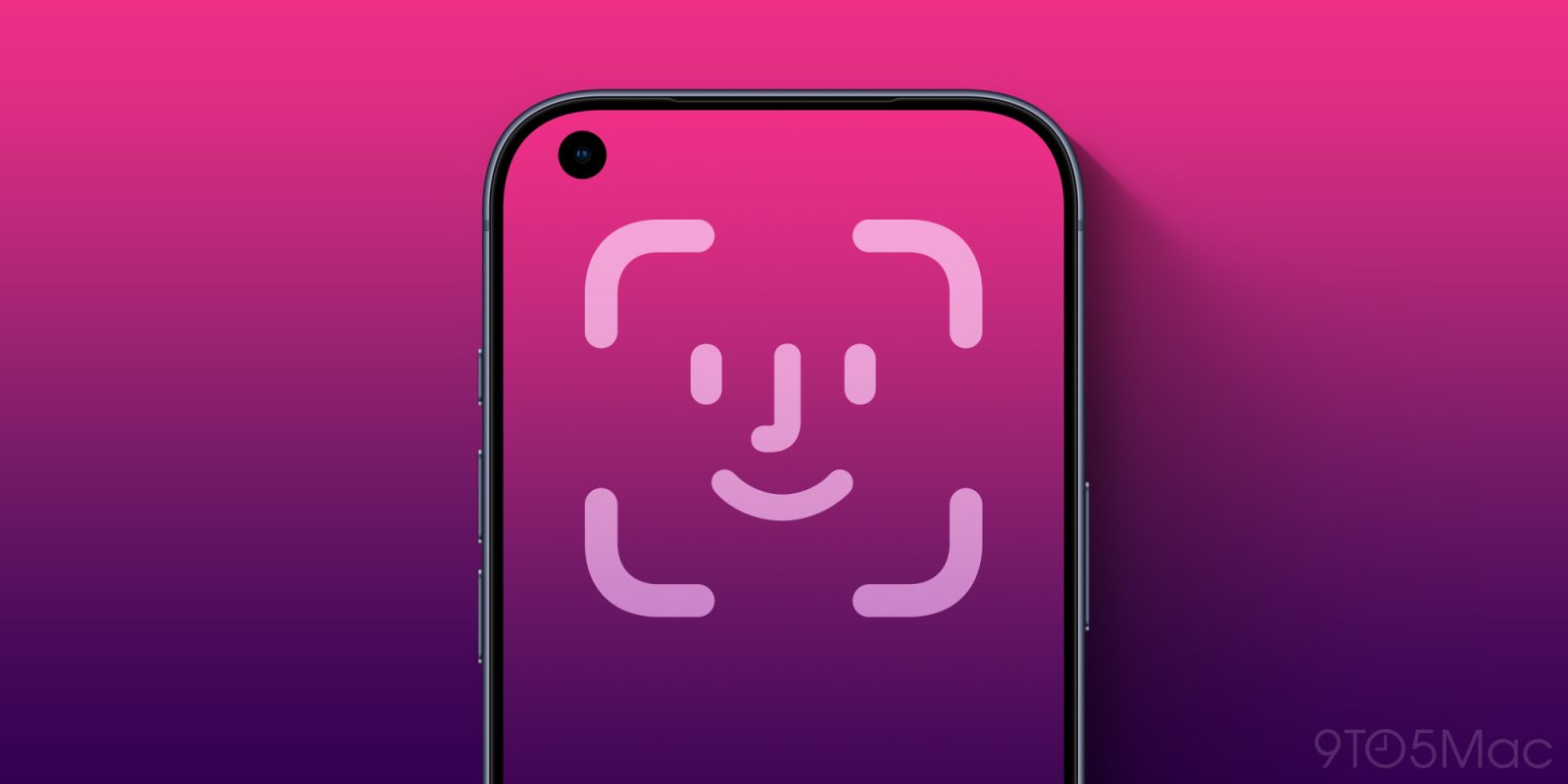
One of the biggest visual changes we’re expecting with this year’s iPhone 18 Pro is a punch-hole selfie camera, with the Face ID module invisibly embedded into the display.

Until recently, we’d been expecting this to be centered in the same way as the current camera and Face ID module. However, one report has suggested that the punch-hole selfie camera would instead be relocated to the top-left corner, where the clock currently lives. If so, logically the Dynamic Island would move with it, and this is shown in a new video render …

The Information was first to suggest that the selfie camera would be relocated to this position, and Jon Prosser has created a video render of how this would look with a repositioned Dynamic Island.

Although this would leave Apple able to abandon the Dynamic Island, as the reason for its existence was to hide the separate cutouts for the selfie camera and Face ID module, Prosser suggests that the feature is too useful to drop. He instead expects the dynamic island to move to the left on the new model, and this is what he illustrates in a video render.

I certainly agree that Dynamic Island is too useful a feature to drop and don’t personally have any strong preference for the position of the selfie camera: I think both central and top left positions could work.

iPhone 18 Pro Selfie Camera and Dynamic Island May Be Positioned on the Left

The idea of Dynamic Island emerging from the left rather than the center would also, in my view, work perfectly well so long as it used the full width of the screen to avoid an asymmetric appearance.

Source: 9to5mac

Windows
Mac OS
iOS
Linux
3uTools
Win 64-bit For this device
V9.01 2025-12-27
Download
Win 32-bit For this device
V9.01 2025-12-27
Download
3uTools
Intel Chip How to Identify Chip Type
V9.01 2025-12-31
Download
Apple Silicon
V9.01 2025-12-31
Download
How to Identify Chip Type
1.  Click the Apple icon in the top-left corner of the screen and select About This Mac.
2.  Check the Processor or Chip field to determine if it is "Intel" or "Apple".
Please use the 3uTools PC client to install the iOS client:
1、 Install either the Windows or Mac version of 3uTools on your computer
2、 Open the PC client and connect your device to the computer via USB cable
3、 After the connection is successful, wait for the computer to automatically install the mobile app for the device, or locate “Install Mobile App” on the computer and manually click to install.
3uTools
deb file
V3.01 2025-11-20
Download
rpm file
V3.01 2025-11-20
Download
Windows
Windows
iOS
iOS
Android
Android
TV
TV
3uAirPlayer
Win 64-bit For this device
V6.0.2 2025-11-19
Download
Win 32-bit For this device
V6.0.2 2025-11-19
Download
iOS Device Mirroring (No App Required)
1、 Install 3uAirPlayer on the Windows PC
2、 Open Control Center and select Screen Mirroring
3、 From the list, choose your PC to start mirroring
4、 Or connect your iOS device to the PC via USB to begin mirroring
Scan to get "3uAirPlayer" App
3uAirPlayer TV V1.0.18
2025-11-28
TV System Requirements: Android 7.0 or later
Download the TV installation package, copy it to a USB drive, insert it into your TV or set-top box, then select the file from the home screen to install.