 NEWS
NEWS
Sleep Scores Sharpen and EU Wi-Fi Setup Shifts in WatchOS 26.2
 12/16/2025
 1268
1268
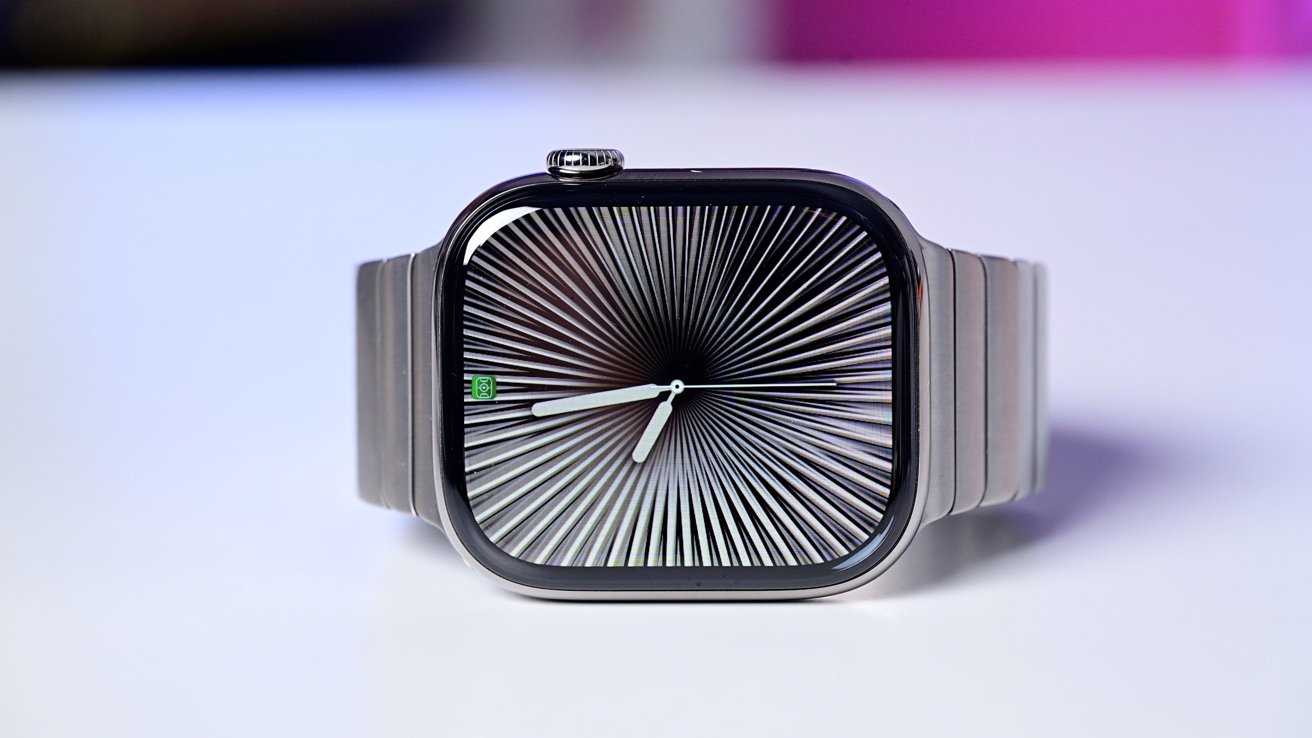
The watchOS 26.2 update arrives with a tighter sleep-scoring system and a required Wi-Fi change for users in the European Union.
Apple adjusted the sleep score ranges in watchOS 26.2 to better match how people feel after a night's rest. The highest score now reflects a genuinely restorative night instead of a generous rating.
Users who track sleep daily may see different numbers even when habits stay the same.
Apple turned off automatic Wi-Fi network sharing from iPhone to Apple Watch during setup in EU regions with watchOS 26.2. The change follows Digital Markets Act rules and may require manual Wi-Fi selection when pairing a new Watch.
Apple focused watchOS 26.2 on performance and reliability rather than new apps or redesigned features. Supported Apple Watch models receive general fixes that improve day-to-day behavior.
What users can expect
People who rely on sleep tracking may notice immediate shifts in their scores after installing watchOS 26.2. Numbers can move because the scoring ranges changed, not because sleep quality declined.
EU users who set up a new Watch will take an extra moment to pick a Wi-Fi network. Most users will experience a stable update that keeps the current watchOS experience consistent.
Compatibility and installation
All devices that support watchOS 26 also support watchOS 26.2. Users can install watchOS 26.2 through the Watch app on iPhone under General and Software Update. The Apple Watch needs enough battery and may need to stay on the charger during the process.
Source: Appleinsider










