 NEWS
NEWS
Apple Cuts Night Mode Portraits on iPhone 17 Pro as Users Look for Answers
 12/09/2025
 1568
1568
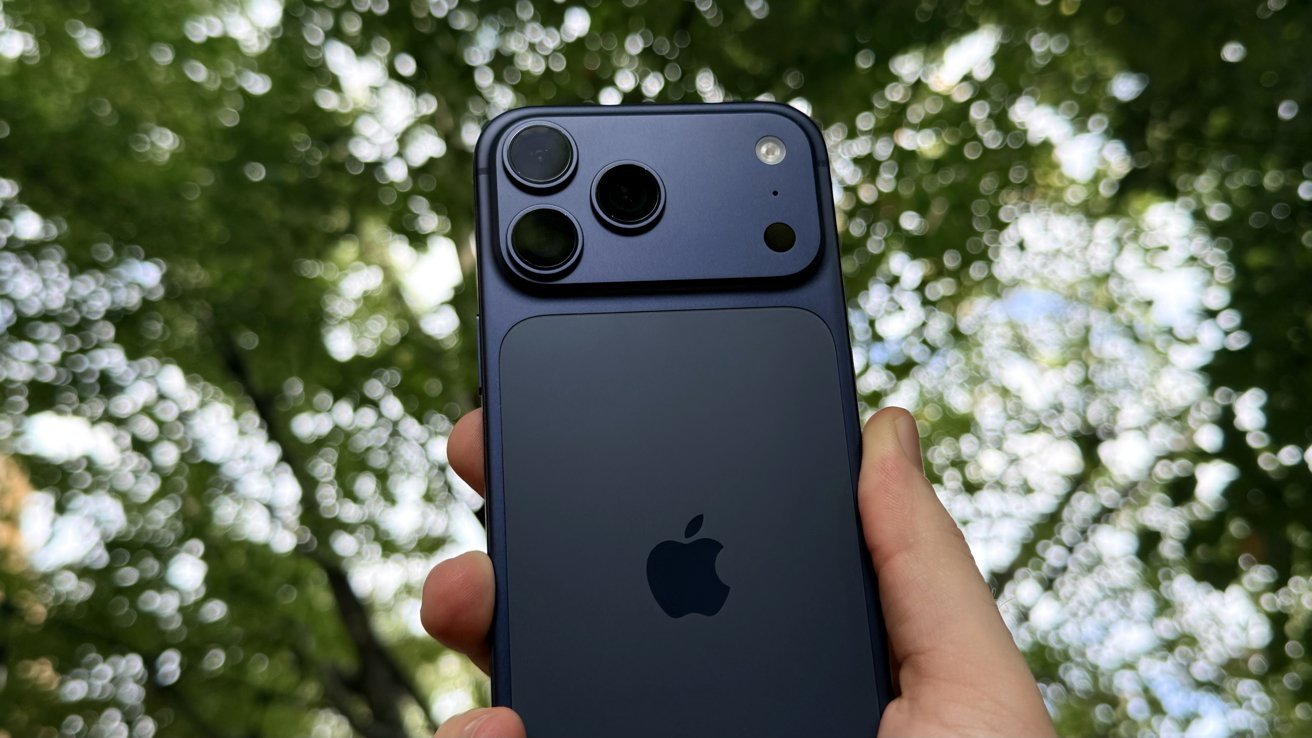
Apple removed Night mode Portraits from the iPhone 17 Pro, and while a vocal minority of users are frustrated, others never noticed the feature was gone.
Curiosity around the camera change has grown because the update landed without an explanation from Apple. Owners trying the new phones are only learning about the limitation through testing, comparisons, and scattered reports rather than official guidance.
Many users remain unaffected because their shooting habits never relied on the old workflow. For years, LiDAR-equipped iPhones let people blend Night mode and Portrait mode to brighten dark scenes while still blurring the background.
The combination debuted on the iPhone 12 Pro and survived multiple hardware and software generations. Support continues on older models that now run iOS 26.
Only the iPhone 17 Pro lineup no longer supports Night mode Portraits. Switching to Portrait mode in low light causes the Night mode icon to disappear instead of activating.
Photos captured with Night mode lose depth information across all cameras and can't be converted into portraits later. The change affects both rear and front shots, so every Night mode image behaves the same way.
What changed on iPhone 17 Pro
Night mode Portraits relied on depth data and longer exposures to brighten low-light scenes. Apple expanded its depth pipeline so regular photos quietly saved depth information in the background.
On the iPhone 17 Pro, the camera now captures a standard low-light image without depth when Night mode activates. Switching to Portrait mode produces a darker frame that avoids Night mode entirely.
Real-world shooting shows clear tradeoffs. Brighter images come from Night mode, while Portrait mode leans on the newer 24-megapixel pipeline for cleaner detail.
Apple's documentation hasn't caught up
Apple hasn't addressed the removal of Night mode Portraits on the iPhone 17 Pro. No explanation appears in marketing materials or iOS 26 release notes, leaving the change to be discovered by users rather than announced.
Support pages continue to state that supported models can use Night mode with Portrait mode. The same documentation lists the iPhone 17 family as part of that supported group, even though the feature no longer functions on the 17 Pro and 17 Pro Max.
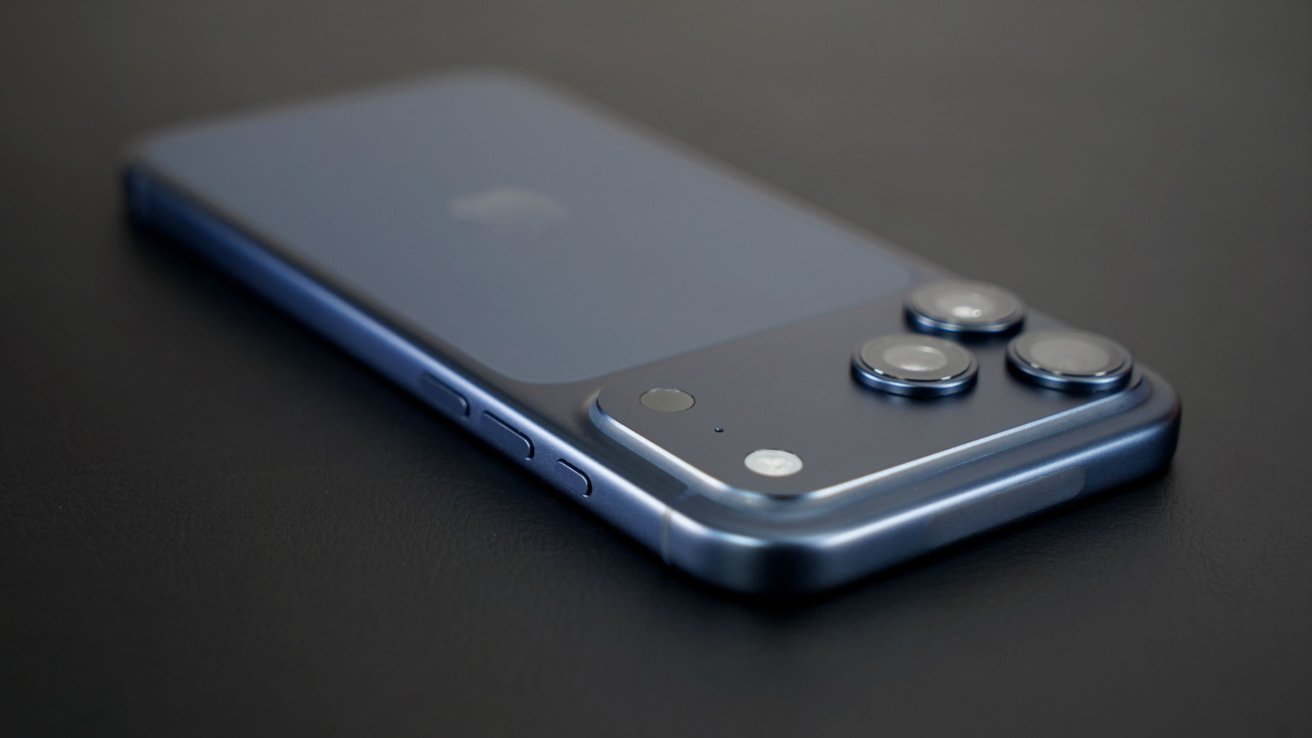
Apple removes Night mode portraits for certain iPhones
Older LiDAR-equipped devices running the same software still provide the feature without issue. Evidence points toward a hardware-specific change rather than a global adjustment to iOS camera features.
Why Apple might have pulled the feature
Apple hasn't offered an official reason, but several tradeoffs stand out. Night mode Portraits tend to look brighter, yet increased noise and stronger processing artifacts often accompany that brightness.
Longer exposures also introduce motion blur and can cause missed moments when the subject shifts even slightly. Standard portraits on the iPhone 17 Pro avoid those problems.
Darker frames feel cleaner, show more detail, and rely on the refined processing pipeline that Apple introduced in 2025. Users who prefer accuracy and texture may see the change as an upgrade rather than a loss.
Source: Appleinsider










