
NEWS

Apple Quietly Removes First iPhone Compatible VR Headset From Online Store

02/14/2017

3731

Just short of two weeks after the first iPhone-compatible VR headset appeared in the Apple Store, the product has been quietly removed without any reason given.

The bombastically named View-Master Virtual Reality Starter pack was priced at $29.95 and included a Google Cardboard-like VR headset compatible with the iPhone 5 and up. The pack came with a handful of demos to showcase the tech, bundled in the form of the View-Master Destinations app.
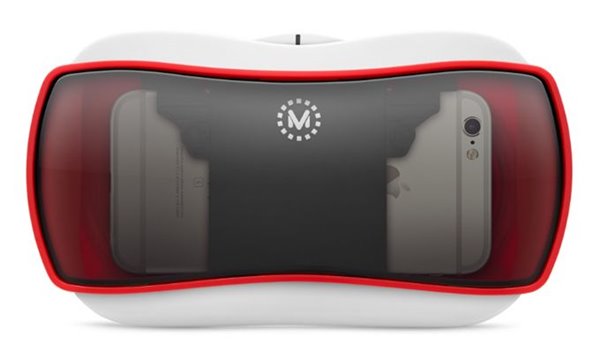
Apple Quietly Removes First iPhone Compatible VR Headset From Online Store


Albeit not the first iPhone-compatible VR headset, the View-Master was the first to be officially sold on the Apple Store, likely due to the established brand. However, the product is no longer available for purchase on Apple's storefront for unknown reasons. If you follow this Apple Store link, which leads directly to the headset's product page, you'll be greeted by a "product no longer available" notification, urging you to instead browse similar products (of which there are currently none).
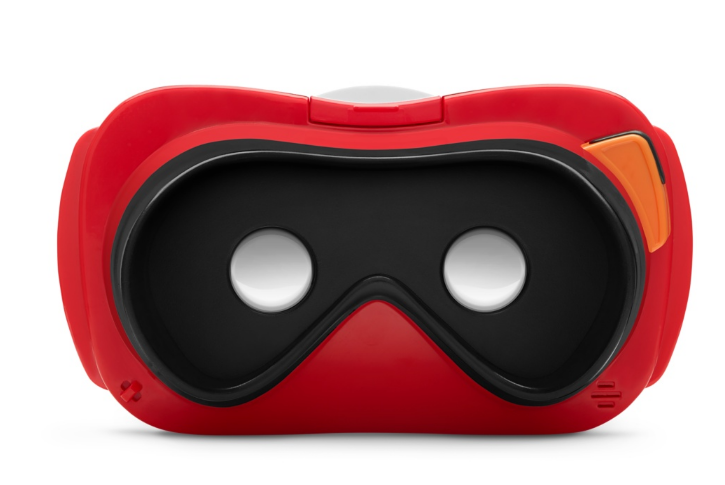
Apple Quietly Removes First iPhone Compatible VR Headset From Online Store


If you want to purchase the View-Master VR headset, you'll have to head to one of the authorized retailers selling the unit, listed in the “Buy” section on View-Master's website.


Source: Phonearena

Windows
Mac OS
iOS
Linux
3uTools
Win 64-bit For this device
V9.0 2025-11-11
Download
Win 32-bit For this device
V9.0 2025-11-11
Download
3uTools
Intel Chip How to Identify Chip Type
V9.0 2025-12-02
Download
Apple Chip
V9.0 2025-12-02
Download
How to Identify Chip Type
1.  Click the Apple icon in the top-left corner of the screen and select About This Mac.
2.  Check the Processor or Chip field to determine if it is "Intel" or "Apple".
Please use the 3uTools PC client to install the iOS client:
1、 Install either the Windows or Mac version of 3uTools on your computer
2、 Open the PC client and connect your device to the computer via USB cable
3、 After the connection is successful, wait for the computer to automatically install the mobile app for the device, or locate “Install Mobile App” on the computer and manually click to install.
3uTools
deb file
V3.01 2025-11-20
Download
rpm file
V3.01 2025-11-20
Download
Windows
Windows
iOS
iOS
Android
Android
TV
TV
3uAirPlayer
Win 64-bit For this device
V6.0.2 2025-11-19
Download
Win 32-bit For this device
V6.0.2 2025-11-19
Download
iOS Device Mirroring (No App Required)
1、 Install 3uAirPlayer on the Windows PC
2、 Open Control Center and select Screen Mirroring
3、 From the list, choose your PC to start mirroring
4、 Or connect your iOS device to the PC via USB to begin mirroring
Scan to get "3uAirPlayer" App
3uAirPlayer TV V1.0.18
2025-11-28
TV System Requirements: Android 7.0 or later
Download the TV installation package, copy it to a USB drive, insert it into your TV or set-top box, then select the file from the home screen to install.




