
NEWS

Some Matte Black iPhone 7 Units Have Paint Chipping Issues

02/13/2017

3543

In September last year, when Apple released the iPhone 7 and iPhone 7 Plus, it introduced two new color options, previously unseen on iPhones: Matte Black and Jet Black. From the beginning, Apple acknowledged that Jet Black iPhone 7 models were prone to developing "fine micro-abrasions" with time - this meant that users had (and still have) to take extra care of them. As it turns out, some Matte Black iPhone 7 units have a cosmetic issue, too, though this one hasn't been properly acknowledged by Apple. 
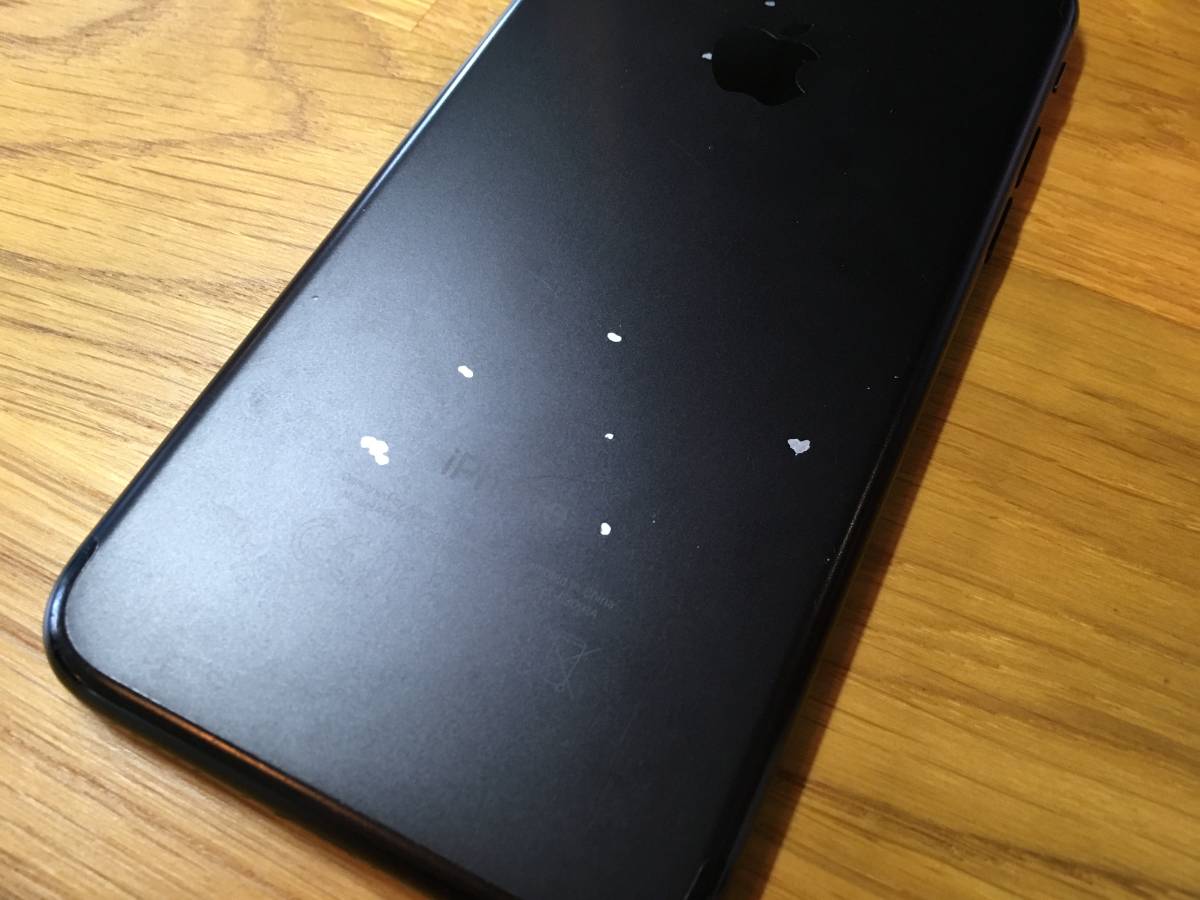
Some Matte Black iPhone 7 Units Have Paint Chipping Issues


A growing number of Matte Black iPhone 7 owners are reporting via Apple's Support Communities that the paint on their devices has chipped or peeled off. In most cases, the problem affects small areas near the side buttons or the speaker grille. However, in one particular case, the paint has chipped off from the rear of the handset - as you can see in one of the images included below. These issues can show up both with, and without a protective case. 
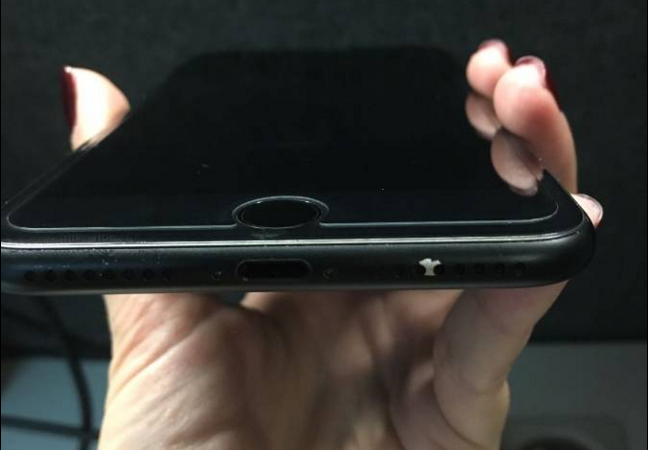

Some Matte Black iPhone 7 Units Have Paint Chipping Issues


The first peeled / chipped off paint problems have been reported in November, about 2 months after the iPhone 7 and iPhone 7 Plus hit the market. 

Apple's iPhone 7 warranty normally doesn't cover cosmetic damages, so users discovering paint-related issues will likely not receive replacement devices. 

Source: phonearena

Windows
Mac OS
iOS
Linux
3uTools
Win 64-bit For this device
V9.0 2025-11-11
Download
Win 32-bit For this device
V9.0 2025-11-11
Download
3uTools
Intel Chip How to Identify Chip Type
V9.0 2025-12-02
Download
Apple Silicon
V9.0 2025-12-02
Download
How to Identify Chip Type
1.  Click the Apple icon in the top-left corner of the screen and select About This Mac.
2.  Check the Processor or Chip field to determine if it is "Intel" or "Apple".
Please use the 3uTools PC client to install the iOS client:
1、 Install either the Windows or Mac version of 3uTools on your computer
2、 Open the PC client and connect your device to the computer via USB cable
3、 After the connection is successful, wait for the computer to automatically install the mobile app for the device, or locate “Install Mobile App” on the computer and manually click to install.
3uTools
deb file
V3.01 2025-11-20
Download
rpm file
V3.01 2025-11-20
Download
Windows
Windows
iOS
iOS
Android
Android
TV
TV
3uAirPlayer
Win 64-bit For this device
V6.0.2 2025-11-19
Download
Win 32-bit For this device
V6.0.2 2025-11-19
Download
iOS Device Mirroring (No App Required)
1、 Install 3uAirPlayer on the Windows PC
2、 Open Control Center and select Screen Mirroring
3、 From the list, choose your PC to start mirroring
4、 Or connect your iOS device to the PC via USB to begin mirroring
Scan to get "3uAirPlayer" App
3uAirPlayer TV V1.0.18
2025-11-28
TV System Requirements: Android 7.0 or later
Download the TV installation package, copy it to a USB drive, insert it into your TV or set-top box, then select the file from the home screen to install.




