 NEWS
NEWS
Apple’s Ultra Accessory Connector Dashes Any Hopes Of A USB-C iPhone
 02/08/2017
 3386
3386
Among all the iPhone 8 concepts and daydreams, Apple is already a strong proponent of USB-C, having moved to it aggressively with the new MacBook Pros in October, but the company also maintains Lightning for its iPhones and iPads — which creates a lot of headaches for people desiring universal accessories that work with everything inside the Cupertino ecosystem.
Alas, after yesterday’s revelation of a new Ultra Accessory Connector (UAC), which is intended to ameliorate some of the pain of having both USB-C and Lightning devices, it looks like the dream of a USB-C iPhone will forever remain just that.
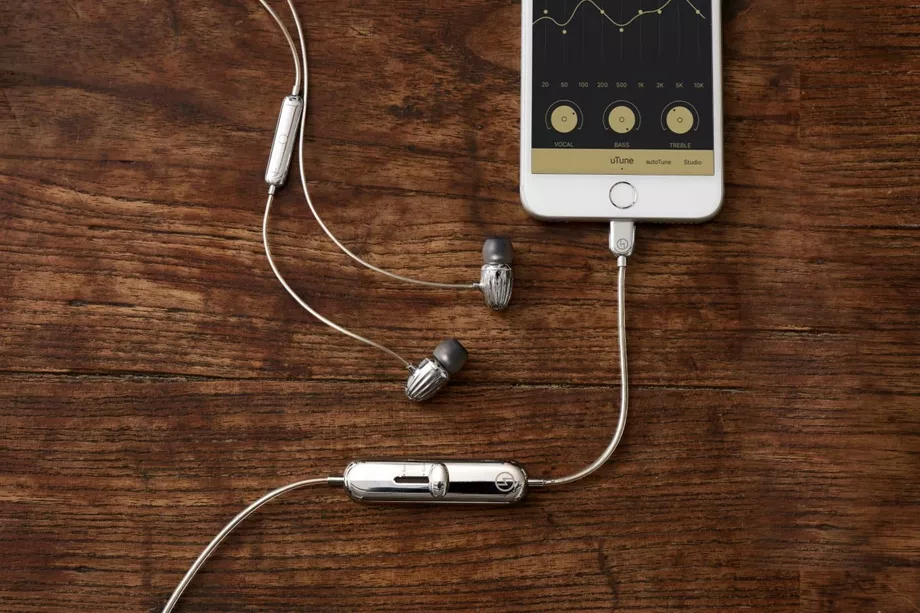
The UAC connector is going to be used as an intermediary in headphone wires, splitting them in half so that the top part can be universal, and the bottom can be either a Lightning, USB-C, USB-A, or a regular old 3.5mm analog plug. The intent is to restore some of the universality of wired headphones — which, until not too long ago, all terminated in a 3.5mm connector (or 6.35mm on non-portable hi-fi models designed for at-home listening). With UAC, a headphone manufacturer can issue multiple cable terminations very cheaply, making both the headphones and any integrated electronics, like a digital-to-analog converter or built-in microphone, compatible across devices with different ports.
For Apple, moving to a USB-C iPhone would mean a great deal of upheaval for little payoff. The Cupertino company has its eyes set on total wireless freedom, and everything — Lightning, USB-C, UAC — that it’s working with today is just a temporary compromise en route to that goal. So no, a USB-C iPhone was probably never going to happen. But now that we have UAC to ease the switching between Lightning and USB-C music sources, even daydreaming about it seems silly. Instead, I might recommend grabbing a Google Pixel, which can be charged from the same USB-C charger that the MacBook Pro uses.
Source: theverge










