NEWS

Starbucks Voice Recognition 'Barista' Beta Starts on iPhone, Prior to Wide Summer Rollout

02/06/2017

3173

Starbucks Voice Recognition 'Barista' Beta Starts on iPhone, Prior to Wide Summer Rollout


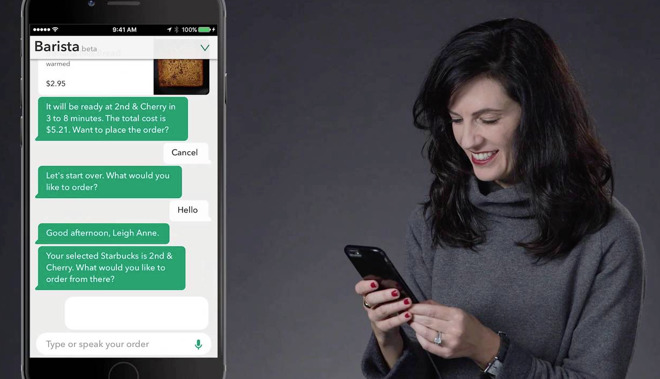
Said to be using "groundbreaking Artificial Intelligence," the virtual barista can accept commands both verbally and in text, using a messaging app-style interface. Multiple items can be requested in the order at the same time, with individual items displayed with prices and a final order total. 

The barista will ask follow-up questions if parts of the order need to be clarified, such as the size of a drink. More complex orders can be made in a single statement, with a demonstration showing the app accepting an order for a "Double upside down macchiato half decaf with room and a splash of cream, in a grande cup" successfully. 

Starbucks previously announced it was working on a virtual barista for the iOS app during an investor day last month. Initially released in a beta test to one thousand customers across the United States, the digital assistant is expected to roll out on the iOS version of the app to all customers by the summer, with the Android app receiving it later in 2017 

The iOS app is not the only way to verbally order from Starbucks from a device. The coffee chain has also announced Amazon's Alexa has support for reordering a customer's "usual" Starbucks order, allowing the Echo to be used for a quick order before the user leaves the house to collect it.


Source: Appleinsider

Windows
Mac OS
iOS
Linux
3uTools
Win 64-bit For this device
V9.0 2025-11-11
Download
Win 32-bit For this device
V9.0 2025-11-11
Download
3uTools
Intel Chip How to Identify Chip Type
V9.0 2025-12-02
Download
Apple Chip
V9.0 2025-12-02
Download
How to Identify Chip Type
1.  Click the Apple icon in the top-left corner of the screen and select About This Mac.
2.  Check the Processor or Chip field to determine if it is "Intel" or "Apple".
Please use the 3uTools PC client to install the iOS client:
1、 Install either the Windows or Mac version of 3uTools on your computer
2、 Open the PC client and connect your device to the computer via USB cable
3、 After the connection is successful, wait for the computer to automatically install the mobile app for the device, or locate “Install Mobile App” on the computer and manually click to install.
3uTools
deb file
V3.01 2025-11-20
Download
rpm file
V3.01 2025-11-20
Download
Windows
Windows
iOS
iOS
Android
Android
TV
TV
3uAirPlayer
Win 64-bit For this device
V6.0.2 2025-11-19
Download
Win 32-bit For this device
V6.0.2 2025-11-19
Download
iOS Device Mirroring (No App Required)
1、 Install 3uAirPlayer on the Windows PC
2、 Open Control Center and select Screen Mirroring
3、 From the list, choose your PC to start mirroring
4、 Or connect your iOS device to the PC via USB to begin mirroring
Scan to get "3uAirPlayer" App
3uAirPlayer TV V1.0.18
2025-11-28
TV System Requirements: Android 7.0 or later
Download the TV installation package, copy it to a USB drive, insert it into your TV or set-top box, then select the file from the home screen to install.