 NEWS
NEWS
Apple’s Lightning to USB 3 Camera Adapter Gets a Firmware Update to Version 1.0.5
 04/14/2017
 9445
9445
If you recently plugged in Apple’s Lightning to USB 3 Camera Adapter, you were likely met with an alert requesting an update for the device. The update is performed over the air directly via the iOS device that the dongle is connected to. It’s not clear what new enhancements or bug fixes, if any, are included with the new update, but there are no glaring user-facing changes that we’ve spotted thus far.
When you connect an official dongle, such as Apple’s USB Camera Adapter, you’ll find a new section in the iOS Settings app dedicated to the device under the General section. This area includes information pertaining to the device, such as manufacturer, model number, serial number, firmware version, and hardware version.
Prior to agreeing to the update, the firmware version for the Apple USB Camera Adapter was at 1.0.1. After plugging the dongle into my iPad and agreeing to the requested update, the firmware saw an update to version 1.0.5. This new firmware appears to have been released sometime within the last month or so.
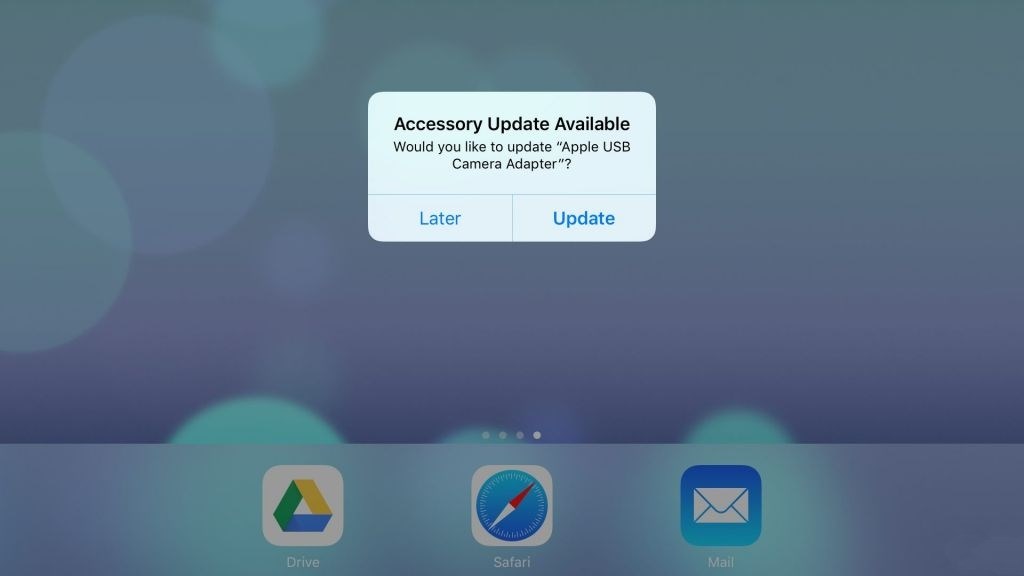
When you first plug in the device, you’ll see an Accessory Update Available alert appear on-screen. The alert asks: “Would you like to update ‘Apple USB Camera Adapter'”? You can defer the update until later by tapping the Later button, or proceed with the update by tapping Update.
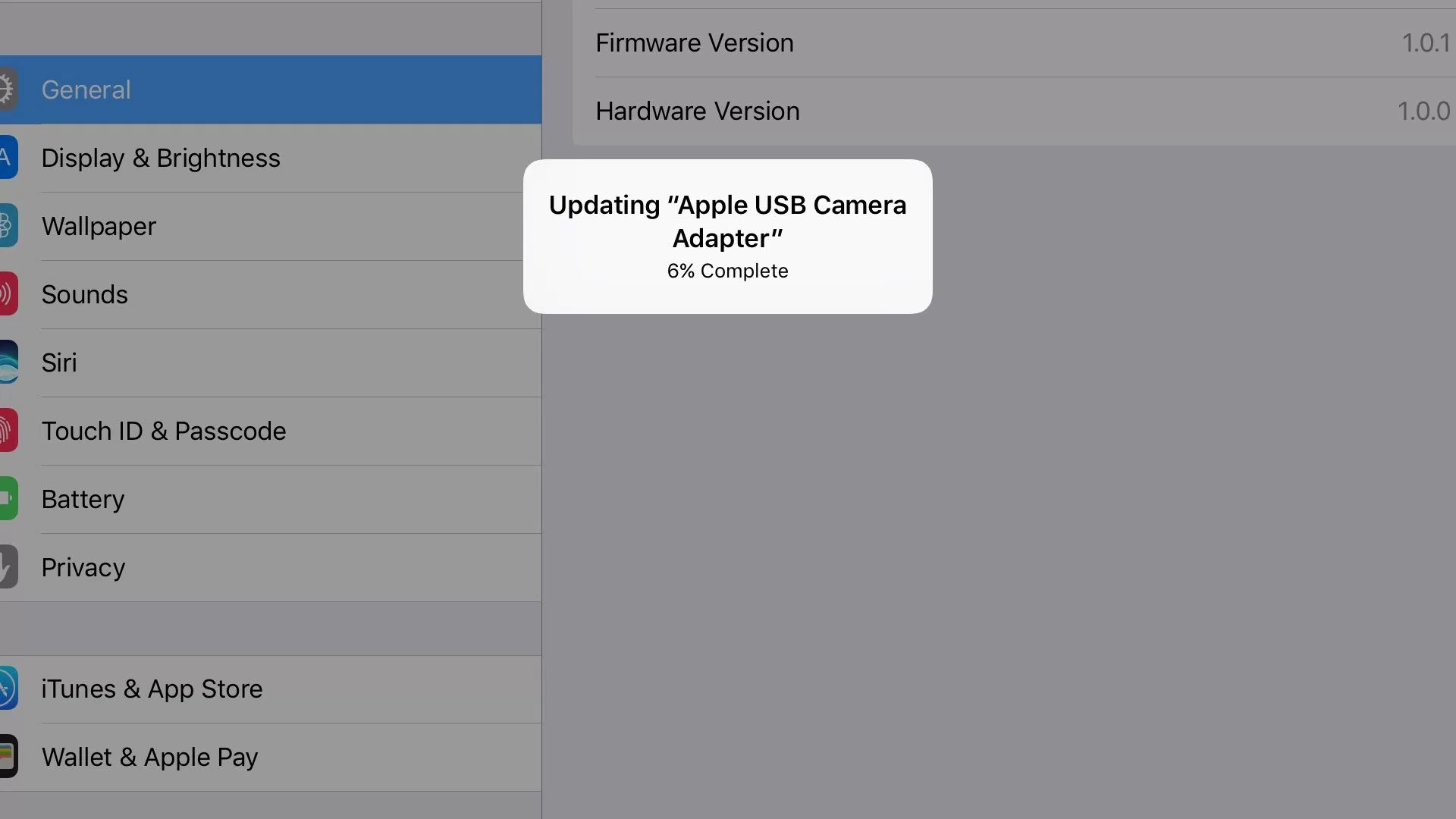
Unlike an iOS update, Apple doesn’t provide release notes with its USB Camera Adapter firmware update. Thus, it’s unclear as to what the update fixes or changes, but there are no obvious changes that appear at the surface other than an updated firmware version.
It could be possible that this update enhances compatibility with certain cameras, such as just-released high-profile products, it could also have some bearing on audio compatibility since this adapter is primed for podcasting and voiceover workflows on the iPad.
Source: 9tosmac










