
TUTORIALS

Here's How long Apple's Signing Window Has Remained Open for Every iOS Version

06/26/2017

5369

The iOS signing window is one of the more obscure details related to the iOS & jailbreak community. The signing window is the window of time in which a certain iOS firmware is able to be updated or downgraded via iTunes.


Once that signing window closes, it becomes impossible to downgrade or update to that specific iOS version.


Here, we create a visual representation of the data.


Below is a bar chart showing how long Apple’s signing period has remained open for every firmware version since iOS 9.


Example

Here’s an example of how to better understand the data presented in the chart below:


iOS 10.2 was released on 12-12-16.


It won’t stop being signed until after the next iOS version is released.


That next version is iOS 10.2.1 and it was released on 1-23-17.


Apple then stopped signing 10.2 on 1-30-17, meaning that there was a 7 day period in between where 10.2 was still being signed (1/23 – 1/30).


This means that you were able to update or downgrade to iOS 10.2 for 7 days after 10.2.1 dropped.


That’s how the data below is structured and gives us a good forecast for the future. Remember, this is simply historical data and Apple can change things up at any given time.


iOS Signing Window Chart
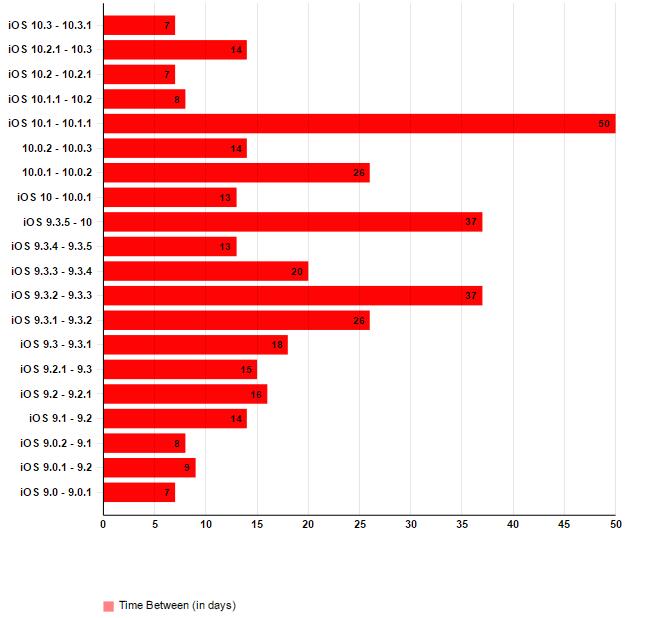

Here's How long Apple's Signing Window Has Remained Open for Every iOS Version


Notice there hasn’t been once where Apple waited less than a week (7 days) to close the signing period after a new version got released.


You should also take note of how sporadic and unpredictable Apple is with the signing windows.


If you have any questions about the data presented, feel free to let us on Facebook.



Windows
Mac OS
iOS
Linux
3uTools
Win 64-bit For this device
V9.0 2025-11-11
Download
Win 32-bit For this device
V9.0 2025-11-11
Download
3uTools
Intel Chip How to Identify Chip Type
V9.0 2025-12-02
Download
Apple Silicon
V9.0 2025-12-02
Download
How to Identify Chip Type
1.  Click the Apple icon in the top-left corner of the screen and select About This Mac.
2.  Check the Processor or Chip field to determine if it is "Intel" or "Apple".
Please use the 3uTools PC client to install the iOS client:
1、 Install either the Windows or Mac version of 3uTools on your computer
2、 Open the PC client and connect your device to the computer via USB cable
3、 After the connection is successful, wait for the computer to automatically install the mobile app for the device, or locate “Install Mobile App” on the computer and manually click to install.
3uTools
deb file
V3.01 2025-11-20
Download
rpm file
V3.01 2025-11-20
Download
Windows
Windows
iOS
iOS
Android
Android
TV
TV
3uAirPlayer
Win 64-bit For this device
V6.0.2 2025-11-19
Download
Win 32-bit For this device
V6.0.2 2025-11-19
Download
iOS Device Mirroring (No App Required)
1、 Install 3uAirPlayer on the Windows PC
2、 Open Control Center and select Screen Mirroring
3、 From the list, choose your PC to start mirroring
4、 Or connect your iOS device to the PC via USB to begin mirroring
Scan to get "3uAirPlayer" App
3uAirPlayer TV V1.0.18
2025-11-28
TV System Requirements: Android 7.0 or later
Download the TV installation package, copy it to a USB drive, insert it into your TV or set-top box, then select the file from the home screen to install.




