 TUTORIALS
3uAirPlayer Shows Black Screen After Connecting? Here’s the Fix
 03/06/2026
 230
230
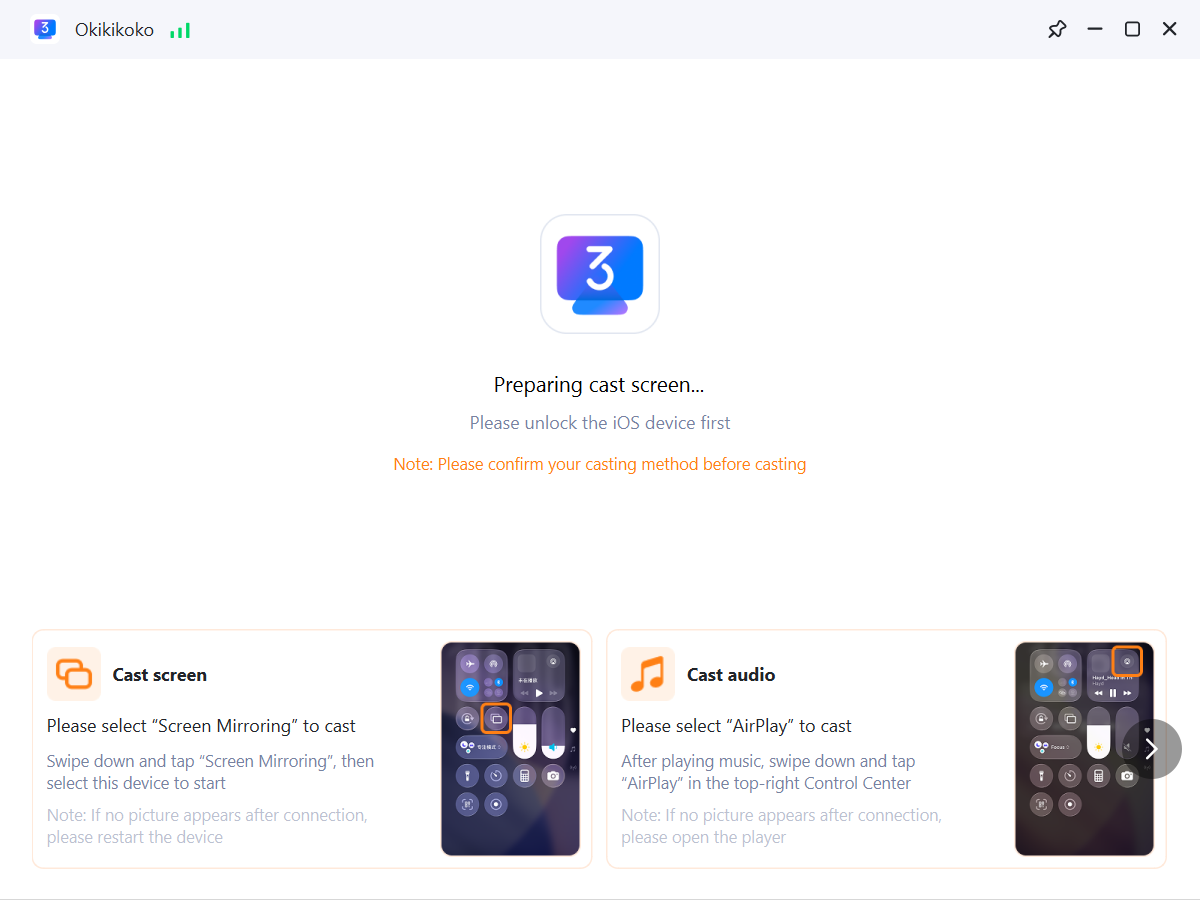
If your Apple device (iPhone/iPad) successfully connects to 3uAirPlayer but shows no image, a black screen, or a “Please unlock first” message, you can follow the methods below to troubleshoot the issue.
Method 1: Unlock the Apple Device (For Wired Casting While Locked)
If you are using USB casting and the Apple device is locked, simply unlock the device screen. Apple’s wired casting mechanism requires the device to remain unlocked and active. When the screen is locked, screen transmission may stop, resulting in a black screen.
Method 2: Play Music First (For Music Casting Mode)
If you selected Music Casting Mode, you must first play music on the Apple device.
Open a music player on your device and start playing music, then unlock the casting interface. Music casting is triggered by active audio playback, so playback must start before the screen can be displayed properly.
Method 3: Restart the Router (Fix LAN Forwarding Issues)
If the issue persists, the router may be blocking or interrupting local network forwarding.
Steps:
a. Turn off the router.
b. Wait about 30 seconds.
c. Turn the router back on.
d. After the network fully reconnects, try casting again.
Method 4: Switch to Screen Mirroring (Check Mirroring vs Audio Casting)
Apple casting supports two modes: Screen Mirroring and Audio Casting. If Audio Casting is selected by mistake, no screen image will appear.
Steps:
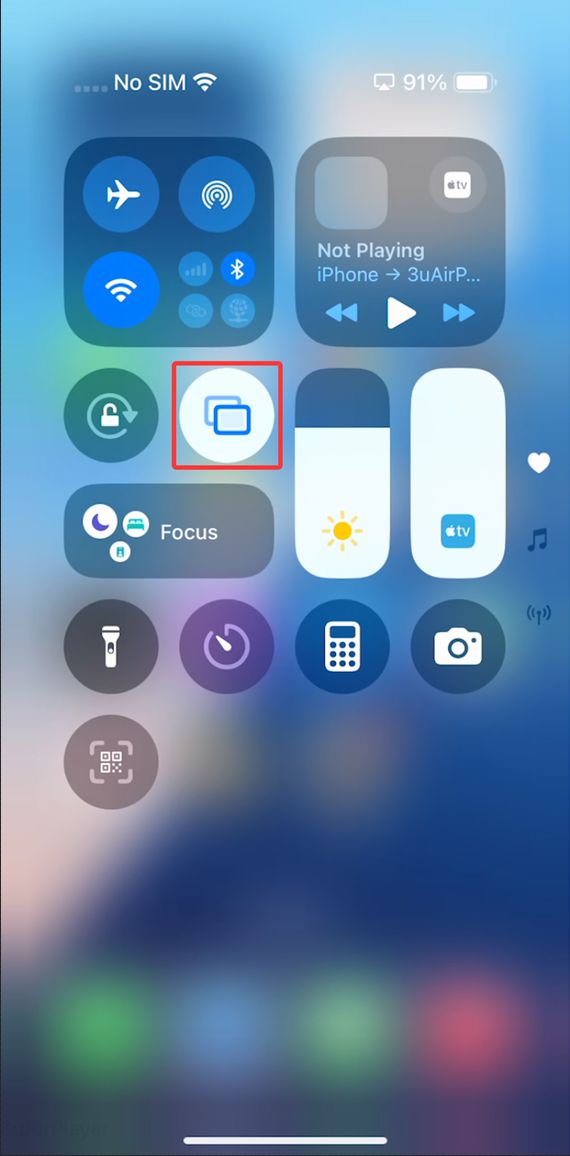
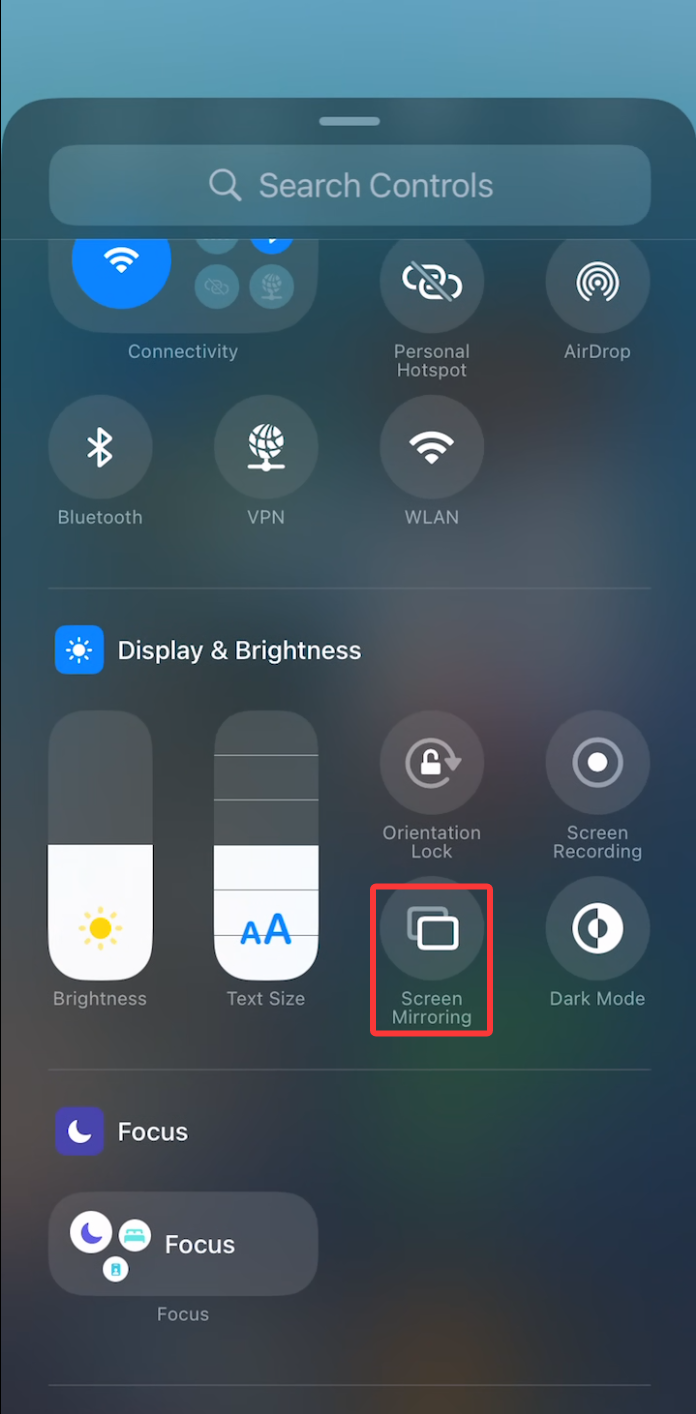
a. Open the Control Center on your Apple device and check whether Screen Mirroring is available. (If you are in audio mode, it may appear as AirPlay Audio instead.)
b. If Screen Mirroring is missing, go to Settings → Control Center, and add Screen Mirroring to the Control Center.
c. Make sure you connect using Screen Mirroring, not Audio Casting.
Method 5: Contact Support (If the Issue Persists)
If none of the methods above resolve the issue, you can collect diagnostic information and contact the developers.
Steps:
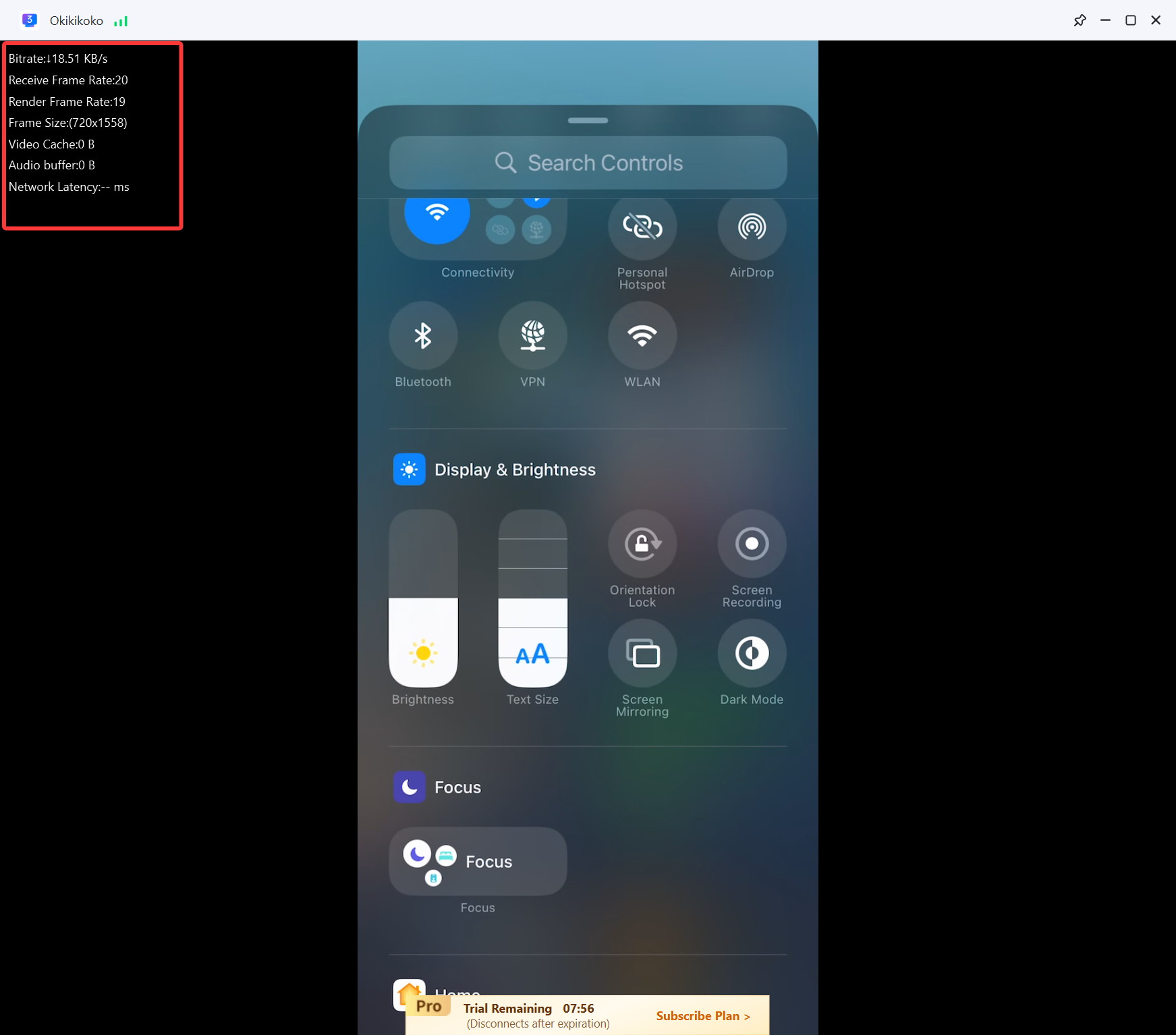
a. Press Ctrl + Alt + Shift + F11 to hide the casting waiting interface.
b. Press Ctrl + Alt + Shift + F12 to open the information window.
c. Record the information window using your phone and send it to the 3uAirPlayer development team for further investigation.
Following the steps above can help resolve common causes such as device lock, incorrect casting mode, or network issues, allowing you to quickly fix the no image or black screen problem when casting with 3uAirPlayer.
If Android devices encounter the same issue, please refer to Method 5 above and submit the diagnostic information.









