 NEWS
NEWS
iOS 14 will Significantly Improve Mouse Cursor Support
 03/10/2020
 2752
2752
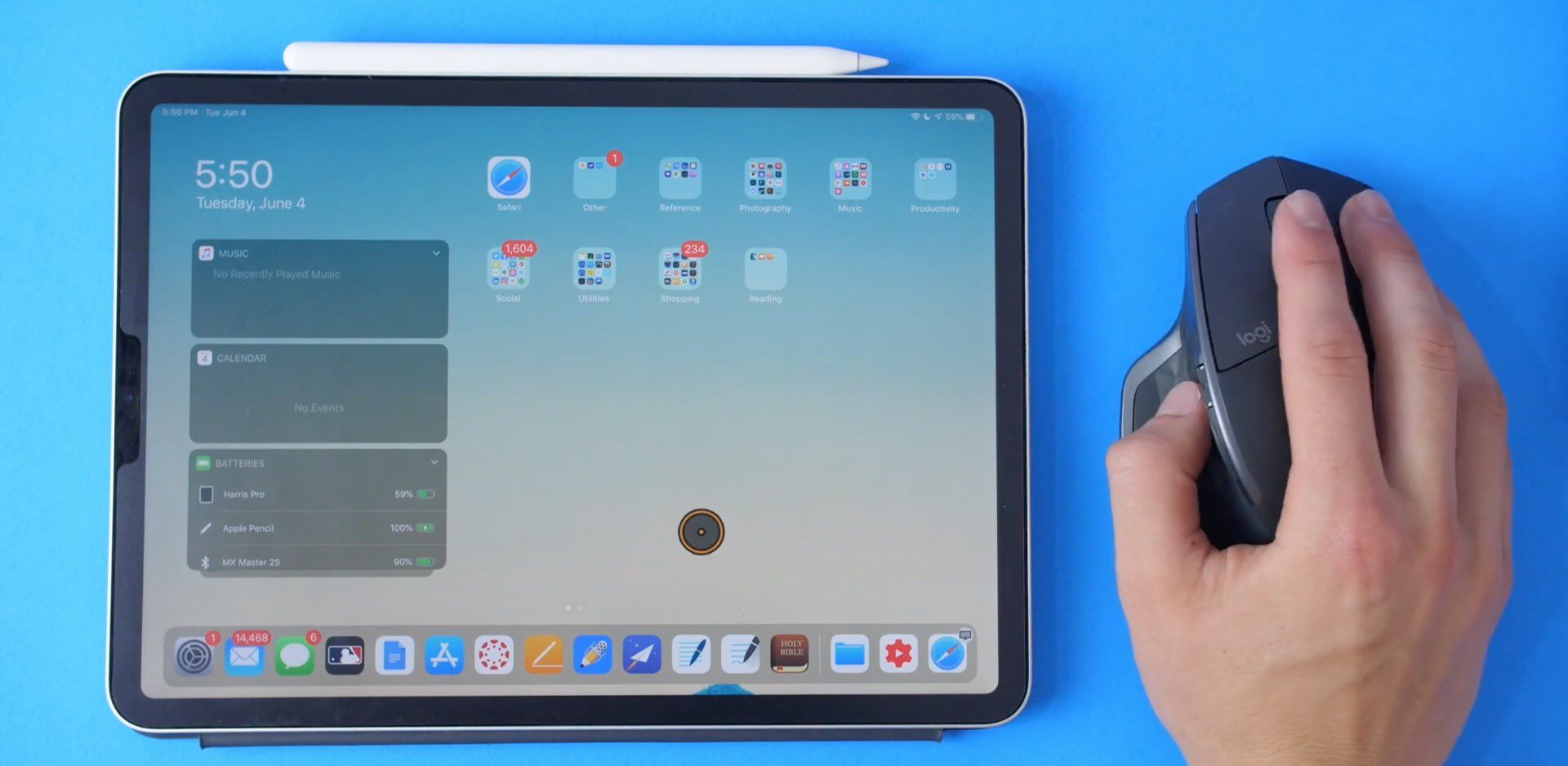
Today is a busy day for iOS 14 leaks. And now we have yet another detail, this time regarding mouse cursor support.
Apple introduced mouse support with iOS 13/iPadOS last year, but the feature is basically a technicality. It’s available in the Accessibility settings, and while it works well enough, it’s probably not as great as some iPad (and especially iPad Pro) users might want. The good news is it looks like Apple is doubling down on the feature with the impending arrival of iOS 14/iPadOS 14 later this year.
That’s based on iOS 14 code that 9to5Mac was able to see, well ahead of an official unveiling later this year. The gist is this: more sophisticated mouse cursor support baked into the mobile operating system, bringing many of the expected features you’d see on a Mac to iOS.
One difference may be that the pointer disappears automatically after a few seconds of not touching the connected mouse or trackpad, a concession to the touch-first experience of the iPad. It would reappear when the user attempts to move the cursor again.
The support could also lead to multiple cursors that appear on the screen, depending on what you are hovering the mouse over. We could see a hand with a pointing finger when the mouse is positioned over a link, for instance. The standard arrow pointer would be present as well.
The report also indicates that the software could support additional gestures, including the ability to tap with two fingers for a double-click.
The iOS 14 code also appears to echo speculation that Apple is building a new Smart Keyboard with a built-in trackpad. Indeed, a “tap to click” setting is present, which could suggest the built-in trackpad will feature some level of depression while in use. Haptic feedback will also be present.
Interestingly, the iOS 14 code references two different Smart Keyboards: There are two new Smart Keyboard model identifiers referenced in the code, suggesting Apple is preparing to roll out the accessories to multiple models of iPad. Although we could not find information on the physical shape of the new accessories, the code findings imply a standard laptop-like design with keyboard above and large trackpad below.
This all sounds great. The bad news is that we have to wait until iOS 14 arrives before we’ll get to use it, right?
Source: iDB









