
NEWS

iPhone XR Users Experiencing Difficulties on UK's O2 Network

01/07/2020

2744

The iPhone XR is not properly functioning on the O2 network in the UK, according to the BBC. Based on multiple reports on Twitter, XR users who have O2 as a mobile provider have been experiencing multiple signal outages per day. 

Customers have been unable to make and receive calls and send and receive text messages, as well as maintain a reliable LTE connection for using apps. 
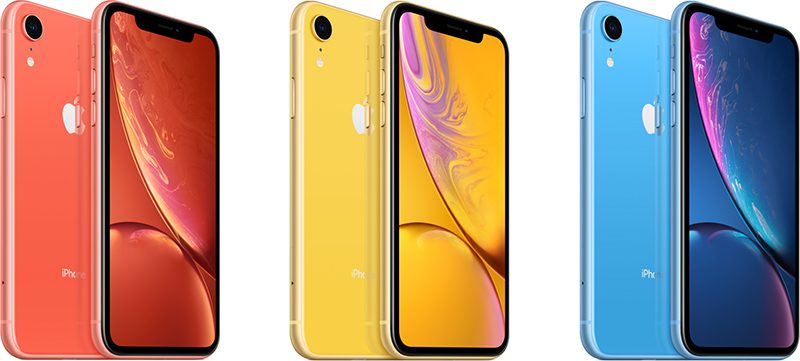
iPhone XR Users Experiencing Difficulties on UK's O2 Network
An O2 spokesperson told the BBC that it is working closely with partners to resolve "an intermittent issue affecting some of our customers using ‌iPhone XR‌." O2 did not clarify how many customers are affected, but said that turning the iPhone off and on again can temporarily fix the issue. 

According to one customer with an affected device, he was told by an O2 customer service representative that Apple caused the issue with a recent iOS update, though that information has not been confirmed. He was given a free month's line rental as compensation. 

A MacRumors reader who is experiencing issues with the ‌iPhone XR‌ was able to receive a free upgrade to the iPhone 11 plus a £20 refund due to the signal issues. 

Apple told him there was indeed a problem and that under consumer law in the UK, the handset had to be replaced regardless of warranty. There have been no other reports of free ‌iPhone‌ upgrades, but other ‌iPhone XR‌ owners who are experiencing issues on O2 may want to contact Apple support to see what can be done.


Source: Macrumors

Windows
Mac OS
iOS
Linux
3uTools
Win 64-bit For this device
V9.0 2025-11-11
Download
Win 32-bit For this device
V9.0 2025-11-11
Download
3uTools
Intel Chip How to Identify Chip Type
V9.0 2025-12-02
Download
Apple Chip
V9.0 2025-12-02
Download
How to Identify Chip Type
1.  Click the Apple icon in the top-left corner of the screen and select About This Mac.
2.  Check the Processor or Chip field to determine if it is "Intel" or "Apple".
Please use the 3uTools PC client to install the iOS client:
1、 Install either the Windows or Mac version of 3uTools on your computer
2、 Open the PC client and connect your device to the computer via USB cable
3、 After the connection is successful, wait for the computer to automatically install the mobile app for the device, or locate “Install Mobile App” on the computer and manually click to install.
3uTools
deb file
V3.01 2025-11-20
Download
rpm file
V3.01 2025-11-20
Download
Windows
Windows
iOS
iOS
Android
Android
TV
TV
3uAirPlayer
Win 64-bit For this device
V6.0.2 2025-11-19
Download
Win 32-bit For this device
V6.0.2 2025-11-19
Download
iOS Device Mirroring (No App Required)
1、 Install 3uAirPlayer on the Windows PC
2、 Open Control Center and select Screen Mirroring
3、 From the list, choose your PC to start mirroring
4、 Or connect your iOS device to the PC via USB to begin mirroring
Scan to get "3uAirPlayer" App
3uAirPlayer TV V1.0.18
2025-11-28
TV System Requirements: Android 7.0 or later
Download the TV installation package, copy it to a USB drive, insert it into your TV or set-top box, then select the file from the home screen to install.




