 NEWS
NEWS
San Francisco Accidentally Made it Illegal for City Employees to use iPhones
 12/24/2019
 2377
2377
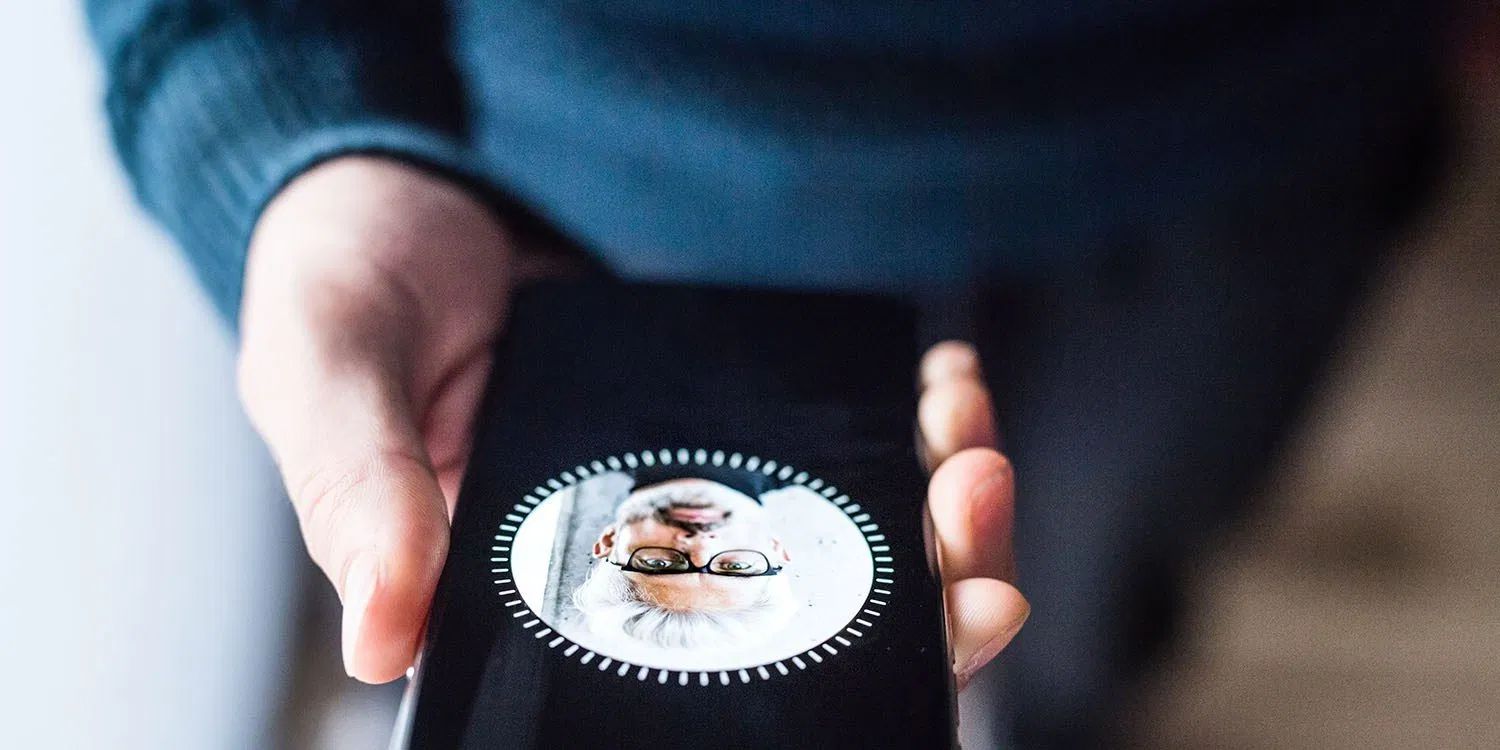
San Francisco accidentally made it illegal for city employees to use iPhones with Face ID after it banned the use of face recognition technology in May. The city had to amend the law last week to make iPhones legal to use.
San Francisco isn’t the only city to have discovered this issue with bans intended to outlaw the indiscriminate use of face recognition on the street for public and corporate surveillance…
Wired reports: After San Francisco in May placed new controls, including a ban on facial recognition, on municipal surveillance, city employees began taking stock of what technology agencies already owned. They quickly learned that the city owned a lot of facial recognition technology — much of it in workers’ pockets.
City-issued iPhones equipped with Apple’s signature unlock feature, Face ID, were now illegal — even if the feature was turned off, says Lee Hepner, an aide to supervisor Aaron Peskin, the member of the local Board of Supervisors who spearheaded the ban […]
On Tuesday, San Francisco supervisors voted to amend their law to allow the use of iPhones with Face ID. The amendments allow municipal agencies to obtain products with facial recognition features — including iPhones — so long as other features are deemed critically necessary and there are no viable alternatives. The ban on using facial recognition still applies. City workers are blocked from using Face ID, and must tap in passcodes.
The American Civil Liberties Union (ACLU) says it is working with cities in helping them to address the issue.
After SF’s ban, nearby Oakland and Somerville, Massachusetts, adopted similar rules. As other cities join the movement, some are moving more carefully and exempting iPhones.
A facial recognition ban passed by Brookline, Massachusetts, last week includes exemptions for personal devices used by city officials, out of concerns about both Face ID and tagging features on Facebook.
The city of Alameda, in San Francisco Bay, is considering similar language in its own surveillance bill, which is modeled on San Francisco’s trend-setting legislation.
‘Each city is going to do it in their own way,’ says Matt Cagle, an attorney at the ACLU of Northern California who has been working with cities considering bans. ‘There are going to be some devices that have [facial recognition] built in and they’re trying to figure out how to deal with that.’
The law allows law enforcement agencies to request exceptions, but the ACLU says the important thing is that such usage is now transparent. Previously, San Francisco Police Department was using face-recognition tech without the knowledge of city officials.
The hope is that other cities will enact similar legislation without inadvertently making it illegal for city employees to use iPhones…
Source: 9to5mac









