
NEWS

iFixit Does X-Ray Teardown of New iPhone 11 Smart Battery Case

11/27/2019

3115

Apple last week debuted new Smart Battery Cases designed for the iPhone 11, iPhone 11 Pro, and iPhone 11 Pro Max, with each case adding 50 percent additional battery life to its respective iPhone. 

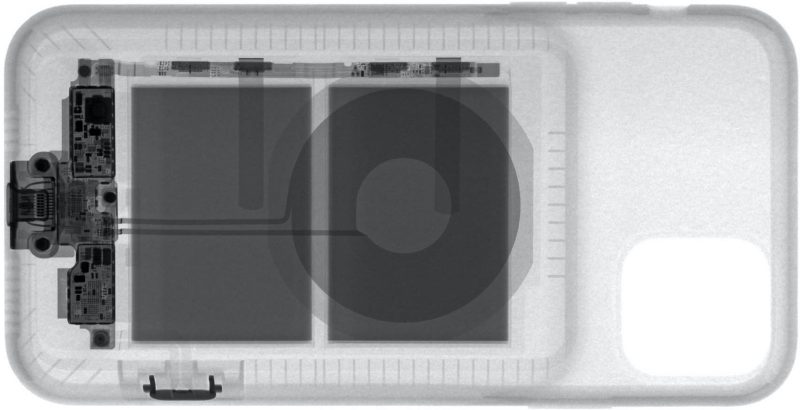
Noted repair site iFixit and Creative Electron today did an x-ray teardown of the new battery cases to take a quick glimpse at what's inside and how the near camera button feature works. 
iFixit Does X-Ray Teardown of New iPhone 11 Smart Battery Case
Compared to last year's battery cases, the new cases have a camera button on the right side that's designed to open the camera when it's pressed. With the Camera app open, pressing the button takes a photo, and holding it down takes a QuickTake video. 

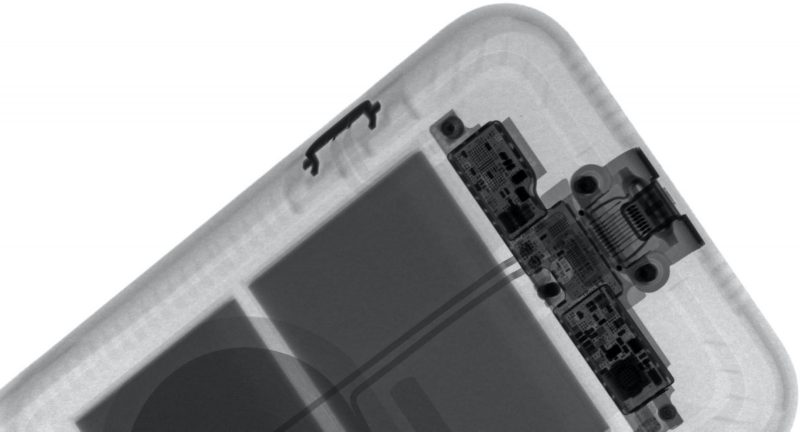
According to iFixit's x-rays, the camera button works though a little circuit board in the case, which has a thin, flexible circuit that runs to the photo button. The circuit board is designed to connect to the camera button through the Lightning port at the bottom of the case. 
iFixit Does X-Ray Teardown of New iPhone 11 Smart Battery Case
The button is designed to be just a bit recessed to prevent it from activating in a pocket or a bag, and you do need to hold it down for just a bit to open the camera app to begin with. All in all, it's a useful little feature that adds some nice utility to the Smart Battery Case. 

There's little else of interest in the x-ray, but the inductive charging coil is visible, as is the 10.9v battery and other internal circuitry that makes the case functional. 

Source: Macrumors

Windows
Mac OS
iOS
Linux
3uTools
Win 64-bit For this device
V9.0 2025-11-11
Download
Win 32-bit For this device
V9.0 2025-11-11
Download
3uTools
Intel Chip How to Identify Chip Type
V9.0 2025-12-02
Download
Apple Chip
V9.0 2025-12-02
Download
How to Identify Chip Type
1.  Click the Apple icon in the top-left corner of the screen and select About This Mac.
2.  Check the Processor or Chip field to determine if it is "Intel" or "Apple".
Please use the 3uTools PC client to install the iOS client:
1、 Install either the Windows or Mac version of 3uTools on your computer
2、 Open the PC client and connect your device to the computer via USB cable
3、 After the connection is successful, wait for the computer to automatically install the mobile app for the device, or locate “Install Mobile App” on the computer and manually click to install.
3uTools
deb file
V3.01 2025-11-20
Download
rpm file
V3.01 2025-11-20
Download
Windows
Windows
iOS
iOS
Android
Android
TV
TV
3uAirPlayer
Win 64-bit For this device
V6.0.2 2025-11-19
Download
Win 32-bit For this device
V6.0.2 2025-11-19
Download
iOS Device Mirroring (No App Required)
1、 Install 3uAirPlayer on the Windows PC
2、 Open Control Center and select Screen Mirroring
3、 From the list, choose your PC to start mirroring
4、 Or connect your iOS device to the PC via USB to begin mirroring
Scan to get "3uAirPlayer" App
3uAirPlayer TV V1.0.18
2025-11-28
TV System Requirements: Android 7.0 or later
Download the TV installation package, copy it to a USB drive, insert it into your TV or set-top box, then select the file from the home screen to install.




