
NEWS

Concept Imagines how macOS Could be More Similar to iPadOS

11/22/2019

3068

WWDC and the next versions of Apple’s operating systems are still far away, but there are already some people making bets on how the new iOS and macOS should look in the future. This particular concept created by designer Kamer Avdan imagines what a redesigned “macOS 11” would look like if it was more similar to iPadOS in some respects.
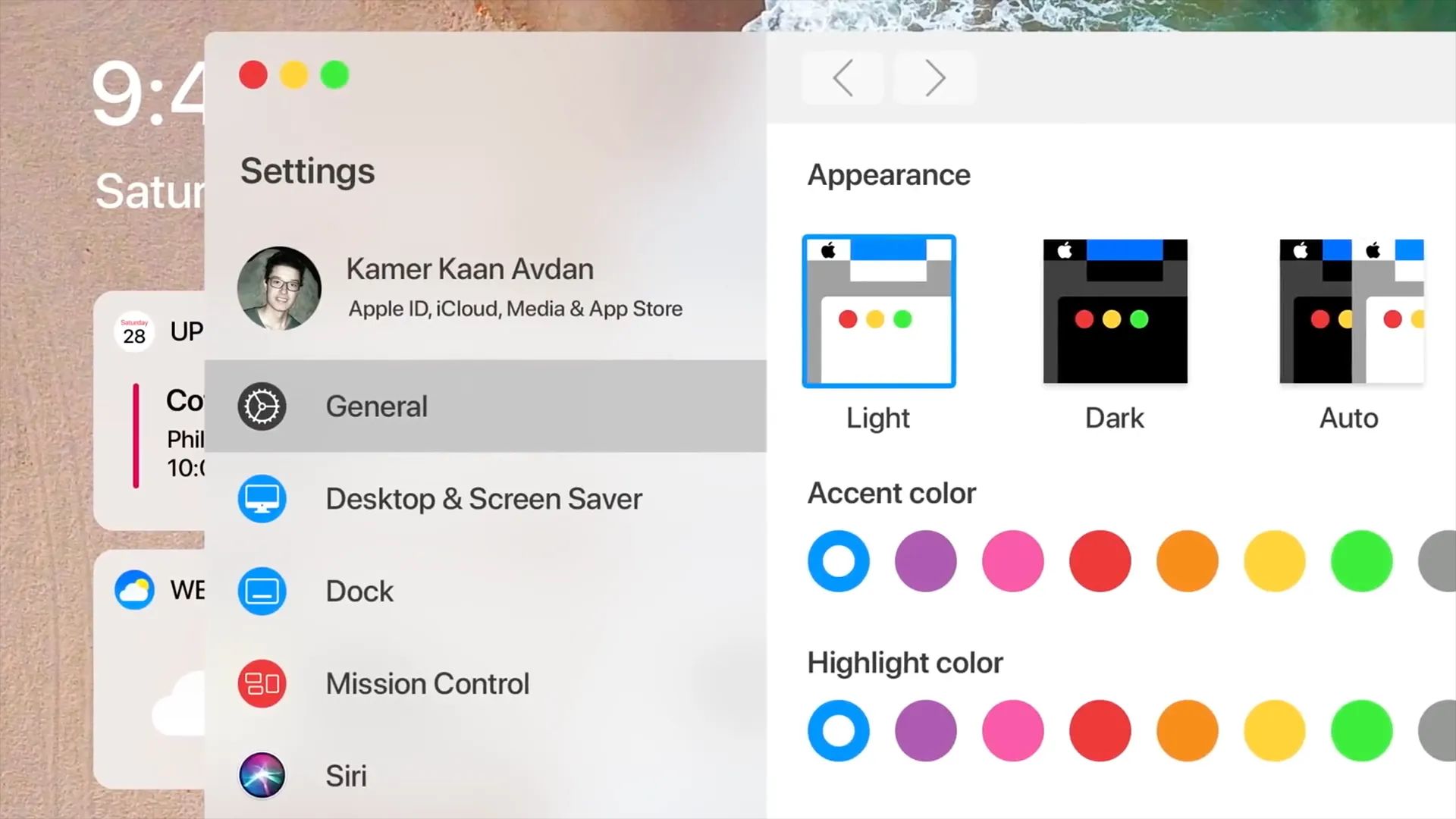

Concept Imagines how macOS Could be More Similar to iPadOS


In the concept, the icons and other elements of the system were redesigned to be flatter, just like on iOS devices. The first thing we see is a new drag-and-drop method, inspired by the gestures on the iPad. By dragging and holding a document, you could quickly drop it into one of the apps open in the background.


Users would be able to add some widgets to the Mac desktop, such as calendar events and the weather, just as on the iPad home screen with iPadOS. It also shows a new System Preferences that is most similar to the iPad Settings app, with the menus on the left side of the window.


There are some other details like a true-black Dark Mode, redesigned Mission Control, Face ID interface for new Macs, better pairing process for AirPods, a new gesture to share files instantly in AirDrop, and Siri suggestions on Spotlight.


Although there’s nothing to indicate that Apple plans to change the look of macOS by 2020, it’s always good to see some new ideas.


Source: 9to5mac

Windows
Mac OS
iOS
Linux
3uTools
Win 64-bit For this device
V9.0 2025-11-11
Download
Win 32-bit For this device
V9.0 2025-11-11
Download
3uTools
Intel Chip How to Identify Chip Type
V9.0 2025-12-02
Download
Apple Chip
V9.0 2025-12-02
Download
How to Identify Chip Type
1.  Click the Apple icon in the top-left corner of the screen and select About This Mac.
2.  Check the Processor or Chip field to determine if it is "Intel" or "Apple".
Please use the 3uTools PC client to install the iOS client:
1、 Install either the Windows or Mac version of 3uTools on your computer
2、 Open the PC client and connect your device to the computer via USB cable
3、 After the connection is successful, wait for the computer to automatically install the mobile app for the device, or locate “Install Mobile App” on the computer and manually click to install.
3uTools
deb file
V3.01 2025-11-20
Download
rpm file
V3.01 2025-11-20
Download
Windows
Windows
iOS
iOS
Android
Android
TV
TV
3uAirPlayer
Win 64-bit For this device
V6.0.2 2025-11-19
Download
Win 32-bit For this device
V6.0.2 2025-11-19
Download
iOS Device Mirroring (No App Required)
1、 Install 3uAirPlayer on the Windows PC
2、 Open Control Center and select Screen Mirroring
3、 From the list, choose your PC to start mirroring
4、 Or connect your iOS device to the PC via USB to begin mirroring
Scan to get "3uAirPlayer" App
3uAirPlayer TV V1.0.18
2025-11-28
TV System Requirements: Android 7.0 or later
Download the TV installation package, copy it to a USB drive, insert it into your TV or set-top box, then select the file from the home screen to install.




