 NEWS
NEWS
Apple Seeds Third Betas of iOS 13.3 and iPadOS 13.3 to Developers
 11/21/2019
 3775
3775
Apple today seeded the third betas of upcoming iOS and iPadOS 13.3 updates to developers, one week after seeding second betas and three weeks after the release of iOS 13.2 and iPadOS 13.2 with new emoji, Siri privacy controls, Deep Fusion, and more.
iOS and iPadOS 13.3 can be downloaded through the Apple Developer Center or over the air after the proper developer profile has been installed. 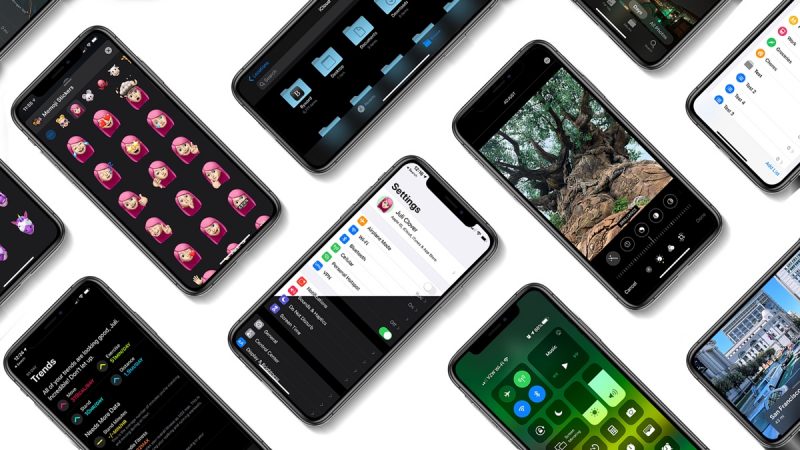
iOS 13.3 introduces Communication Limits for Screen Time, a feature that Apple promised would be coming in an iOS 13 update. Communication Limits allow parents to control who their children are able to contact both during downtime and during Screen Time.
Communication Limits include FaceTime, Phone, and Messages, along with iCloudcontacts. Calls to emergency numbers are always allowed and will turn off communication limits for 24 hours when placed.
The update includes support for NFC, USB, and Lightning FIDO2-compliant security keys in Safari. That means physical security keys like the Lightning-equipped YubiKey can be used for more secure two-factor authentication in place of a software-based two-factor authentication option.
In the Keyboards section of the Settings app (under General), there's a new toggle that prevents Animoji and Memoji stickers from being displayed as an option on the Emoji Keyboard, and when editing a video, there's an option to save the edited version as a new clip rather than saving over the original.
Apple has also tweaked the Apple Watch app icon, changing the color of the Digital Crown from black to gray.
Source: Macrumors










