 NEWS
NEWS
Apple Engineer Explains how the Incredibly Useful Security Code AutoFill Feature Came to be
 10/21/2019
 2957
2957
One of the most useful new features to come to iOS over the last several years has been Security Code AutoFill. Added in iOS 12, this feature autofills the security code authentication text messages you receive from banks, websites, and more.
On Twitter this weekend, an Apple software engineer has offered a fun look at how the feature was developed.
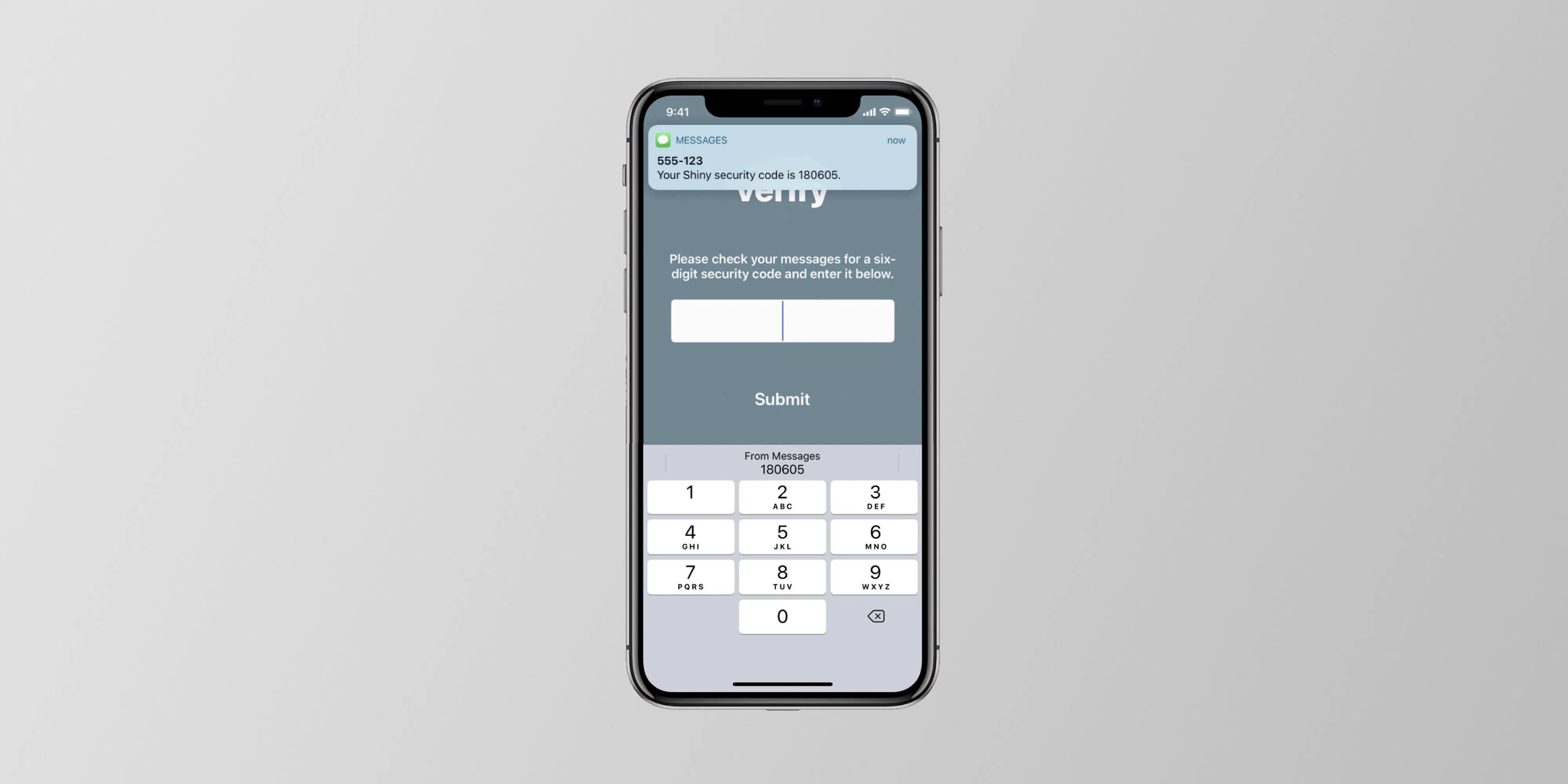
Ricky Mondello explains that the idea for Security Code AutoFill actually came about while software engineers were working “what we thought was a much more ambitious project.” At first, Mondello says the idea was tabled for later, but when the “more ambitious” project didn’t work out, they shifted focus.
The idea for Security Code AutoFill came out of a small group of software engineers working on what we thought was a much more ambitious project. It wasn’t a PM, it wasn’t just one person, and it wasn’t what we set out to do initially. It started as a small side idea we had while designing something very different.
We jotted it down, tabled it for weeks, and then picked it up after the “more ambitious” project wasn’t panning out. It was hard, but I’m so glad we changed focus.
Mondello emphasizes that what makes the feature so great is that Security Code AutoFill works without having developers do anything, and while preserving user privacy: Years later, I’m still so proud of the team for making this feature happen. The team combined expertise from several areas to ship magic that worked on day 1, while asking nothing of app and website developers, without giving anyone your text messages. This still inspires me!
As for some people arguing that Android had the feature first, Mondello says “Nah. Details matter. Privacy matters. And clipboard != AutoFill.”
You can read more from Mondello on their full Twitter thread right here.
Source: 9to5mac










