 NEWS
NEWS
External Drive Support in iOS 13 Makes it Possible to Easily Share Files With a Kindle
 06/19/2019
 3684
3684
iOS 13 and iPadOS 13 add long-awaited support for external drive access in the Files application. This means you can access files on a USB drive, SD card, or hard drive directly from your iPhone. One YouTuber has also discovered that this makes it incredibly easy to manage a Kindle with iOS 13 and iPadOS 13.
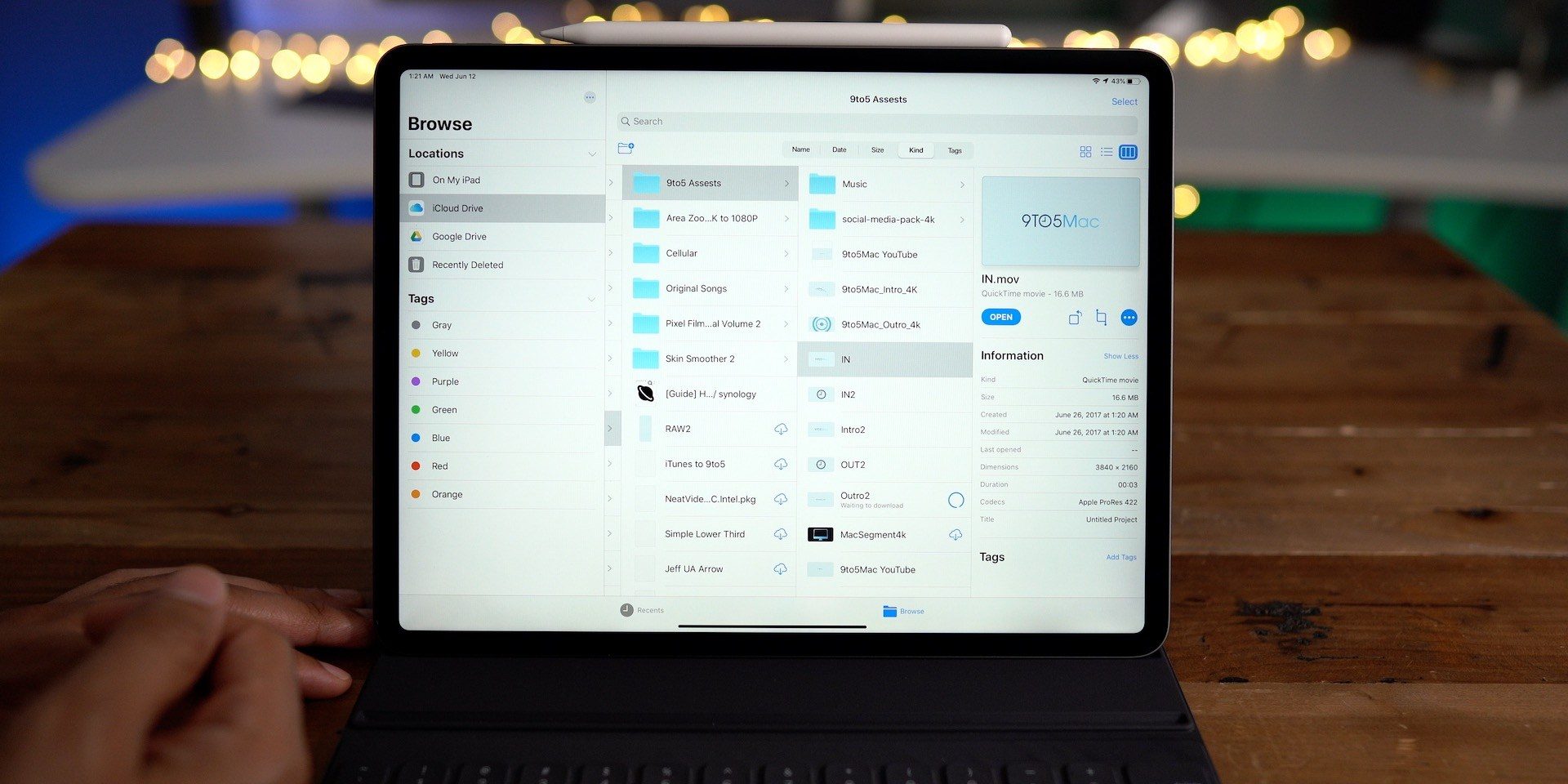
This isn’t necessarily a surprising discovery; when you plug a Kindle in a Mac, it works just like a USB flash drive. What’s unique, however, is that when paired with Safari’s new download manager in iOS 13, you can download a book and transfer it to your Kindle, all from your iPhone or iPad.
In the video below, YouTuber ‘Napabar’ details how to copy a book from your iPhone to your Kindle using Apple’s Lightning to USB-A adapter. In the video, you can see how to download a free book from Project Gutenberg, transfer it from your iPhone to your Kindle via the Files app, and then read the book on your Kindle.
This is particularly useful if you’re in an area where there’s no WiFi connectivity as you can download the book via your cellular connection, then easily transfer it directly to your Kindle. Typically, you’d have to email the file to your Kindle, which of course you can’t do if there’s no available internet for the e-reader.
As we spend more time with iOS 13 and iPadOS 13, we’ll undoubtedly discover more ways to take advantage of external drive support in the Files app. The feature has been a longtime coming for many people, and there are numerous different use cases for it. What are you most excited for? Let us know down in the comments.
Source: 9to5mac










