 NEWS
NEWS
Apple CEO Tim Cook on iOS 13's Sign In with Apple: 'We're Not Really Taking a Shot at Anybody'
 06/04/2019
 3442
3442
Following today's WWDC keynote event that saw the debut of new software for iOS, macOS, iPadOS, watchOS, and tvOS, Apple CEO Tim Cook spoke with CBS Evening Newsand shared a few quick thoughts on one of the new features, Sign In with Apple.
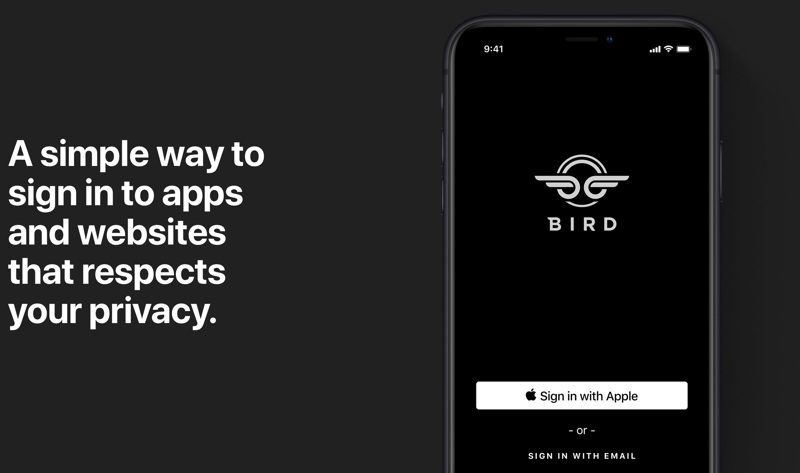
Sign In with Apple is designed to let you sign into apps using your Apple ID for authentication purposes, offering up a privacy-focused alternative to signing in with accounts from sites like Facebook, Google, or Twitter.
Cook was asked whether Apple was taking a shot at the way Facebook and Google collect user data with the new feature, but Cook said that wasn't the case. Apple, he says, focuses on the user, and the company believes people want to be able to use the web without being under surveillance.
When asked whether Facebook cares about privacy and security, Cook says that "everybody's beginning to care more" thanks to increased awareness of what's been happening.
New App Store guidelines provided to developers today suggest Sign In with Apple is going to be a mandatory feature in all apps that offer third-party sign-in options.
If an app lets you log in using Facebook, Google, or Twitter, the app will also need to present users with the Sign In with Apple option too.
Sign In with Apple authenticates a user with Face ID or Touch ID, and keeps personal information safe from app and website developers. It's designed to let Apple users create a new account in an app using a one-click button without leaking user data.
Sign In with Apple also lets Apple users create a randomly-generated email address that hides your own email address when you're signing up for an app or service.
The new Sign In with Apple feature will be available starting later this year.
Source: Macrumors









