NEWS

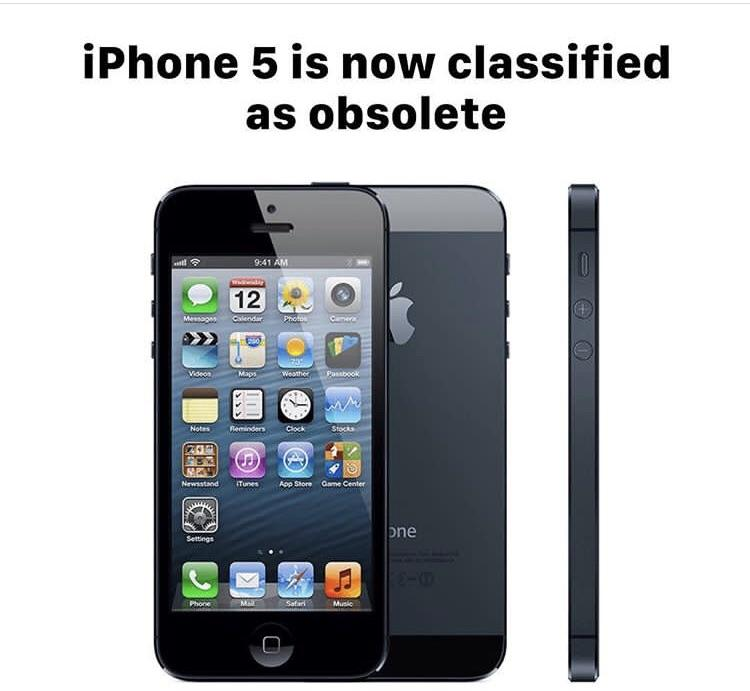
Apple Declares iPhone 5 Obsolete Six Years after Launch

11/02/2018

2872

Apple Declares iPhone 5 Obsolete Six Years after Launch


The iPhone 5 was added to Apple's "vintage and obsolete" product list on Tuesday, noting the hardware is now considered vintage in the United States and obsolete in the rest of the world. Devices that fall into the "vintage" category, defined as products in production for more than five years but less than seven, are excluded from ongoing repair support except in regions where local laws preclude such prohibitions.

Mac Otakara noted the addition to Apple's product support document 
on Wednesday.

Apple 
debuted iPhone 5 at a special media event in 2012. The 4-inch handset was the first of Apple's smartphones to move away from the 3.5-inch screen size that dictated iPhone's form factor for five device generations. Apple has since embraced a looser stance on designs with larger screens, a trend toward "phablets" that culminated in this year's 6.5-inch iPhone XS Max. 

Along with a larger Retina display, iPhone 5 introduced a number of technologies, some of which, like the proprietary Lightning port, are still in use today. The handset was Apple's first to support 4G LTE connectivity and its last to sport a 32-bit A-series chip. Apple cut off iOS support for iPhone 5, and other legacy devices with 32-bit processors, when it released iOS 11 
last year.

Apple routinely obsoletes legacy devices as new hardware versions take their place.


Source: appleinsider

Windows
Mac OS
iOS
Linux
3uTools
Win 64-bit For this device
V9.0 2025-11-11
Download
Win 32-bit For this device
V9.0 2025-11-11
Download
3uTools
Intel Chip How to Identify Chip Type
V9.0 2025-12-02
Download
Apple Silicon
V9.0 2025-12-02
Download
How to Identify Chip Type
1.  Click the Apple icon in the top-left corner of the screen and select About This Mac.
2.  Check the Processor or Chip field to determine if it is "Intel" or "Apple".
Please use the 3uTools PC client to install the iOS client:
1、 Install either the Windows or Mac version of 3uTools on your computer
2、 Open the PC client and connect your device to the computer via USB cable
3、 After the connection is successful, wait for the computer to automatically install the mobile app for the device, or locate “Install Mobile App” on the computer and manually click to install.
3uTools
deb file
V3.01 2025-11-20
Download
rpm file
V3.01 2025-11-20
Download
Windows
Windows
iOS
iOS
Android
Android
TV
TV
3uAirPlayer
Win 64-bit For this device
V6.0.2 2025-11-19
Download
Win 32-bit For this device
V6.0.2 2025-11-19
Download
iOS Device Mirroring (No App Required)
1、 Install 3uAirPlayer on the Windows PC
2、 Open Control Center and select Screen Mirroring
3、 From the list, choose your PC to start mirroring
4、 Or connect your iOS device to the PC via USB to begin mirroring
Scan to get "3uAirPlayer" App
3uAirPlayer TV V1.0.18
2025-11-28
TV System Requirements: Android 7.0 or later
Download the TV installation package, copy it to a USB drive, insert it into your TV or set-top box, then select the file from the home screen to install.