 NEWS
NEWS
Apple is Still Signing iOS 11.4.1 OTA Update Randomly
 10/11/2018
 6692
6692
For some unknown reason, Apple has started signing iOS 11.4.1 again. Read on to find out how you can take advantage of this brief signing window.
iOS 11.4.1 is still being signed via OTA
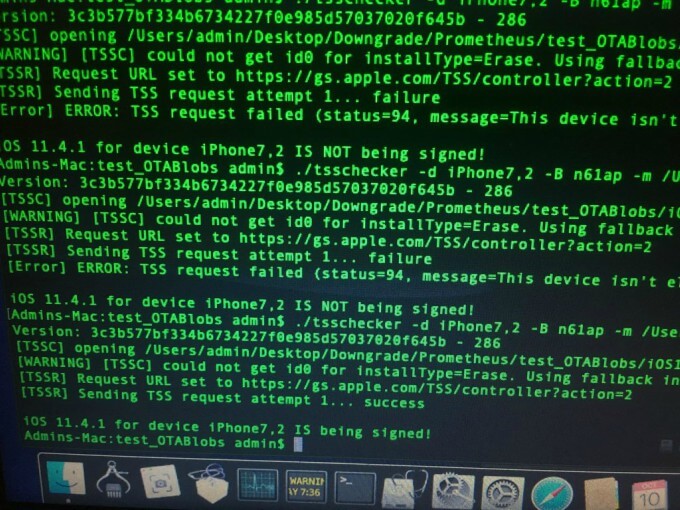
Apparently, Apple is signing iOS 11.4.1 after unsigning the firmware a few days ago. Reddit user tolsp posted a screenshot confirming the signing status of the version.
In this image, TSS Checker successfully fetches the signing status for iPhone 7,2 (iPhone 6) from Apple’s servers.
The first two checks return the “NOT being signed” errors. However, the third check returns the “IS being signed” message, signifying that the firmware is indeed signed but only randomly.
Some jailbreakers theorize Apple is trying subliminally coerce the jailbreak community to upgrade their devices.
Since iOS 11.4.1 has a high chance of getting a jailbreak in the future, some users will try to upgrade their devices using FutureRestore.
However, firmware restore will fail due to the haphazard signature thus forcing them to move to iOS 12.
What now?
Of course, any firmware without a jailbreak is not worth upgrading to. However, that could change in the future if Ian Beer drops a powerful kernel exploit for iOS 11.4.1.
If the TSS server signs the iOS 11.4.1 OTA ZIP archive, we will be able to create a custom manifest file for the Baseband and SEP files. You will then be able to use these files with FutureRestore for a clean restore.
It’s too early to presume Apple is deliberately doing this to lure jailbreakers. TSS servers can and do malfunction sometimes, which results in a lot of firmware versions getting signed and unsigned at the same time.










