
NEWS

Apple Stops Signing iOS 11.4.1

10/09/2018

5819

Apple stops signing iOS 11.4.1, preventing downgrades from iOS 12 to iOS 11.


Following the release of iOS 12.0.1 to the public today , Apple has stopped signing iOS 11.4.1. With this change, users can no longer downgrade from iOS 12 to iOS 11. Though, downgrading from iOS 12.0.1 to iOS 12.0 is still possible.
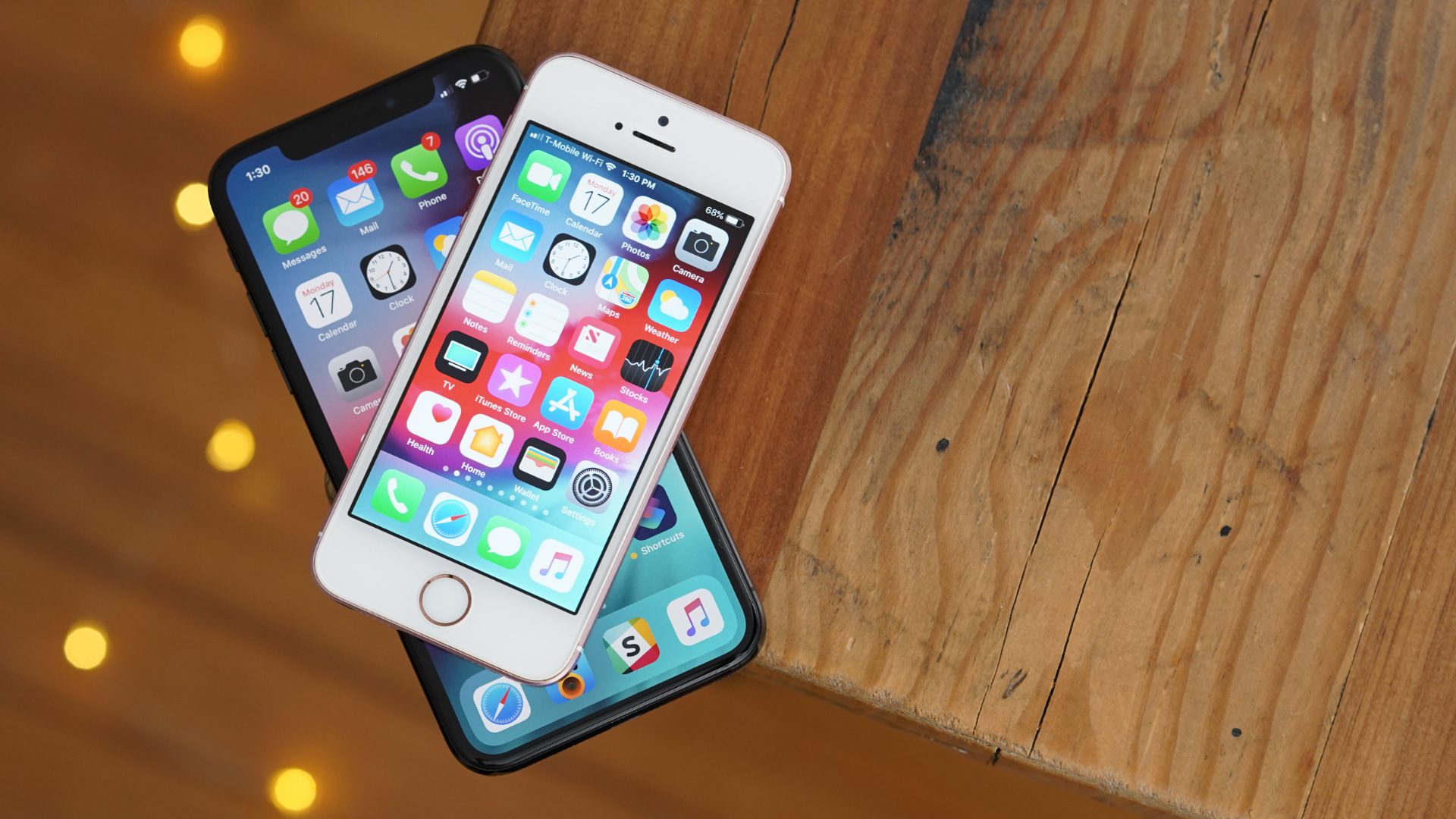

Apple Stops Signing iOS 11.4.1


iOS 12.0.1, released earlier today, focused on bug fixes and performance improvements. The update includes fixes for iPhone XS charging issue, changes to the iPad keyboard layout, and more.


Downgrade from iOS 12 to iOS 11

It’s normal of Apple to stop signing older versions of iOS several weeks after another release. This is exactly what is happening here, thus it is no longer possible to downgrade from iOS 12 to iOS 11.


If you are having issues with iOS 12.0.1 specifically, however, you can still downgrade to iOS 12 without issue. Though, as time progresses Apple will eventually block that downgrade as well – so don’t wait too long.


Early data shows that iOS 12 is already installed on 50 percent of active devices, a number which outpaces the adoption rate of iOS 11 last year. Apple has a vested interest in keeping the highest number of users possible on the latest iOS release, including access to the latest features and performance improvements, as well as security.


Apple is currently beta testing iOS 12.1, as well. This update includes features such as Group FaceTime support. It will likely be released as an update to iOS 12.0.1 sometime this month.


Source: 9to5mac


Windows
Mac OS
iOS
Linux
3uTools
Win 64-bit For this device
V9.0 2025-11-11
Download
Win 32-bit For this device
V9.0 2025-11-11
Download
3uTools
Intel Chip How to Identify Chip Type
V9.0 2025-12-02
Download
Apple Silicon
V9.0 2025-12-02
Download
How to Identify Chip Type
1.  Click the Apple icon in the top-left corner of the screen and select About This Mac.
2.  Check the Processor or Chip field to determine if it is "Intel" or "Apple".
Please use the 3uTools PC client to install the iOS client:
1、 Install either the Windows or Mac version of 3uTools on your computer
2、 Open the PC client and connect your device to the computer via USB cable
3、 After the connection is successful, wait for the computer to automatically install the mobile app for the device, or locate “Install Mobile App” on the computer and manually click to install.
3uTools
deb file
V3.01 2025-11-20
Download
rpm file
V3.01 2025-11-20
Download
Windows
Windows
iOS
iOS
Android
Android
TV
TV
3uAirPlayer
Win 64-bit For this device
V6.0.2 2025-11-19
Download
Win 32-bit For this device
V6.0.2 2025-11-19
Download
iOS Device Mirroring (No App Required)
1、 Install 3uAirPlayer on the Windows PC
2、 Open Control Center and select Screen Mirroring
3、 From the list, choose your PC to start mirroring
4、 Or connect your iOS device to the PC via USB to begin mirroring
Scan to get "3uAirPlayer" App
3uAirPlayer TV V1.0.18
2025-11-28
TV System Requirements: Android 7.0 or later
Download the TV installation package, copy it to a USB drive, insert it into your TV or set-top box, then select the file from the home screen to install.




