 NEWS
NEWS
Apple’s Creating a Portal for Legal Law Enforcement User Data Requests
 09/07/2018
 2778
2778
To better handle data requests from law enforcement agencies, Apple plans on introducing a dedicated website for this purpose before the end of the year. This online portal will become the one-stop location law enforcement agencies worldwide can go to submit requests for data, track requests, and obtain responsive data from Apple. The company’s plans were recently added to a government privacy page on the Apple website.
According to Apple:
We are building a team of professionals dedicated to training law enforcement officers globally, which will significantly increase our ability to reach smaller police forces and agencies. This will include the development of an online training module for officers. This will assist Apple in training a larger number of law enforcement agencies and officers globally, and ensure that our company’s information and guidance can be updated to reflect the rapidly changing data landscape.
Make no mistake, Apple isn’t just going to start handing over data to law enforcement agencies upon request. They must be legally requested. Besides, although offering a dedicated website to law enforcement is new, Apple has long been working with those agencies to provide timely information when requested. The company says its legal department responds to emergency requests globally on a 24/7 basis.
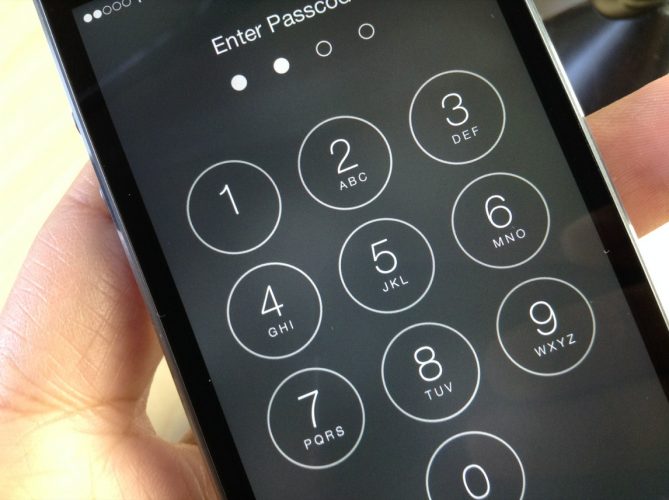
Apple’s dealings with law enforcement over the protection of user data came to light a few years ago when the FBI wanted the company to offer a backdoor for them to open an iPhone used by a shooter. Apple refused, and the government eventually found another way into the device.
Source: idb










