 NEWS
NEWS
Isolated Reports of Apple Pay Transactions Showing the Wrong Stores
 07/20/2018
 3147
3147
A friend contacted me yesterday to report that his iPhone was displaying the wrong stores for some of his recent Apple Pay transactions, and it seems he’s not alone in this …
Andrew Poodle told me that a transaction actually made at a branch of the pharmaceutical chain Boots was listed as Soboro, an unrelated store next door. Another one made at supermarket Aldi showed up as St Neots Windows, a company across the other side of the street.
In both cases, it appears that the iPhone was identifying the transactions by GPS location rather than store-reported data, and that errors in the mapping were resulting in the iPhone listing incorrect details. His credit card statement showed the correct details for both transactions.
A few other reports have shown up in a thread on Apple’s support communities.
Really weird thing going on with Apple Pay. I wondered if anyone had seen this before.
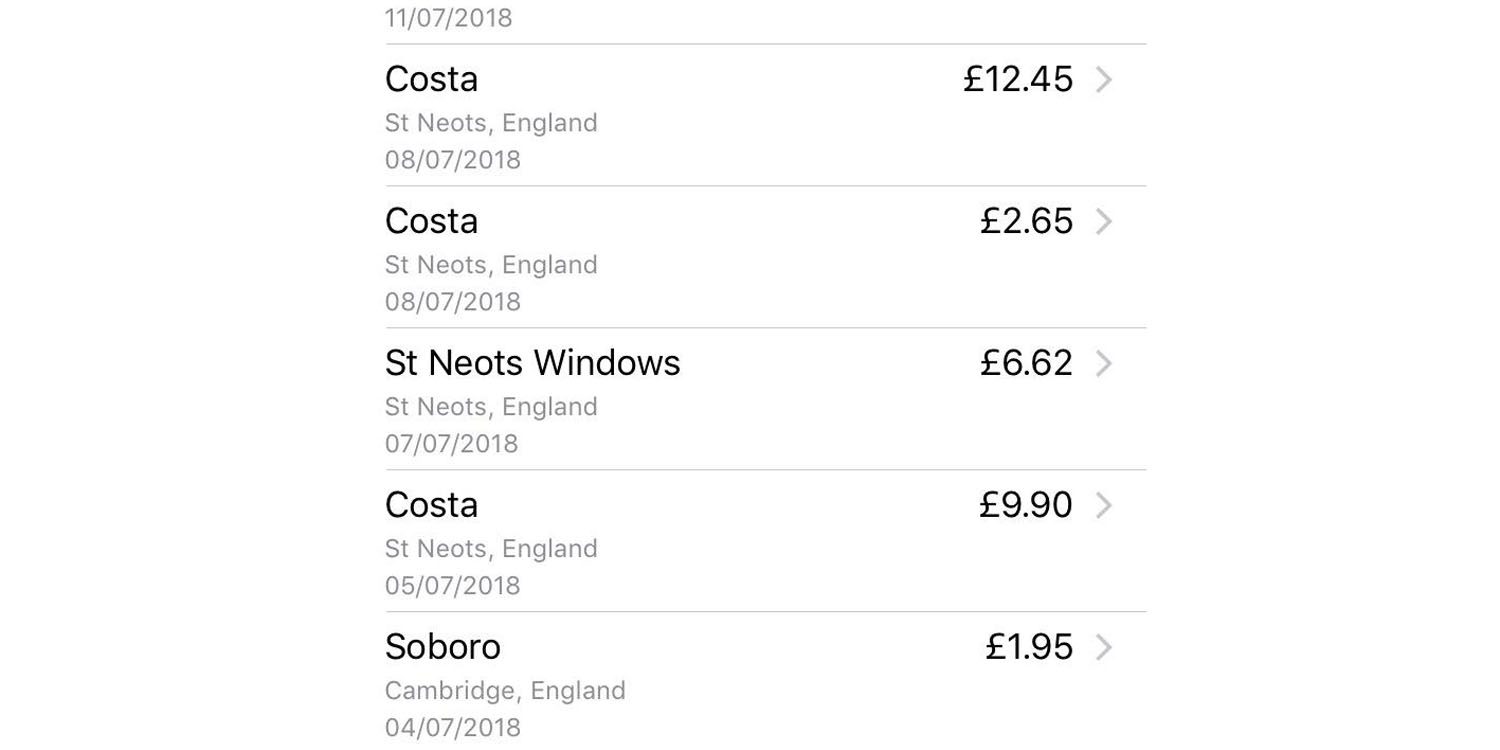
All my transactions from yesterday show the wrong company names. They are all companies on the same street where I made a transaction but they are not the companies that I spent money with.
For example I brought a train ticket in the morning but the payment is listed under a limo company outside the station.
In the afternoon I bought a coat on “street a” with “company x” but the transaction shows a different company on “street a”.
All the amounts are correct but the company names are wrong.
Two others described the same thing, with all those affected in the UK.
I bought my lunch from the Waitrose at head office and the transaction showed as the Starbucks cafe about 100m away.
In all cases, the correct details were recorded by their banks, so this appears to be a glitch only impacting the Transactions tab on the iPhone. In my case, all the transactions listed are correct, but some recent ones are missing.
You can check yours by going to Settings > Wallet > <Card> and then tapping the Transactions tab.
Source: 9to5mac









